Vipin PG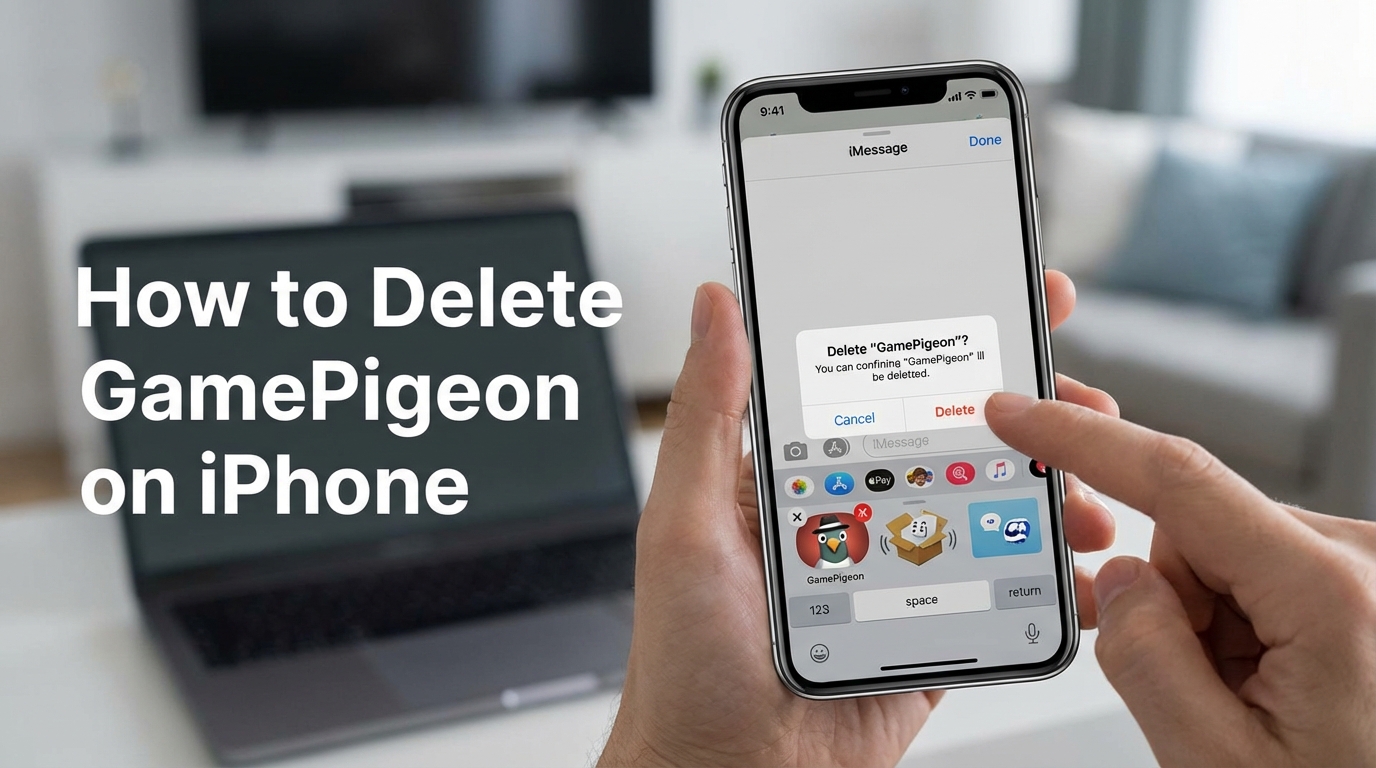
GamePigeon is a blast — until it isn’t. At some point, it just becomes another thing cluttering up your Messages app, and you want it gone. The process trips people up because GamePigeon isn’t a typical standalone iPhone game you can just swipe away from your Home Screen. It runs as an iMessage extension inside Messages, which means the right way to remove it goes through Apple’s iMessage controls. Apple’s own iMessage app guide spells out that distinction pretty clearly.
Also worth knowing: GamePigeon is still live on the App Store, so deleting it now doesn’t lock you out for good. If you change your mind down the road, you can always grab it again from the official GamePigeon App Store listing.
What Is GamePigeon, Exactly?
GamePigeon is an iMessage game extension for iPhone that lets you play multiplayer games directly inside a conversation. No separate app to open, no invite links to juggle — you just play inside a chat thread and trade turns back and forth. That low-friction setup is pretty much why it spread so fast when it launched.
It includes games like 8-Ball, Mini Golf, Basketball, Cup Pong, Chess, Checkers, Word Hunt, and more, according to its current App Store listing. But here’s the part most people miss: because it lives inside Messages, “removing” it can actually mean a few different things — deleting the app entirely, hiding it from the Messages drawer, or just pulling it out of Favorites. Those aren’t the same action, and mixing them up is exactly why so many people feel stuck.
How to Delete GamePigeon from iMessage
If you want GamePigeon gone from the Messages interface entirely, this is the most reliable approach on current iPhone software.
Method 1: Delete It from the Messages App List
- Open the Messages app.
- Open any conversation, or start a new one.
- Tap the + button or open the iMessage app area next to the text field, depending on your iOS layout.
- Tap More.
- Find GamePigeon in the list of iMessage apps.
- Swipe left on GamePigeon and tap Delete.
Apple documents this app-management flow in its Messages instructions for iPhone and iPad, including options to hide, reorder, and remove iMessage apps through the Messages interface and settings. The current Messages user guide also shows that iMessage apps are managed from inside a conversation — which is why so many people miss the right menu the first time around.
Method 2: Delete the App from the Home Screen or App Library
You can also remove GamePigeon the same way you’d delete any other app on your iPhone:
- Find GamePigeon on the Home Screen or in the App Library.
- Touch and hold the app icon.
- Tap Remove App.
- Tap Delete App, then confirm.
Apple’s app removal instructions confirm that deleting an app removes it from iPhone entirely, while removing it from the Home Screen only hides it there and leaves it sitting in the App Library. That difference matters more than most people realize. A surprising number of folks think they’ve deleted GamePigeon when they’ve really just moved the icon out of sight.
How to Hide GamePigeon Without Actually Deleting It
Sometimes you don’t want to uninstall GamePigeon. You just want it out of your face. In that case, hiding it is probably the smarter move.
- Open Settings.
- Go to Apps.
- Tap Messages.
- Tap iMessage Apps.
- Find GamePigeon and turn it off.
You can also handle this from inside Messages — open the iMessage app list, tap More, then Edit, and toggle the app off from there. Apple’s support documentation confirms you can switch iMessage apps on or off from that exact Settings path, and honestly, if your only problem is a cluttered drawer, this is the cleaner option.
It keeps Messages tidier without pulling the app off your phone altogether. If you want it back later, just flip the toggle again.
Does Deleting GamePigeon Remove Old Game Messages?
No — and this is where a lot of guides get muddled.
Deleting GamePigeon does not automatically wipe out old game turns, invites, or past conversations in Messages. The app and the message history are completely separate things. Apple’s Messages help pages treat deleting messages and deleting apps as distinct actions, which is exactly why GamePigeon threads can still be sitting in your chats long after the app itself is gone.
How to Delete Old GamePigeon Messages
- Open Messages.
- Open the conversation containing the GamePigeon messages.
- Touch and hold a game message or attachment.
- Tap More.
- Select the messages you want to remove.
- Tap the trash icon.
- Confirm deletion.
Apple’s message deletion guide confirms this exact flow for removing individual messages and attachments. One thing Apple also notes: deleted messages sit in Recently Deleted for 30 days before they’re gone for good, so don’t be alarmed if they still show up as recoverable for a while.
Why GamePigeon Can Feel Impossible to Remove
Here’s the real issue: a lot of guides lump four totally different actions together and call all of them “delete.”
- Removing GamePigeon from Favorites
- Hiding it from the iMessage app drawer
- Removing its icon from the Home Screen
- Fully deleting the app from iPhone
Those aren’t interchangeable. If GamePigeon keeps “coming back,” it almost always means it was hidden, unfavorited, or removed from the Home Screen — not actually deleted. Once you separate those four things in your head, the whole process stops feeling random.
In my experience, this is why people say the app is “stuck.” It usually isn’t stuck at all. They just completed a different action than the one they were trying to do.
Should You Delete It or Just Hide It?
If you’re done with GamePigeon for good, delete it. That’s the cleaner choice, and it frees up whatever storage the app was using. But if you just want a less crowded Messages experience, hiding it makes more sense. It’s faster, it’s reversible, and you won’t have to re-download anything if you change your mind later.
If storage is your main concern, Apple’s iPhone storage guide also explains the difference between deleting an app and offloading one. Deleting removes the app and its data entirely, while offloading frees up space but holds onto your documents and data so they can be restored later. For something as lightweight as GamePigeon, though, most people will just hide it or delete it outright — offloading is probably overkill here.
How to Reinstall GamePigeon
Changed your mind? No problem at all.
- Open Messages.
- Open any conversation.
- Open the iMessage app drawer.
- Tap the App Store icon.
- Search for GamePigeon.
- Tap Get or the download icon.
Since GamePigeon is still actively listed in the App Store, getting it back is simple. Once it’s reinstalled, it should appear again among your available iMessage apps, and you can re-enable or reorder it however you like.
The Bottom Line
If you want the quickest answer: open Messages, go to the iMessage app list, find GamePigeon, swipe left, and tap Delete. That’s the direct removal route Apple supports. But if all you really want is a tidier Messages drawer, turning it off under Settings > Apps > Messages > iMessage Apps is usually the smarter call.
The main thing to keep straight is that deleting the app, hiding the app, and deleting old game messages are three separate jobs. Once you treat them that way, managing GamePigeon on your iPhone gets a whole lot less frustrating.