Vipin PG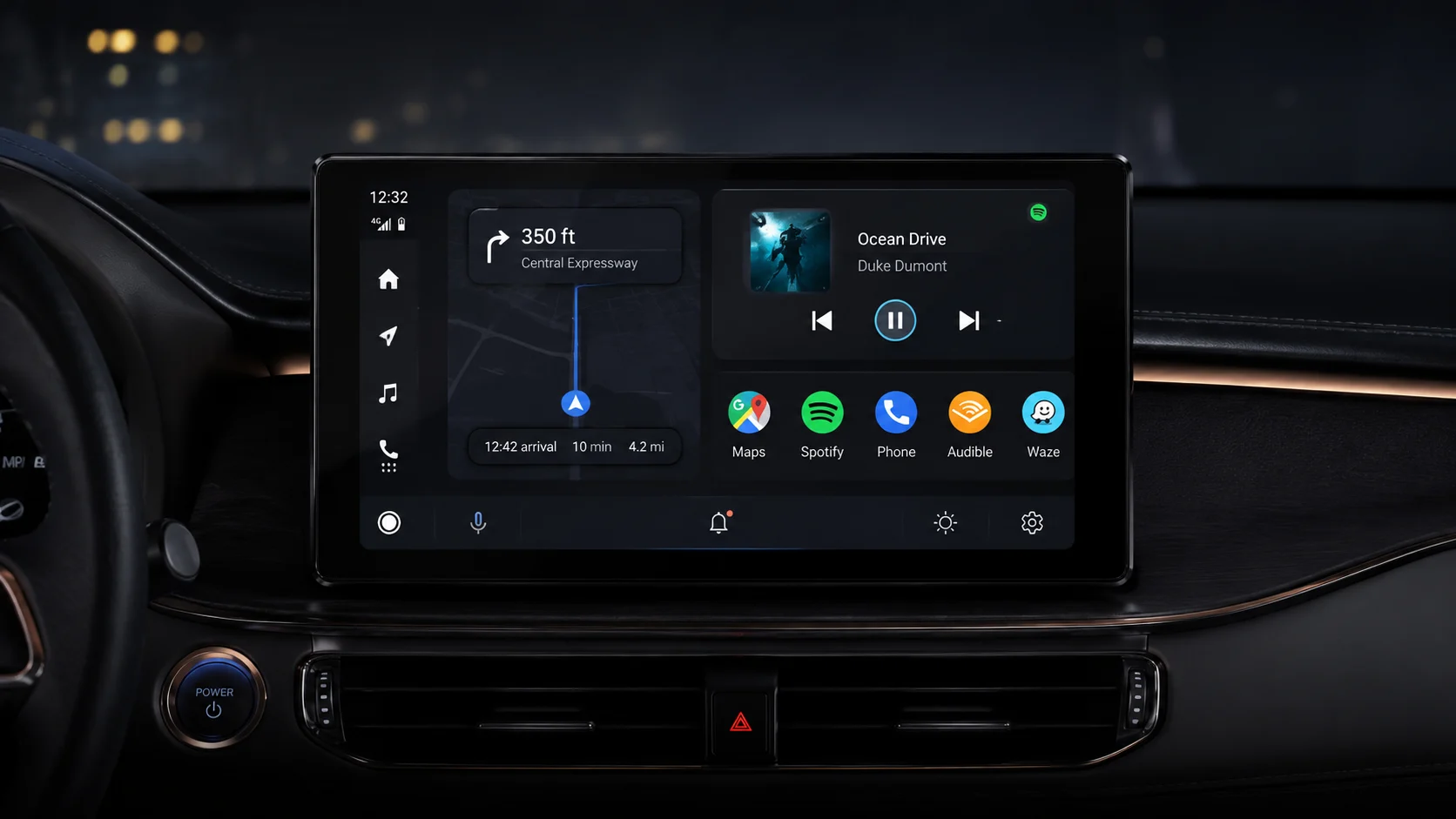
Android Auto is usually associated with navigation, calls, messages and music inside a car. Its simple interface is designed to keep unnecessary distractions away while driving.
That same simplicity also makes Android Auto useful in a few unexpected situations. An old Android phone or tablet can be turned into an Android Auto display, including for cars that do not already support it. Some users are even repurposing spare devices as small desktop dashboards.
There are also several Android Auto settings that are easy to miss, including launcher customisation, Developer Settings, Gemini commands and a hidden way to change the position of the taskbar.
Here are the options worth knowing.
An old Android phone can become an Android Auto display
A spare Android phone or tablet can be used as an Android Auto receiver with an app such as Headunit Revived.
This is useful for an older car that does not have Android Auto built in. The same setup can also sit beside a computer as a simple dashboard.
The idea works because Android Auto limits what you can do on the screen. You still get access to useful functions such as music, notifications, calls, reminders, calendar information, voice commands and supported smart-home controls, but you do not have the full set of distracting phone apps in front of you.
For someone working at a desk, that can reduce the temptation to pick up the main phone every time a notification arrives.
How the setup works
Install Headunit Revived on the Android phone or tablet that will act as the display.
On the main phone, install the companion WiFi Helper app.
In Headunit Revived, open:
Settings > Wireless Mode > Helper Connection Strategy
Select WiFi Direct (P2P).
Then open WiFi Helper on the main phone, choose Wi-Fi Direct as the connection mode and enter the same device name shown in Headunit Revived.
Start Android Auto from WiFi Helper and tap the Wi-Fi option in Headunit Revived. If the connection is set up correctly, Android Auto should appear on the second device.
A wired mode is also available. It may work better in some cases, though keeping two devices connected by cable can make the setup less convenient.
Headunit Revived also includes settings for resolution, scaling and dark mode.
The spare device should be reasonably fast. A phone or tablet that already struggles with basic tasks can make Android Auto feel slow. There is also a limitation when using it as a desktop screen: Maps cannot always be removed completely, so part of the display may remain occupied by navigation.
Remove Android Auto apps you never use
Android Auto can place many compatible apps in its launcher, including apps you are unlikely to open while driving.
You can remove them from the Android Auto home screen without uninstalling them from your phone.
Open Android Auto settings and go to:
Customize launcher
You can hide unwanted apps and change their order.
Navigation, calls, messaging and media apps are probably the ones most drivers will want near the top. Removing everything else also means less scrolling on the infotainment screen.
Android Auto has hidden Developer Settings
Android Auto includes a Developer Settings menu that is normally hidden.
To enable it, open Android Auto settings on your phone and scroll down to the About or version section. Tap the version information repeatedly, usually around 10 times, until developer mode is enabled.
Then open the three-dot menu and select Developer Settings.
The options available here can vary between Android Auto versions. They include settings related to wireless connections, display behaviour and troubleshooting.
Some of these controls are meant for testing, so changing settings at random is not a good idea. Still, the menu can be useful when diagnosing a connection or display problem.
Stop music from playing automatically
Android Auto can resume music, a podcast or other media as soon as it connects to the car.
That behaviour can be disabled.
Open Android Auto settings and find:
Start music automatically
Switch it off if you prefer to choose when playback begins.
It is a small setting, but useful if you frequently leave the car with the volume high or do not want yesterday's podcast to start again the moment Android Auto connects.
Wireless Android Auto can start automatically
Android Auto can also be configured to start when you get into the car, which is particularly useful with a wireless connection.
It removes the need to unlock the phone and start the connection manually each time.
The exact behaviour depends on the phone, vehicle and Android Auto setup. Wireless Android Auto can also use more battery than a wired connection, which is worth keeping in mind on longer drives.
Gemini makes voice commands more useful
Gemini integration expands what you can do through voice commands in Android Auto.
Depending on the features available on your device and account, Gemini can handle requests involving navigation, messages, traffic, music, calendar information and supported smart-home devices.
For example, a command could ask Android Auto to navigate home, check the estimated arrival time and send that ETA to a family member.
Gemini can also be used for requests such as:
- Checking traffic along the route
- Playing a specific Spotify playlist
- Reading calendar information
- Sending messages
- Controlling supported smart-home devices
Android Auto also supports Assistant action shortcuts.
Go to:
Android Auto > Customize launcher > Add a shortcut to the launcher > An Assistant action
Enter the command you want, give the shortcut a name, test it and save it.
This can be useful for commands you repeat regularly instead of speaking the full instruction every time.
Gemini availability and individual functions can differ by phone, Google account, language and Android Auto version.
There is a hidden way to move the Android Auto taskbar
Android Auto does not provide a setting simply called "Taskbar position", but the taskbar can move between the bottom and side of the display on supported screens.
Its position is connected to Quick Controls.
Quick Controls show media buttons such as play, pause and skip directly on the taskbar. Because those controls use a horizontal layout, enabling them usually keeps the taskbar along the bottom of the screen.
Disable Quick Controls and Android Auto may move the taskbar vertically to the side closest to the driver.
The setting has to be changed from Android Auto on the car's display.
Open:
Settings > Show quick controls for apps
Turn the option on to keep Quick Controls and the bottom taskbar.
Turn it off and the taskbar may move to the side.
The side layout can put app icons closer to the driver and leave more vertical space for other content.
It will not work the same way on every infotainment system. Screen size and aspect ratio affect Android Auto's layout, so some displays may keep the taskbar at the bottom even when Quick Controls are disabled.
You can also change the split-screen layout
Android Auto lets you decide whether navigation or media appears closer to the driver's side when using split screen.
Open:
Settings > Change layout
Then choose the arrangement you prefer.
Drivers who interact with Maps more often may want navigation closer to them. Others may prefer easier access to media controls.
A spare phone may be more useful than leaving it in a drawer
Repurposing an older Android device is probably the most unusual option here, but Android Auto's built-in settings are worth checking even if you only use it in your car.
My suggestion would be to start with the simple changes first. Clean up the launcher, adjust automatic playback and test the layout options on your car's display. Developer Settings and a second-device setup make more sense when you have a specific reason to use them.