

Probably the most used messenger app, WhatsApp is a very easy and feature-rich app to use. It has got support for sharing HD images and videos, you can call via the internet(both audio and video), and you have the ability to back up all of your chats in case you get a new phone.
Now, you have finally bought the latest iPhone 15 you have always wanted. You have transferred your media and contacts from your old Android to your brand-new iPhone. But you forgot one thing: Your WhatsApp chats and media. So what do you do? On Android it’s pretty simple: Use your Google Drive backup when setting WhatsApp up on the new phone and restore it. But you can not use Google Drive backup to restore to an iPhone. So what is the alternative?
You try to use the Move to iOS app from the Play Store. But Move to iOS is generally not useful if you want to transfer a large amount of data from an Android to an iPhone. It could get stuck at any random point and is all around slow.
Also, there are a few caveats to this approach. If you've already been using an iPhone and want to transfer your Android’s WhatsApp data to the iPhone using Move to iOS, you will need to do something tedious: Perform a factory reset on the iPhone. See the issue? And even if you go through with it, if you haven’t performed a backup of your data to iCloud or a Mac, you will lose EVERYTHING.
Enter iToolab WhatsGo - WhatsApp Transfer app. This app allows you to seamlessly transfer your WhatsApp from your Android to your iPhone in just a couple of minutes. You don’t even need to perform a factory reset either! All you need are an Android phone, an iPhone, a PC or Mac, and the USB cables for both phones.
 Connect your Android and iPhone
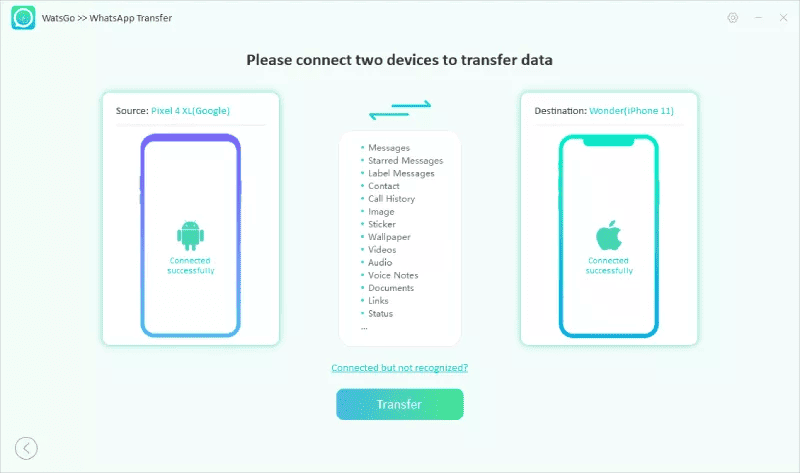
Now, connect your source device(Android phone) and target device(iPhone) to the PC/Mac. If you need to switch between source and target device, just click on the arrows.
Note: Your computer may not recognize your device(s) unless you meet the requirements set by the computer.
For Android, the program will prompt you to open the USB debugging, and remind you to allow USB authorization on your phone.
For iPhone, you must tap on the “Trust” button on your phone if the phone is connected to the computer. Turn off “Find My” on your iPhone. Finally, unlock your iPhone using the passcode.
Connect your Android and iPhone
Now, connect your source device(Android phone) and target device(iPhone) to the PC/Mac. If you need to switch between source and target device, just click on the arrows.
Note: Your computer may not recognize your device(s) unless you meet the requirements set by the computer.
For Android, the program will prompt you to open the USB debugging, and remind you to allow USB authorization on your phone.
For iPhone, you must tap on the “Trust” button on your phone if the phone is connected to the computer. Turn off “Find My” on your iPhone. Finally, unlock your iPhone using the passcode.
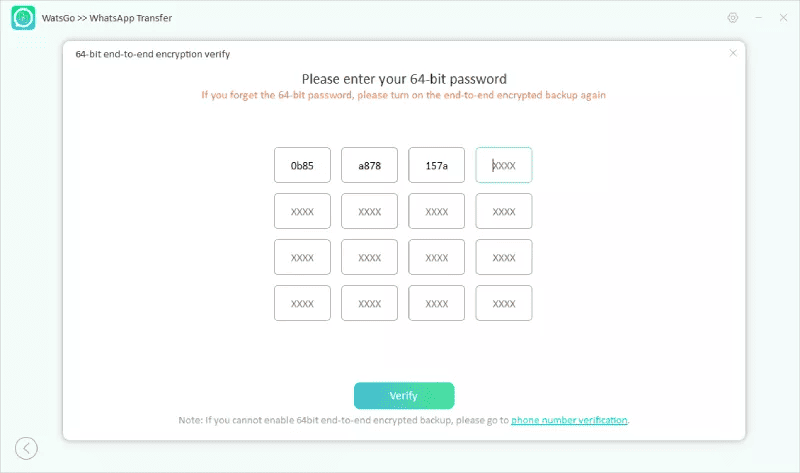
 You will have to verify the encrypted backup with the password, once the backup is generated.
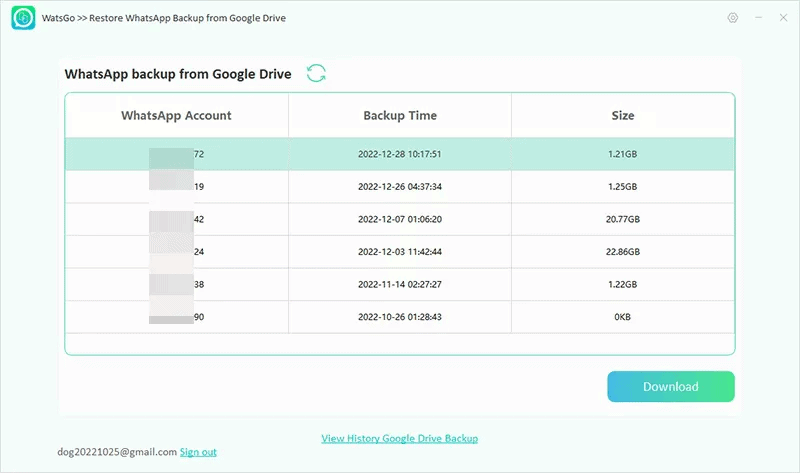
 Log in to the Google account you use to back up your Whatsapp data. Select which backup you need and download it.
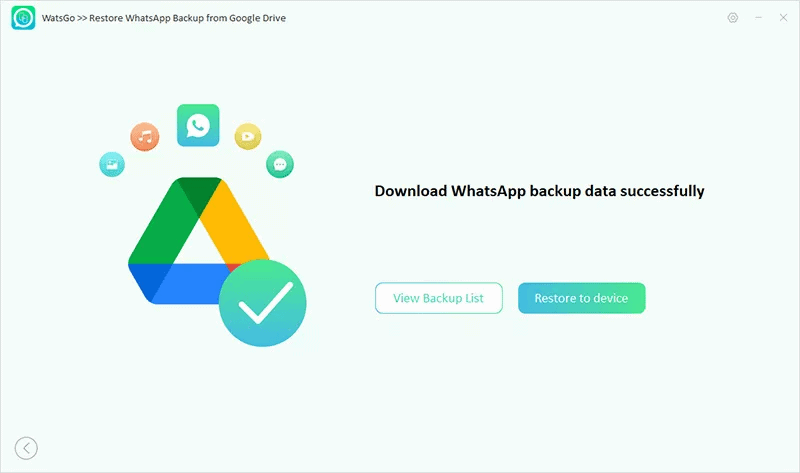
 The app will start to download your backup from your Google Drive account. It will take a few minutes.

 View what is going to be restored using the “View Backup” button.
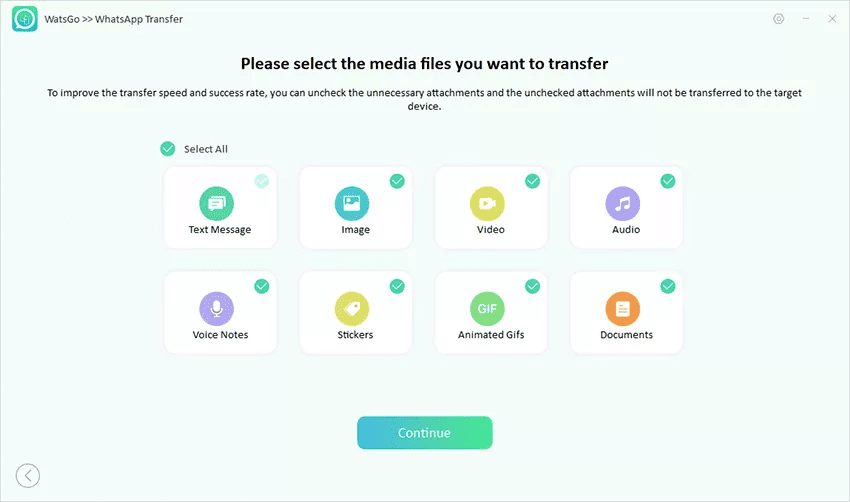
 Now, you will have the option to choose what media should be transferred. Chats are transferred by default. You also get the option to back up all your WhatsApp data onto your computer.
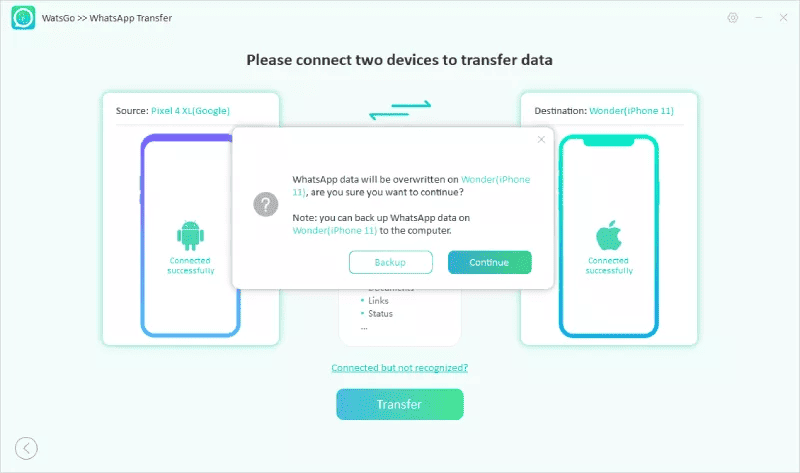
 Post a successful connection, the app will remind you to back up your data since it will be overwritten on the target device.
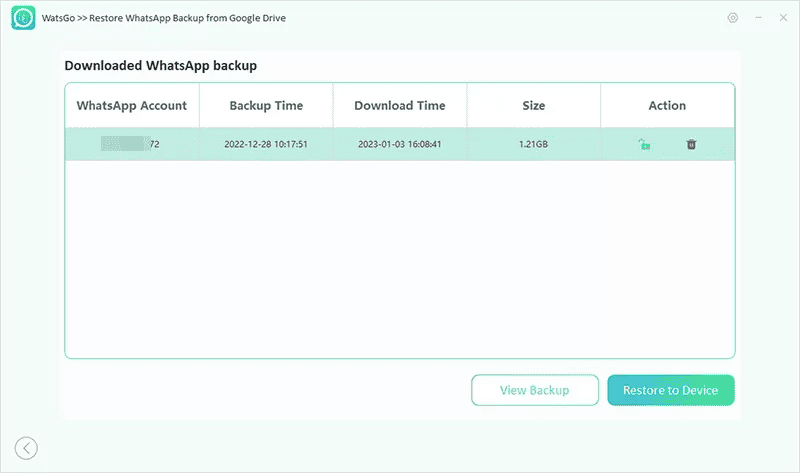 Here, after viewing your chats and media, you get the option to either restore the backup or export it to your computer.
 If you choose to restore your Google Drive backup, just choose “Restore to Device”. Now connect your target device(iPhone) to your computer.
 Now select what data you want to carry over to your iPhone. Text messages will be selected and transferred by default.
 After waiting a few minutes, your backup will be transferred to your iPhone.
 Your iPhone is now supposed to have all of your restored data transferred and ready to use.

What’s the Need for You to Transfer Your WhatsApp From an Android to an iPhone?
You've bought a new iPhone 15. Now you want to use it as your daily driver, but you don’t want to keep your old Android phone just for WhatsApp. You need to transfer all of the WhatsApp chats and media. Or you missed a couple of backups, and the last backup was a couple of months ago. Maybe your Internet was down, and you could not back up your Whatsapp media. The reasons could be endless. Whatever your reason is, WatsGo by iToolab is your quick and easy fix. WatsGo can transfer everything, including your starred messages, stickers, documents, statuses, links, and more!How to Transfer WhatsApp from Your Android to iPhone?
You can transfer WhatsApp from old phone to new iPhone 15 in just 5 easy steps.Download the iToolab WatsGo App, Install It, and Launch It
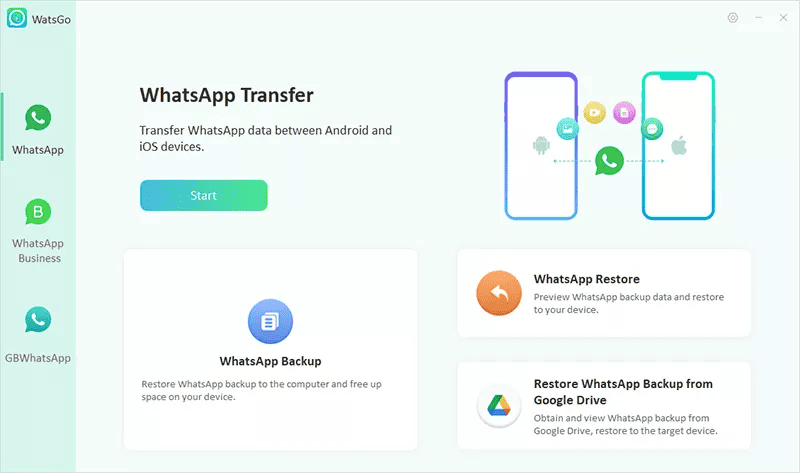
After downloading and installing WatsGo, launch it. After launching, select “WhatsApp” from the left panel and choose the “WhatsApp transfer” option. Click on Start.
Connect your Android and iPhone
Now, connect your source device(Android phone) and target device(iPhone) to the PC/Mac. If you need to switch between source and target device, just click on the arrows.
Note: Your computer may not recognize your device(s) unless you meet the requirements set by the computer.
For Android, the program will prompt you to open the USB debugging, and remind you to allow USB authorization on your phone.
For iPhone, you must tap on the “Trust” button on your phone if the phone is connected to the computer. Turn off “Find My” on your iPhone. Finally, unlock your iPhone using the passcode.
Enable End-to-End Encrypted WhatsApp Backup and Verify with Password
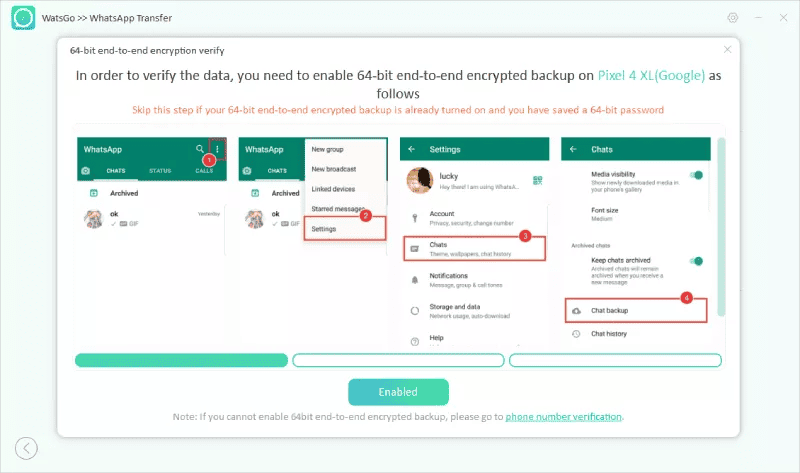
Now, after connecting successfully, turn on “End-to-End encrypted Backup” on your Android device. WhatsApp will show you the steps to continue with it. REMEMBER to take a screenshot of the encrypted password.
You will have to verify the encrypted backup with the password, once the backup is generated.
Generate WhatsApp Backup That Can be Restored to the iPhone
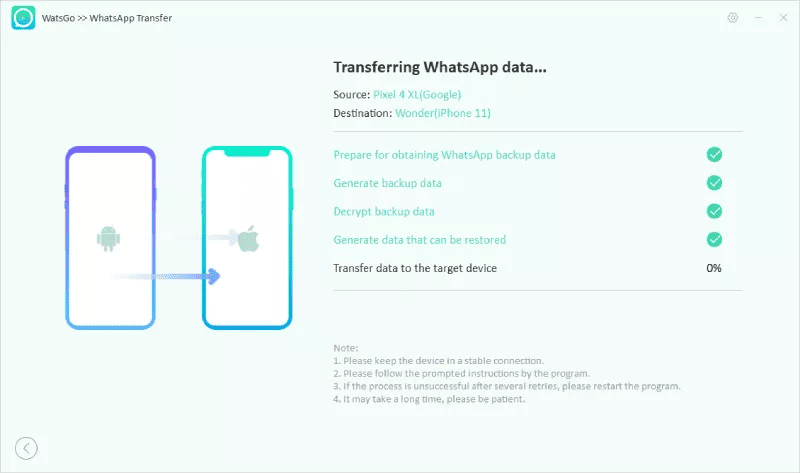
You are almost there! You have to wait for a while for the Android backup to be converted to iPhone format. After that, the backup gets restored to the target device(iPhone).
Transferred WhatsApp Successfully
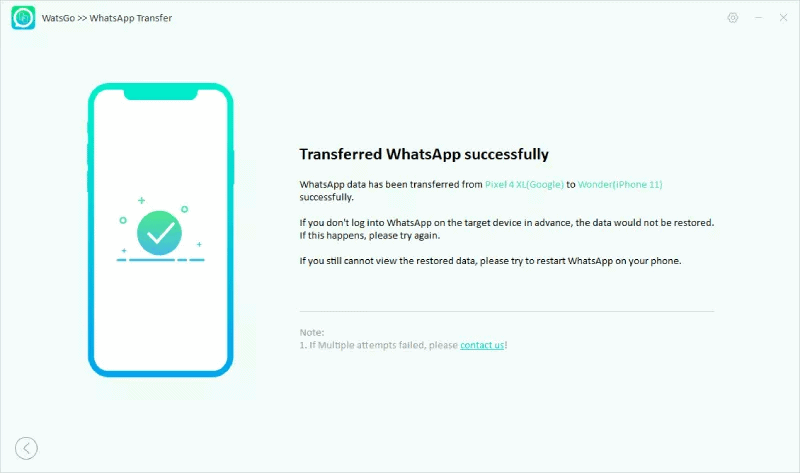
When you see this page, it means that the transfer was done successfully. Now. you can enjoy all your chats on your iPhone, new or old, without having to format it! Your iPhone will reboot after completion, and you can make sure everything is intact.
How to Transfer WhatsApp From iPhone to Android Using Google Drive
“Hey, wait a minute! You said we can’t use a Google Drive backup to transfer WhatsApp data from Android to iPhone at the start of this article!” Well, yes I did, and natively, you can not do that. But that is where WatsGo comes in handy yet again. Select the “Restore WhatsApp Backup from Google Drive” option from the main page of the app.
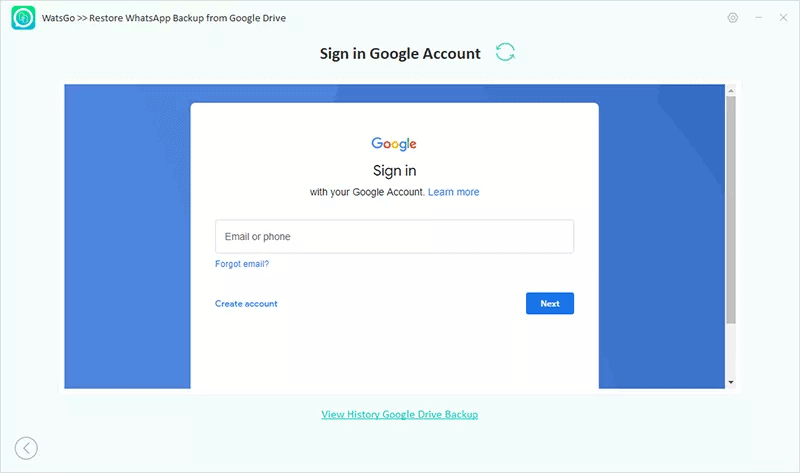
Log in to the Google account you use to back up your Whatsapp data. Select which backup you need and download it.
The app will start to download your backup from your Google Drive account. It will take a few minutes.
View what is going to be restored using the “View Backup” button.
Now, you will have the option to choose what media should be transferred. Chats are transferred by default. You also get the option to back up all your WhatsApp data onto your computer.
Post a successful connection, the app will remind you to back up your data since it will be overwritten on the target device.
Here, after viewing your chats and media, you get the option to either restore the backup or export it to your computer.
If you choose to restore your Google Drive backup, just choose “Restore to Device”. Now connect your target device(iPhone) to your computer.
Now select what data you want to carry over to your iPhone. Text messages will be selected and transferred by default.
After waiting a few minutes, your backup will be transferred to your iPhone.
Your iPhone is now supposed to have all of your restored data transferred and ready to use.