Vipin PG
Sometimes, a file/folder opening attempt from you can result in the appearance of a 'the directory name is invalid' message. This problem can hinder you from accessing crucial files and directories and entire drive storage thus interrupting your work process. However, the solution to this problem isn't out of your reach. In this article, we will check why this error occurs, alongside step-by-step directions for repairing it!
What Triggers 'the Directory Name Is Invalid' Error?
An error such as 'the directory name is invalid' on an external hard drive could be triggered due to the following reasons:
- Outdated or faulty drivers cause errors.
- Physical issues or file system errors.
- Connection issues like faulty ports, wires, etc.
- The file or folder may have been moved or renamed.
- Drive letters can change or disappear.
- Due to incompatibility, Windows can't read some file systems (e.g., Linux/macOS).
- Viruses can corrupt files.
Recover Data From the Drive With the Directory Name Is Invalid Error
The primary reason for a malfunction like 'the directory name is invalid' on USB, SD card, or another external drive could be corruption. So, before you proceed to fix it, you'll need a specialized data recovery tool to extract all files from your problematic storage drive.
It's also necessary as some solutions might cause permanent data loss. Consider a tool like 4DDiG Data Recovery as it can successfully retrieve files from corrupted, formatted, RAW, and unbootable drives with a high recovery rate. Here's a glance at this tool's core functionalities:
- This app can reclaim files from various external devices like USBs, SD cards, etc.
- It can regain data from popular external device brands like SanDisk, Western Digital, Kingston, etc.
- This tool supports recovery from 2000+ formats of files such as videos, documents, audio, images, and much more.
- It offers free inspection for recovered files.
- Fast scanning speed and high success rate.
Here's how to use this tool to reclaim files from a disk with 'the directory name is invalid' error:
Step 1: Install this external drive recovery tool on your computer. Then, execute it. Next, connect your problematic drive to the same PC.
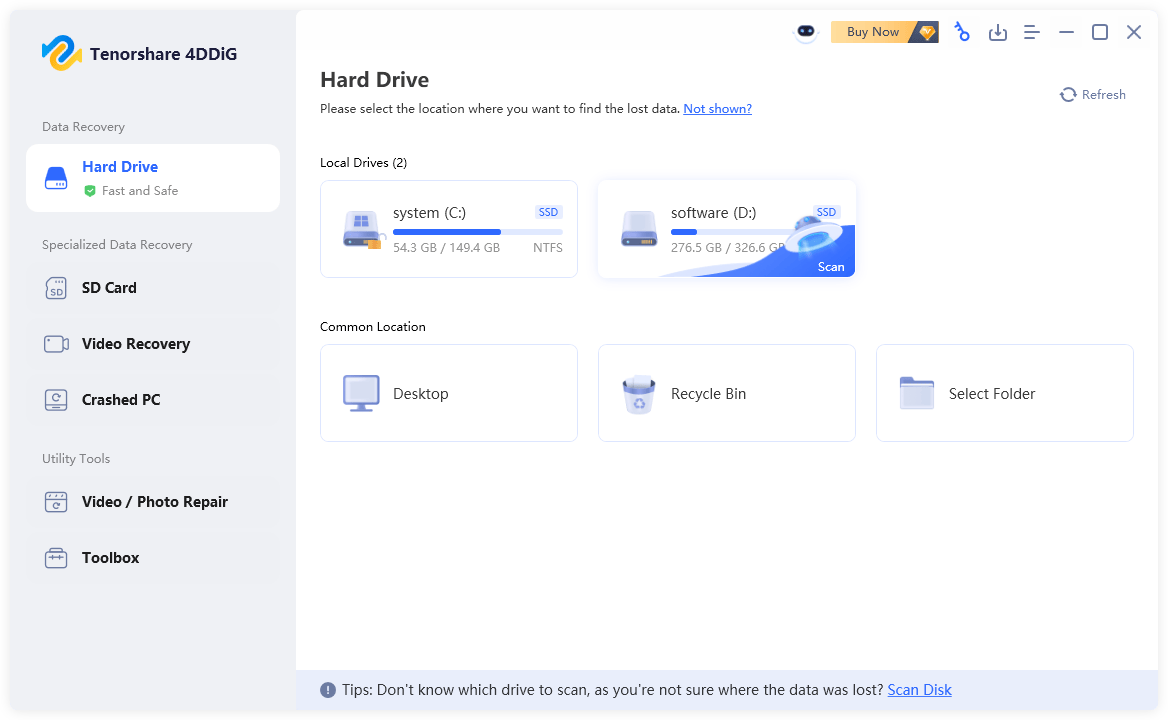
Step 2: Afterward, choose the drive with the error once it's recognized by the tool. Then, pick the file types to scan. Tap "Scan Selected File Types."
Step 3: During the scan when you find that the tool has recovered the files you want, stop or pause the scan. Examine the reclaimed files by their type or path.
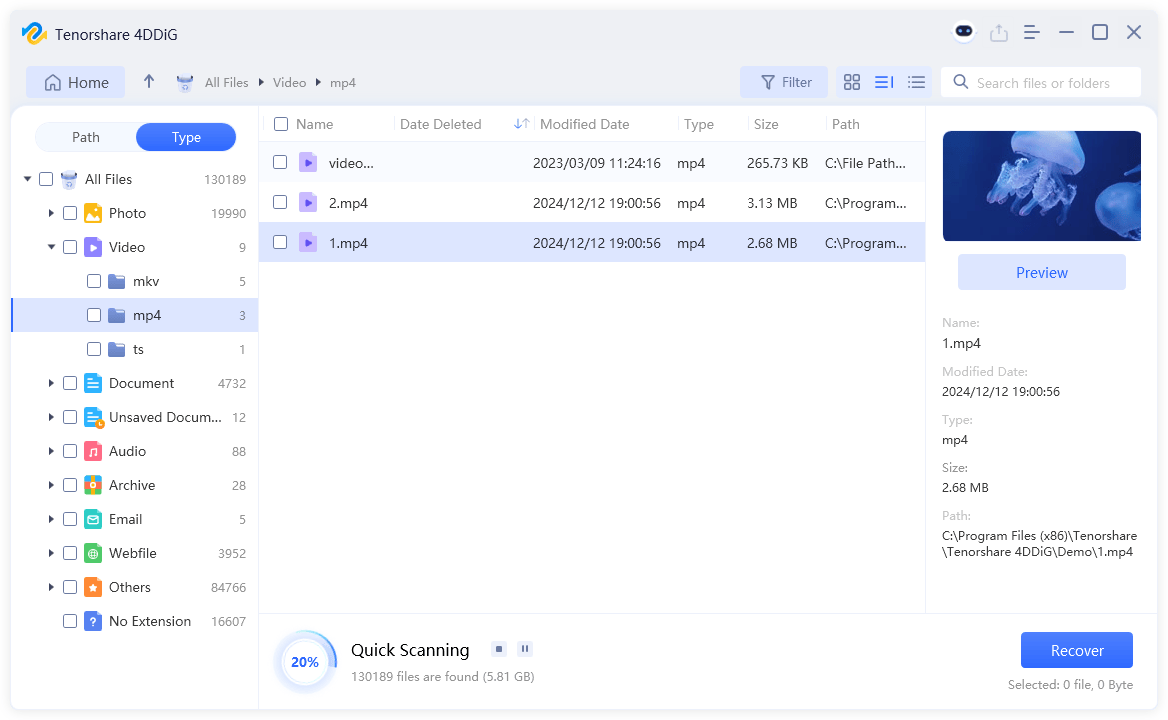
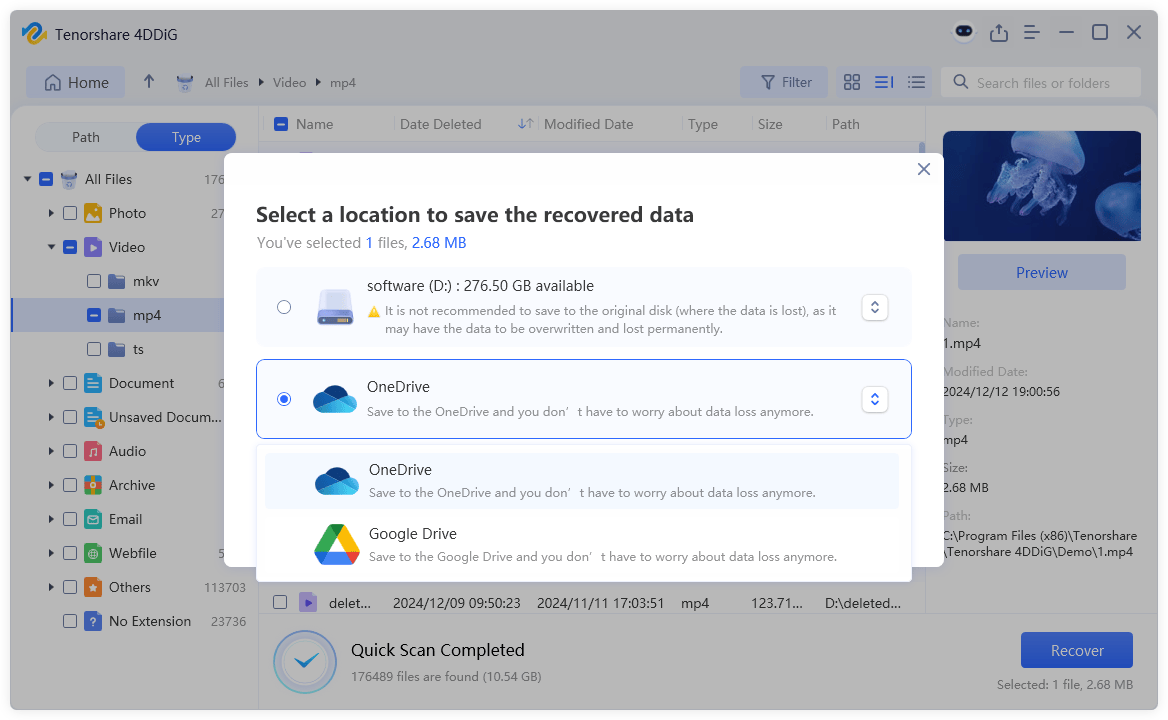
Step 4: Hit "Recover" to export the files you've recovered from the problematic external drive to your computer or cloud.
Methods to Fix The Directory Name Is Invalid Error on Windows 11/10
Following are 5 methods to fix an error such as 'the directory name is invalid' on Windows 11/10. Start by checking and correcting the file/folder path then, proceed to other solutions:
1. Check and Correct the Path
Sometimes, a glitch like 'the directory name is invalid' when opening a file might appear because of typing the wrong file or folder name. For example, you have a PowerPoint and Word file with the same name in a folder.
When you try to open "C:OfficeDocumentsfilename" without specifying the extension (.ppt, .docx), Windows won't know which file to open. Therefore, always include the correct file extension. Also, always use a backward slash (C:) instead of a forward slash (C:/) to avoid errors in Command Prompt.
2. Check the Hard Drive Connection
Unplug and reconnect your external drive to resolve the malfunction 'the directory name is invalid' on Windows 11/10, if it appears due to a connection issue. Attach the drive to a different USB port or change the connecting wire. This refreshes the connection and can fix minor glitches. If that doesn't work plug in the external drive to another system.
3. Run CHKDSK on Your Drive
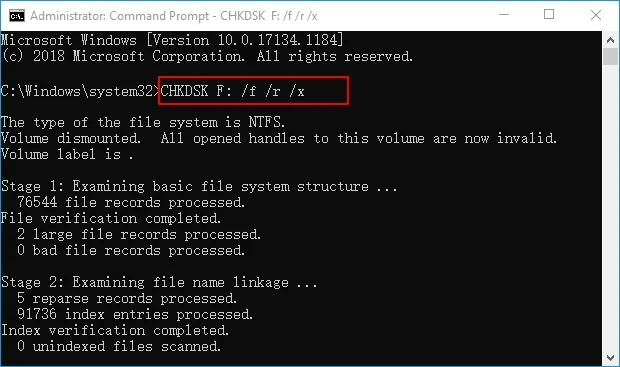
Underlying file system errors or bad sectors could also lead to a USB or SD card 'the directory name is invalid' glitch. However, Windows has a built-in utility, CHKDSK to locate and repair these kinds of problems. Following are instructions to fix a malfunction like 'the directory name is invalid' on USB, SD card, or another external drive:
Step 1: Type "cmd" in the Windows search field. Then, choose "Command Prompt."
Step 2: Input the following command. Then, hit "Enter" afterward:
- chkdsk [drive lette]: /f /r /x
4. Update Disk Driver
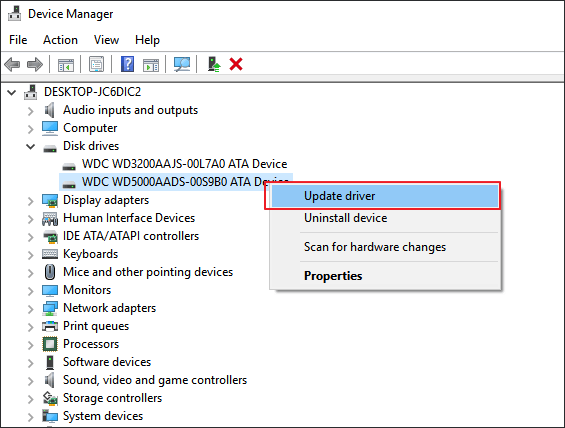
When still receiving an error such as 'the directory name is invalid' when opening file, update your external device's driver. It might be that the issue is caused by an outdated or faulty driver that lacks the bug fixes and security patches that an updated driver has.
Step 1: Right-click "Start." Then, choose "Device Manager."
Step 2: Next, tap "Disk drives." This will expand the section. Right-click the external drive with an error.
Step 3: Select "Update driver." Then, pick "Search automatically for updated driver software."
5. Assign a New Drive Letter
Your operating system may change your external drive letter by mistake or fail to assign a letter to it. This could lead to a USB or SD card 'the directory name is invalid' error. Here's how to fix it:
Step 1: Right-click "Start." Then, choose "Disk Management.".
Step 2: Right-click the affected disk. Then, tap "Change Drive Letter and Paths."
Step 3: Click "Add" if no letter is assigned. Or pick "Change" to select a new one. Then, tap "OK."
6. Create a New Volume
In case all else fails to fix a malfunction like 'the directory name is invalid' on an external hard drive, create a new volume. This can reset the file system, and aid Windows in recognizing the drive properly. In addition, creating a new volume also utilizes unallocated space, resolves partition errors, and avoids full formatting while keeping data intact. Check out the steps beneath to resolve an issue such as 'the directory name is invalid' on Windows 11/10 by creating a new volume:
Step 1: Right-click "Start." Then, choose "Disk Management."
Step 2: Locate the problematic disk. Then, right-click on any unallocated space on the disk.
Step 3: Choose "New Simple Volume." Next, follow the wizard to set the volume size, and assign a drive letter.
Step 4: Adjust other formatting parameters. Then, finish the setup.
Conclusion
We've offered multiple solutions to resolve 'the directory name is invalid' in this post. Begin with verifying file paths and proceed to reset drive connections as well as performing CHKDSK scans. If that doesn't work, update device drivers, reassign drive letters, or create a new volume.
But, this error could also be caused by drive corruption. Therefore, use 4DDiG Data Recovery to recover your important files before applying critical repairs because this tool will guarantee permanent file preservation. It can retrieve files from various data loss situations, allow you to recover your desired file types, and offers a preview to inspect reclaimed files.