We’ve all been there—fumbling to hit two buttons on opposite sides of the phone while balancing a coffee in the other hand, only to end up with the power-off slider instead of the shot we wanted. Apple quietly fixed this pain point a few iOS cycles ago, yet most people still don’t realise their iPhone can snap a screenshot with a simple double-tap on the back panel. Let me show you how to flip that switch.
Before we dive in, two quick ground rules: the magic works only on iPhones running iOS 14 or newer, and you need a model that supports “Back Tap” (iPhone 8 and up). If you’re on an older device, stick to the classic side-button + volume-up combo.
The old-school way still works—if you’ve got both hands free
Press the side button and volume-up together for a split second. You’ll hear the camera shutter sound and see the thumbnail slide into the corner. Hold too long and you’ll summon the slide-to-power-off screen; too short and nothing happens. It’s reliable, just not convenient when you’re on the move.
Why back-tap is a game-changer
Back Tap turns the entire rear of your phone into a giant, programmable button. Once enabled, a quick double-tap anywhere on the back glass triggers whatever action you assign—screenshot, flashlight, Siri shortcut, even opening a specific app. From my experience, it’s the closest thing to having a dedicated camera button on an iPhone.
Step-by-step: turn on double-tap screenshot
Step 1
Open Settings.
Step 2
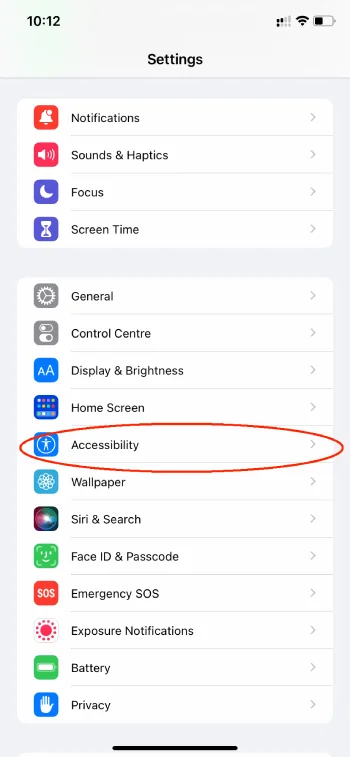
Scroll to Accessibility and tap it.
Step 3
Choose Touch under the “Physical and Motor” section.

Step 4
Scroll all the way down and tap Back Tap.

Step 5
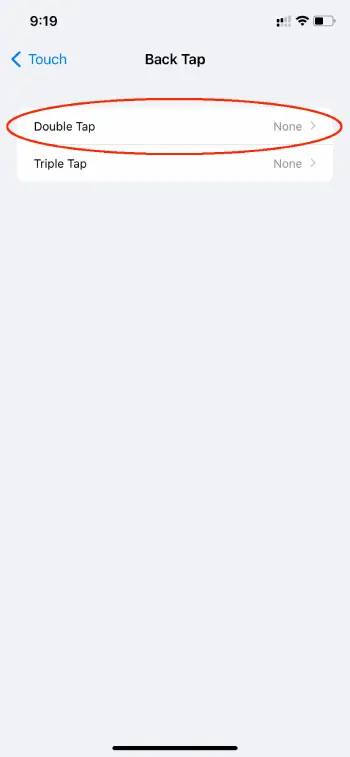
Pick Double Tap.
Step 6
Select Screenshot from the list. A blue check-mark confirms your choice.

That’s it—close Settings. Now a crisp double-tap on the back glass captures whatever’s on your screen, even if it’s locked.
Pro tips I share with readers
- Use a firm, quick tap—about the same force you’d use to knock on a door. A gentle caress won’t register.
- Cases thicker than 3 mm can misfire. If you’re rocking a rugged armour case, test first; you might need to tap harder.
- You can also assign triple-tap to another shortcut (I use it for low-power mode). Mix and match to fit your workflow.
- If the sensor feels too sensitive, turn off “Tap to Wake” under Display & Brightness—reduces accidental screenshots in pockets.
Once you’ve tasted the one-handed life, you’ll wonder why Apple doesn’t advertise this feature more. Give it a whirl, and the next time you’re scrolling Instagram or need to grab a screenshot on your Mac later, you’ll instinctively tap the back of your phone first—old habits die hard.