Vipin PG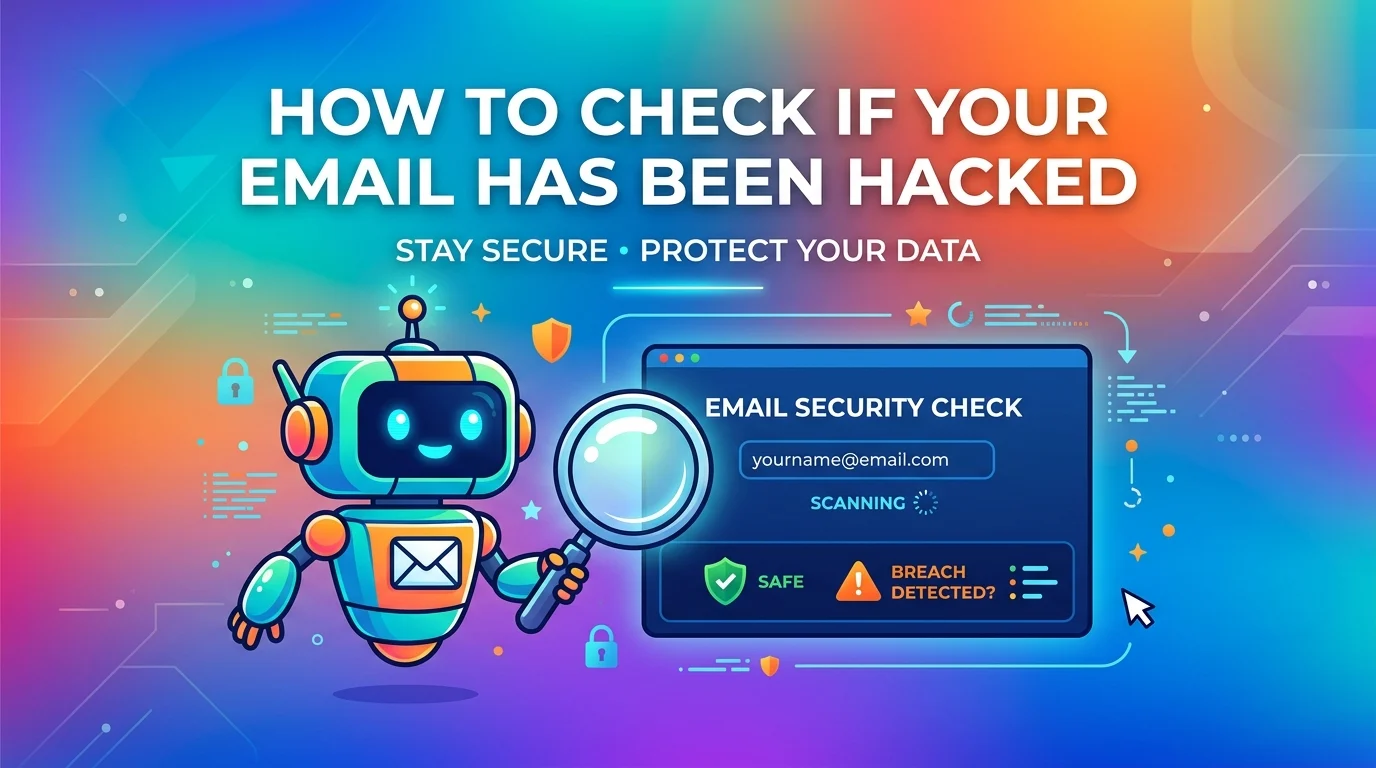
You open your inbox and there it is — an email sitting in your Sent folder that you definitely never wrote. Or your phone buzzes with a login alert from a country you’ve never set foot in. If you’re trying to figure out how to check if your email has been hacked, here’s the good news: you can do a solid first investigation yourself in just a few minutes, no IT background required.
In this guide, I’ll walk you through how to spot the warning signs, confirm whether your account was exposed, stop the bleeding, and get back in if someone’s already locked you out. Every tool I mention here is free, and none of this assumes you’re a security professional.
Your email is basically the master key to everything else in your digital life — password resets, bank alerts, work messages, shopping receipts, access to other services. That’s exactly why I take even a single suspicious sign seriously and move fast. A small problem left alone has a way of turning into a very messy cleanup job.
Warning Signs Your Email Account Has Been Compromised
A lot of account breaches stay quiet for days or even weeks. In many cases, people don’t notice until an attacker has already been reading messages, setting up silent forwarding, or using the account to chip away at other services linked to the same address.
- ✅ Review login alerts from unfamiliar locations or devices. If your provider flags a sign-in from a browser, device, or city you don’t recognize, treat that as a serious clue — not a random glitch you can dismiss.
- ✅ Check for emails in your Sent folder that you never wrote. This is one of the clearest signs of account misuse, especially if the messages contain odd links, fake invoices, crypto-related language, or vague money requests.
- ✅ Listen when contacts report receiving spam from your address. Attackers love using a real compromised inbox to send phishing emails because messages coming from a genuine account are far more convincing.
- ✅ Take a sudden password failure seriously. If your email password stopped working and you didn’t change it, there’s a decent chance someone else already did.
- ✅ Watch for password reset emails you never requested. That usually means someone is trying to use your inbox as a jumping-off point into banking, shopping, or social media accounts tied to that same address.
- ✅ Notice emails going missing or entire folders disappearing. Attackers sometimes delete warning messages, hide purchase receipts, or relocate specific emails so you don’t catch on to what they’re doing.
- ✅ Audit any forwarding rules or inbox filters you didn’t create. A silent forwarding rule can copy your incoming mail to an attacker’s address for weeks without making your inbox look any different day to day.
- ✅ Connect strange behavior across linked accounts. If social media, cloud storage, or banking accounts all start showing odd activity around the same time, your email could be the common weak point.
If you spot even one of these signs, treat the account as compromised until you can actually prove otherwise.
Use a Breach Checker — The Fastest First Step
A data breach checker searches through publicly known breach datasets and tells you whether your email address showed up in any documented leak. That doesn’t prove someone is actively inside your inbox right now, but it does tell you whether your address was exposed in a way that meaningfully raises the odds of credential stuffing, password reuse attacks, or targeted phishing.
The best starting point is Have I Been Pwned. It was built by Troy Hunt, a Microsoft Regional Director and security researcher, which is a big part of why it’s so widely trusted as a free breach-checking tool.
- Visit the site. Open the search page and confirm you’re on the real domain before entering anything.
- Type your email address into the search field. Use the exact address you want to check — and don’t forget older addresses you might still use for logins somewhere.
- Read the result carefully. If the result says your account is “pwned,” it means that address appeared in at least one known breach. A clean result just means no known public breach was found for that address at the time of the search — it’s not a guarantee.
- Click on any breach name that appears in the results. Read what kind of information was exposed — passwords, phone numbers, dates of birth, IP addresses, usernames, and so on.
That last detail really matters. An exposed email address alone is bad enough, but an exposed password, password hint, or recovery data is a much more urgent situation.
Also worth keeping in mind: showing up in a breach doesn’t automatically mean your inbox is actively under someone else’s control right now. But it does mean you have enough reason to stop treating this as a theoretical risk and start checking the account directly.
- ✅ Search your primary email address first. Start with the one tied to banking, work, cloud storage, and password resets.
- ✅ Search older addresses too. Old accounts still connected to active services can quietly serve as a backdoor.
- ✅ Read what data types were actually exposed. Move faster if passwords, phone numbers, or recovery information were included.
- ✅ Go to session checks right after a positive result. A breach hit is your cue to verify whether anyone is actually signed in right now.
Check Active Sessions and Connected Devices
If I want the clearest direct evidence of unauthorized access, I go straight to active sessions. This view shows which devices, browsers, and locations are currently signed in or have recently accessed the account — which makes it one of the fastest ways to confirm whether something is wrong. Google, Microsoft, and Yahoo all have official activity or device-review pages for exactly this purpose.
Gmail
Open Gmail on a computer and scroll all the way to the bottom of your inbox. Look for Last account activity, then click Details. Google’s panel shows sign-in history along with the IP addresses used to access the account. Go through every active session by device and location, and if anything looks off, use the option to sign out all other web sessions on the spot.
Outlook / Hotmail
Head to your Microsoft account page, open the Security section, and review your recent sign-in activity. Microsoft’s Recent activity page shows when and where the account was accessed over the past 30 days, including location details and how the access happened. Flag anything from a device, place, or time that doesn’t match your own usage patterns.
Yahoo Mail
Open your Yahoo Account Security settings and review Recent Account Activity along with current sign-ins. You can check active devices, external app connections, and recent account changes from that same page.
If you use a different provider, search for “[provider name] view active sessions” — almost every major email service now offers this somewhere in their settings.
- ✅ Compare locations with where you’ve actually been. A login from a city you’ve never visited deserves a closer look.
- ✅ Match devices against what you actually use. If you only ever use an iPhone and a MacBook, an unexpected Windows browser session is a red flag.
- ✅ Check dates and times against your own activity. Overnight access while you were asleep can be reason enough to force a sign-out.
- ✅ Look for repeated failed attempts followed by a successful login. That pattern often points to password guessing or credential stuffing tools doing the work automatically.
- ✅ Sign out unfamiliar sessions right away. Don’t leave them active while you keep investigating.
Look for Hidden Forwarding Rules and Inbox Filters
This is the attack method I see people miss most often — and honestly, it’s one of the sneakiest. Once someone gets into an inbox, they can add a quiet forwarding rule that sends copies of all your incoming messages to an address they control, then sit back and read along for weeks or even months without you ever knowing.
It’s also a very common pattern in business email compromise cases, where the goal isn’t to cause immediate, obvious chaos — it’s to watch conversations, learn payment routines, and wait for the right moment to step in and intercept something valuable.
In Gmail, click the Settings gear > See all settings > Forwarding and POP/IMAP tab. Check whether any forwarding address appears there that you don’t recognize. Google’s Security Checkup page is also useful for spotting broader access issues around devices and connected apps.
In Outlook, open Settings > Mail > Forwarding and confirm forwarding is off unless you’re intentionally using it. Then go through your mail rules and check whether anything is auto-deleting messages, marking mail as read, or moving things out of your inbox without you knowing.
Do the same in Yahoo or any other provider by reviewing filters, rules, mail organization settings, and blocked addresses. I always pay special attention to rules that hide bank alerts, invoice emails, password resets, or security notifications — those are exactly the messages attackers want buried.
- ✅ Delete unknown forwarding addresses immediately. Anything you didn’t add yourself should come out right away.
- ✅ Turn off forwarding entirely until you finish recovery. You can set it back up later if you actually need it.
- ✅ Remove filters that auto-delete messages. These are a common way attackers hide what they’re doing.
- ✅ Remove rules that auto-mark messages as read. That makes warning emails disappear into the background without you ever opening them.
- ✅ Remove rules that move mail into unfamiliar folders. Hidden subfolders are a classic place to bury receipts, alerts, and security notifications.
Check Whether Your Password Was Leaked Directly
Email addresses are only part of the equation. Full password databases from breached services are regularly collected, traded around, and automatically tested against other sites — which is exactly why a password leak on one random account can wind up being the reason your email gets hit.
One free option is Pwned Passwords, a separate password lookup tool from HIBP. It uses what’s called a k-anonymity model, meaning your full password is hashed on your end and only a partial hash is sent to the server — the complete password never leaves your device.
The second free option is Firefox Monitor. Mozilla’s service uses the Have I Been Pwned database to alert you if your accounts show up in known data breaches, and it can send ongoing notifications when new exposures are discovered.
This is also where password reuse causes the most real-world damage. If you used the same password on an old forum, a shopping site, and your email account, one breach can hand attackers a direct path to all three. In my experience helping people recover accounts, reused passwords are almost always the actual root problem — not some sophisticated, targeted hack.
If you want a practical fix going forward, I usually point people toward an open-source password manager like Bitwarden. It’s free, its code is publicly audited, and the free plan covers unlimited password storage across all your devices.
- ✅ Check whether your current or old passwords appear in known breach data. Do this before assuming a password is still safe.
- ✅ Replace any exposed password without delay. Don’t keep using a password once it shows up in breach data, even if nothing has gone wrong yet.
- ✅ Stop reusing passwords across different services. One reused password can undo every other good habit you’ve built.
- ✅ Store unique passwords in a manager. That’s what makes strong, long passwords actually practical instead of a headache.
- ✅ Turn on breach alerts for ongoing monitoring. Free notifications catch new exposures before they have time to cause real damage.
What to Do Immediately if Your Email Was Hacked
- Change your password right away. Do it from a device you trust — ideally not the same one where you first noticed the suspicious behavior, in case it’s been compromised.
- Revoke all active sessions after the password change. Changing the password matters, but signing out every other active session makes sure anyone still connected gets cut off immediately.
- Turn on two-factor authentication as soon as you’re back in control. An authenticator app like Google Authenticator or Aegis is stronger than SMS because text-message codes can be intercepted in SIM swap attacks.
- Go back and check your forwarding rules and filters. Even if you’ve already changed the password, clean these out — it’s an easy step to skip when you’re stressed, and attackers count on that.
- Revoke third-party access you don’t recognize. In Google, check Security > Third-party apps with account access. In Microsoft, review your account’s app permissions and privacy settings. Both Google and Yahoo provide official pages for reviewing connected devices and apps.
- Warn your contacts if spam went out from your account. Keep it simple — just let them know your email was compromised and they should ignore any unusual messages or links that came from your address recently.
- Change every other account that was using the same password. This is the step that actually keeps the attacker from walking back in through a side door.
- Use the official recovery process if you’re locked out. For Gmail, start at Google account recovery. Google’s recovery flow will ask you questions to confirm your identity — answer as many as you can, and do it from a device and location you normally use.
Move fast, especially in the first couple of hours. Attackers often change recovery phone numbers, recovery email addresses, app permissions, and forwarding settings early in the process — the longer you wait to recover a hacked email account, the harder it gets.
How to Protect Your Email Account Going Forward
- ✅ Use a unique password for your email and make it at least 16 characters. Your inbox should have its own password — never one shared with any other site, period.
- ✅ Turn on two-factor authentication today. This puts a second barrier in place even if your email password has already been stolen somewhere else.
- ✅ Review connected apps every 90 days. Remove anything you no longer use so that old app permissions don’t just sit there indefinitely.
- ✅ Go directly to sensitive services rather than clicking password reset links in unsolicited emails. Most phishing starts by manufacturing urgency around a fake alert.
- ✅ Use a separate email address for newsletters, giveaways, forums, and free trials. This keeps your primary address out of the breach-heavy databases that come with signing up for everything.
- ✅ Set up free ongoing breach monitoring with Google security checkup. Google’s Security Checkup walks you through recent security events, active devices, and account recommendations — it’s worth running as a regular habit, not just when something feels wrong.
- ✅ Review your login activity once a month. It takes less than a minute and can catch signs your email was hacked before things drag on for weeks.
- ✅ Avoid doing sensitive account work on public Wi-Fi. At a minimum, save that kind of thing for networks you actually trust.
Most compromised accounts aren’t individually targeted by some sophisticated operation. They get swept up in mass leaks from third-party services and then automatically tested against email providers and popular apps. Kill password reuse and turn on 2FA, and you’ve already blocked the two most common real-world paths into an inbox.
Your Complete Email Security Checklist
Run through this list once now. Then come back to it once a month.
- ✅ Check for warning signs. Review sent mail, missing messages, strange reset emails, and any complaints from contacts.
- ✅ Run a breach search. Use a trusted free checker to see whether your address appeared in known leaks.
- ✅ Inspect active sessions. Compare devices, locations, and sign-in times against your real usage.
- ✅ Audit forwarding rules and filters. Remove anything that forwards, hides, deletes, or silently moves your mail.
- ✅ Test your password exposure. Check whether your password appears in breach data and replace it immediately if it does.
- ✅ Recover in the right order. Change the password, revoke sessions, enable 2FA, then review app access and rules.
- ✅ Build better long-term habits. Use a unique password, review connected apps regularly, and check your account activity every month.
Staying secure doesn’t require deep technical knowledge. Honestly, it mostly comes down to a few consistent habits, the right free tools, and a willingness to check early rather than scramble to clean up later. A ten-minute review today is a whole lot easier than untangling a compromised account after someone’s been inside it for weeks.