Vipin PG
Let me be direct about this: if by “without permission” you mean secretly recording a Zoom call while the host and attendees have no idea, that’s a bad idea technically, ethically, and in many cases legally. Zoom’s own recording FAQ makes it clear that official in-app recording is tied to host controls, permissions, and notifications. On top of that, recording laws vary by jurisdiction, and some places require all parties to consent before a conversation is recorded. The state recording guide from the Reporters Committee is a useful place to understand the difference.
So the smarter question is this: how do you reliably capture a Zoom meeting when you need notes, a transcript, or a replay, but you’re not the host? In practice, you now have three realistic options. You can ask the host to enable recording for you, you can use a meeting assistant that joins the call as a visible participant and records with notice, or you can take private notes without making a covert copy of the meeting.
What changed since the original Airgram article
Here’s where it gets interesting. The screenshots and workflow in the old article came from Airgram, but Airgram no longer operates as a separate brand the way it once did. The company announced that Airgram joined Notta, so if you go looking for the exact old interface, you may not find it. The core idea still exists, though: a bot can join meetings, capture audio, generate transcripts, and organize summaries after the call.
That means the old article was directionally useful but product-specifically outdated. The screenshots below are still included for continuity, but you should treat them as legacy Airgram visuals rather than a guaranteed match for what you’ll see today.
Why people still want this feature
There’s nothing suspicious about wanting a meeting record. Teams miss details. Clients change scope mid-call. Action items vanish. People promise something on a Tuesday and swear they never said it by Friday. In my experience, that’s exactly why meeting capture tools became so popular in the first place.
The problem is that Zoom, Microsoft Teams, and Google Meet have all moved toward more visible recording controls and stronger participant notifications. Microsoft states in its own Teams recording guide that everyone is notified when recording starts. Zoom has done the same with recording consent and related notices, and Google Meet keeps recording behind eligible accounts and admin settings, as shown in Google’s Meet recording help.
What actually works now
The cleanest route is still to ask the host for recording access. On Zoom, the host can allow another participant to record, and Zoom has continued refining recording permissions and automated approval flows in recent releases. If you just need an official copy, that’s the route I’d recommend first every single time.
If the host doesn’t want to hand over native Zoom recording rights, the second-best route is a visible meeting assistant. Modern tools such as Notta can join a Zoom meeting as a bot participant, then record, transcribe, and summarize the session. That’s much more defensible than trying to secretly capture a meeting through unofficial means, because the bot is present in the participant list and the workflow is designed around notice rather than concealment.
The third route is manual note capture. It sounds boring, but it’s often enough. Zoom’s own AI note taker and similar tools are pushing teams away from hidden recording and toward structured summaries, searchable transcripts, and action items.
Legacy Airgram screenshots from the original guide
The following images are preserved from the original article. They show the older Airgram flow and are still useful for understanding how bot-based meeting capture tools are generally set up.
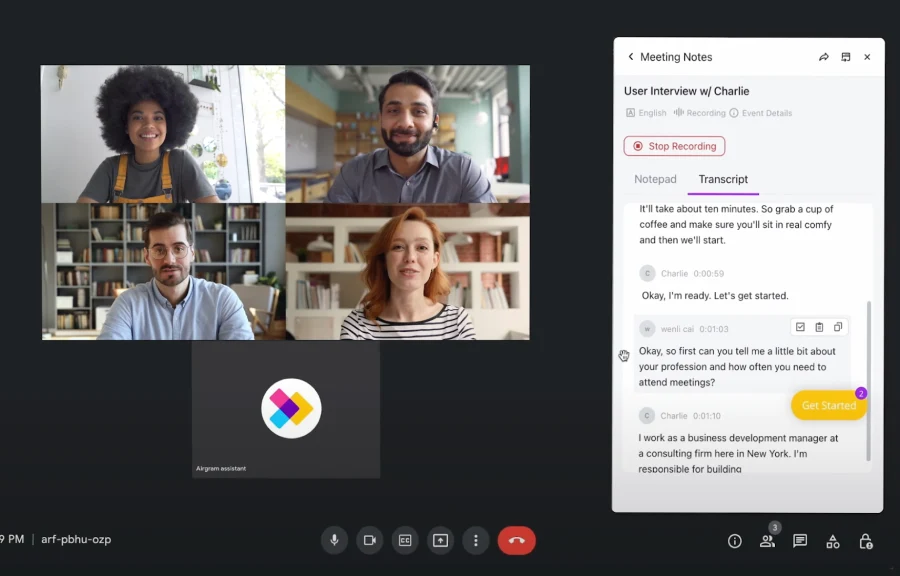
Back then, the appeal was simple: connect your Zoom account, let the bot join the meeting, and get a transcript plus recording afterward. That basic workflow still exists today, even though the branding and interface have changed.
Main features people care about now
Auto-join for scheduled meetings
This is still one of the most useful capabilities. A meeting bot joins the call on time, so you don’t have to remember to hit record. That matters more than people think, especially when you’re juggling back-to-back calls.
Audio plus transcript
You don’t just want a video file sitting in a folder. You want searchable text, speaker separation, timestamps, and something you can skim in two minutes instead of replaying a 48-minute call.
Summaries and action items
This is the real upgrade. The old article focused on recording. The better value in 2026 is what happens after recording: summaries, decisions, follow-ups, and export options into docs or task systems.
Cross-platform support
The old write-up correctly noted that these tools aren’t just for Zoom. That still holds. The same style of assistant now commonly supports Zoom, Google Meet, and Teams. You can use the same kind of workflow across multiple meeting platforms instead of learning a different process for every call.
How the old Airgram workflow maps to today’s tools
What the original article called “Quick Zoom Recording” is basically what current assistants do when you paste in a meeting link or sync your calendar. The bot joins, captures the meeting, and makes the content available afterward.
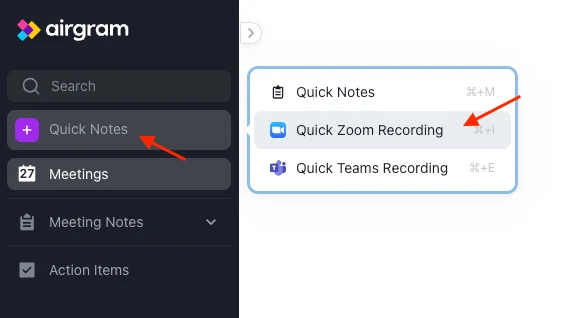
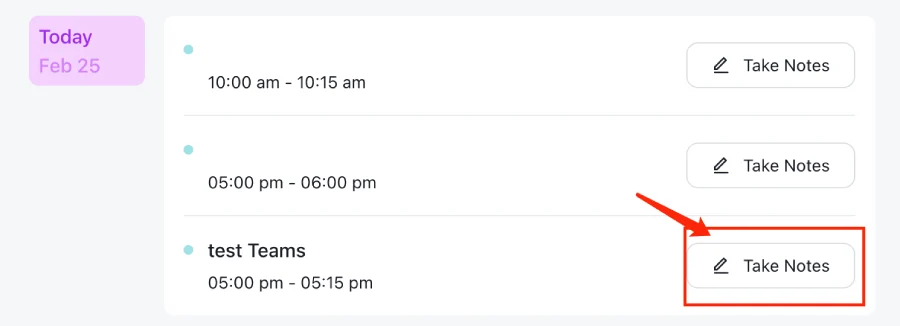
For scheduled meetings, the idea is also the same: select the upcoming event, enable note-taking or recording, and let the bot handle the rest.
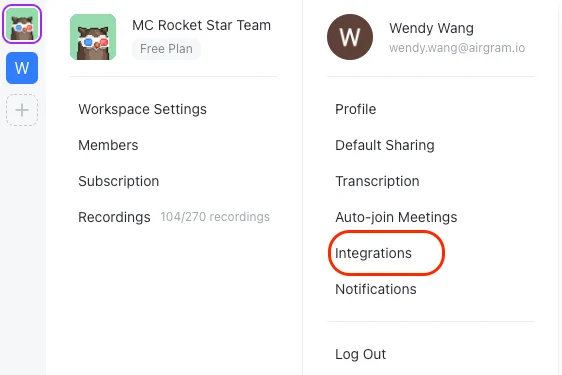
And yes, automatic joining is still the part most people love. Once your account integration is set up, the assistant can attend the meetings you want it to capture without you hovering over the dashboard every time.

What not to do
Don’t assume that because your laptop can record video and sound, you should use that to secretly capture a private business meeting. That might sound obvious, but plenty of people still treat screen recording as a loophole. It’s not a safe assumption. Platform rules, employment policies, contracts, and local recording laws can all matter here.
I’d also avoid old blog posts that promise “hidden” Zoom recording through random desktop recorders. Yes, several screen recorder programs can technically capture what’s on your screen, but technical capability isn’t the same thing as acceptable use. That distinction matters.
The better recommendation in 2026
If you need an official meeting record, ask the host to enable Zoom recording or share the cloud recording afterward. If you need searchable notes and summaries, use a visible AI meeting assistant. If you’re dealing with sensitive calls, make disclosure part of the process instead of trying to work around it.
That’s the mature answer now. And honestly, it’s a better one. You end up with cleaner records, fewer compliance headaches, and a workflow that scales beyond Zoom into Teams and Meet.
Bottom line
The old Airgram article captured a real user need, but the details have moved on. Airgram itself has been absorbed into Notta, Zoom has expanded official recording and AI summary features, and the safest modern approach is no longer “record without permission.” It’s to record with clear notice, use host-approved tools where possible, and rely on meeting assistants for transcripts and summaries instead of covert capture.
If your goal is simply not to miss anything said in a meeting, that problem is easier to solve today than it was a few years ago. You just need to solve it the right way.