Vipin PG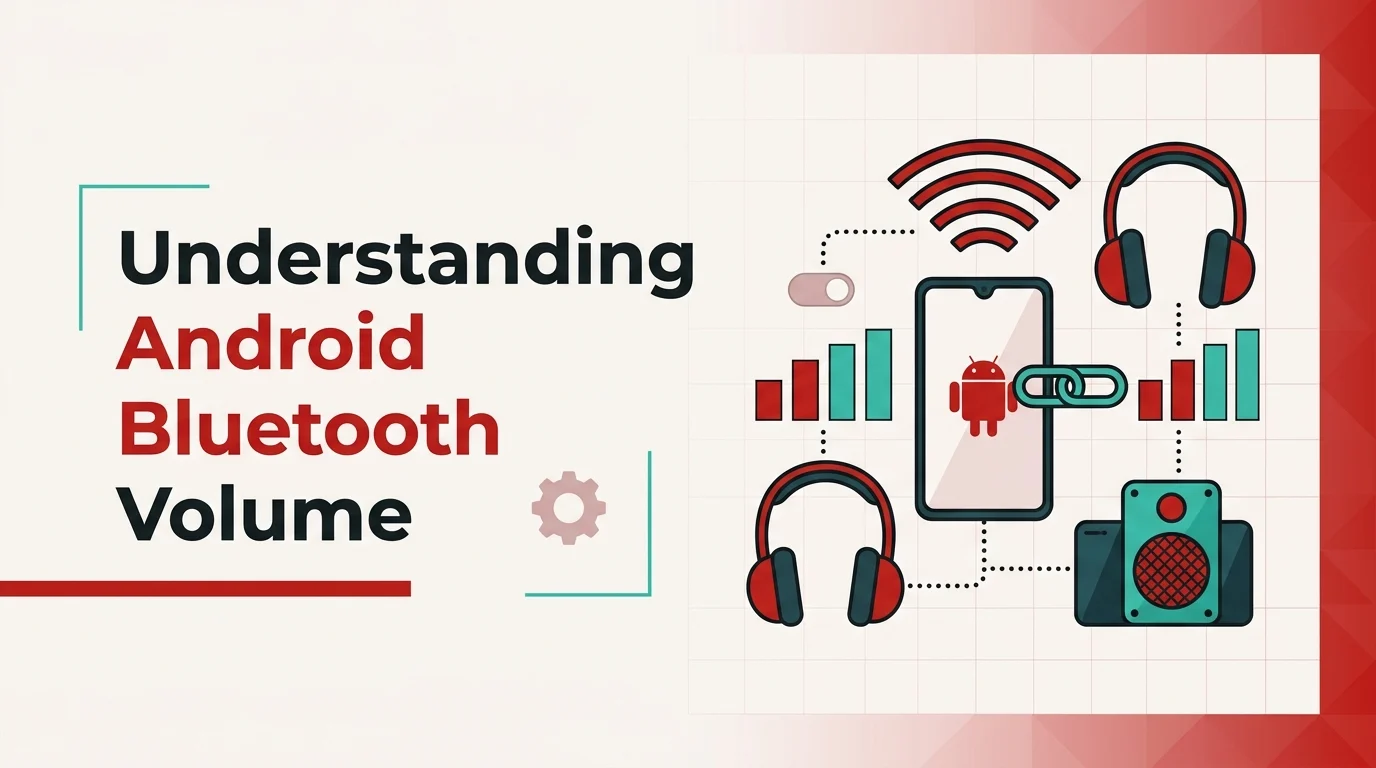
You bump the volume up one step on your Pixel and your headphones go from whisper-quiet to uncomfortably loud with nothing in between. Or you connect to your car stereo and the volume won’t behave — one notch is too soft, the next is too loud, and the stereo seems to ignore half your button presses. This isn’t a hardware defect and it isn’t your imagination. It’s a feature called Absolute Bluetooth Volume, and whether it helps or hurts you depends almost entirely on the Bluetooth device you’re connected to.
Android has shipped with Absolute Bluetooth Volume enabled by default since Android 6.0 Marshmallow in 2015. The setting lives inside Developer Options — which means most users never see it, never know it exists, and never connect it to the audio problems they’ve been tolerating for years. Understanding what it actually does at a protocol level makes it much easier to decide whether you should ever touch it.
How It Works Under the Hood
When you stream audio over Bluetooth, your phone uses two profiles simultaneously: A2DP (Advanced Audio Distribution Profile) carries the audio stream itself, and AVRCP (Audio/Video Remote Control Profile) handles the control signals — play, pause, skip, and critically, volume. Absolute Bluetooth Volume is part of the AVRCP v1.4 specification. Before it existed, your phone would attenuate the audio signal itself before sending it, and the Bluetooth device had its own separate volume control on top of that. Two independent sliders with no communication between them.
With Absolute Volume enabled, the Android Bluetooth stack on AOSP sends unattenuated audio to the sink device and transmits volume commands via AVRCP instead. Your phone’s AudioService maps its internal volume steps to a 0–100 scale and pushes that number to the peripheral. The sink — your headphones, speaker, or car unit — then applies gain based on that value. The phone adjusts its own volume display to match what it sent, creating the appearance of a unified control.
The problem is that “mapping to 0–100” assumes both sides of the connection agree on what those numbers mean. A Pixel 8 has 15 media volume steps. A Bluetooth speaker might have 32 internal steps. A car stereo’s Bluetooth module might only expose 16 effective levels to AVRCP. Android does the math and tries to align them, but the granularity mismatch creates dead zones — volume steps where your phone increments by one and the receiving device either doesn’t move at all or jumps by two. When your phone is at step 1 of 15 (6.7% of its range), it maps that to roughly 7 on a 0–100 scale. Your speaker might round that to 5, or 10, or some entirely different value depending on how its firmware interprets the command.
What Breaks and Why
Not every Bluetooth device is affected equally. The pattern is fairly predictable once you understand the mapping issue. Devices that follow the AVRCP specification precisely — Sony’s WH-1000XM5, most Bose QuietComfort models, Sennheiser Momentum 4 — handle the 0–100 mapping cleanly and deliver smooth volume steps. Older car stereos, budget TWS earbuds, and any device with a non-standard internal volume range are where things fall apart.
The most common failures seen in practice:
- Dead zones: Multiple presses of the phone’s volume button produce no audible change, then a single press causes a large jump. The phone is incrementing through AVRCP values that the peripheral treats as equivalent.
- Reconnect volume spikes: The peripheral reconnects and either blasts at full volume or resets to something the user didn’t set. AVRCP volume state isn’t always remembered across disconnects on non-compliant firmware.
- Car stereo erratic behavior: Factory-fitted car audio Bluetooth stacks are frequently built around older AVRCP versions (1.3 or even 1.0) that have no absolute volume support at all. Android tries to send commands the stereo ignores, creating a desync between what the phone displays and what you actually hear.
- Low maximum volume: Android’s absolute volume logic includes a gain-limiting mechanism designed to prevent hearing damage. On some device pairings, this cap kicks in below what the headphones can actually produce, leaving the user wondering why their headphones sound quieter than on a friend’s iPhone.
Community threads on XDA Forums covering Bluetooth volume behaviour consistently document the car stereo and dead-zone issues going back to Android 7 Nougat, which is when separate per-device volume sliders were removed. The problem is device-specific rather than Android-version-specific, though Android 13 and 14 did refine the volume curve mapping for better interoperability with modern peripherals.
Disable It or Leave It — The Decision Matrix
Whether disabling Absolute Bluetooth Volume helps or hurts depends on your specific hardware combination. This table covers the most common scenarios.
Data last verified: April 2026
| Device / Scenario | ABV Enabled | ABV Disabled | Recommendation |
|---|---|---|---|
| Modern premium headphones (Sony WH/WF-1000XM5, Bose QC45/QC Ultra, Sennheiser Momentum 4) | Smooth unified control, accurate volume mapping | Requires managing two separate sliders | Leave enabled |
| Factory car stereo with Bluetooth (older than 2018) | Volume desync, ignores AVRCP commands, erratic behavior | Phone and stereo volumes operate independently; much more predictable | Disable |
| Budget TWS earbuds (no separate volume controls, sub-₹2000 or $25) | Dead zones common, reconnect volume unpredictable | May not help if earbuds have no physical controls at all | Test both; earbuds with no buttons are awkward either way |
| Samsung Galaxy Buds series (Buds 2 Pro, Buds 3, FE) | Works correctly; Samsung integrates volume deeply via Galaxy Wearable app | Unnecessary; Galaxy Wearable handles its own volume sync | Leave enabled |
| Bluetooth speakers with their own physical volume dial | Phone controls override the speaker’s dial, can cause confusion | Speaker dial works independently as expected | Disable, especially for party/shared speakers |
| Audiophile use with PowerAmp or a third-party EQ app | ABV interferes with the app’s volume control chain, reducing EQ headroom | EQ app has full control over the audio signal before transmission | Disable |
| Gaming headset with Bluetooth mode (Razer, SteelSeries BT) | Generally works; depends on headset firmware compliance | Slight volume control latency eliminated | Test both; disable if you notice command lag |
| TWS earbuds with touch controls for volume (AirPods Pro, Jabra Elite 10) | Both phone and earbud controls work | Works the same; earbud controls still function independently | Leave enabled — no benefit to disabling |
How to Disable It on Android
The toggle is inside Developer Options, which Android hides by default. If you haven’t unlocked it before, the first step is enabling developer options on your Android phone by tapping Build Number seven times inside About Phone.
Once Developer Options is accessible:
- Disconnect your Bluetooth device first. On Samsung One UI in particular, changing the toggle while Bluetooth is active has no effect — you’ll need to disconnect, toggle, then reconnect for the change to apply.
- Open Settings → System → Developer options. On Samsung devices it’s under Settings → Developer options directly. On Xiaomi/Redmi, look under Settings → Additional Settings → Developer options.
- Scroll to the Networking section. Search for “absolute volume” using the Developer Options search bar if you can’t find it by scrolling.
- Toggle “Disable absolute volume” to ON. The wording is deliberately inverted — turning this toggle ON is what disables the feature. It’s a confusing UI decision that catches a lot of people out.
- Reconnect your Bluetooth device. Test volume control on both the phone and the peripheral.
On Android 11 through 14, the exact label can vary slightly. You may see “Absolute Bluetooth volume,” “Disable Absolute Volume,” or “Bluetooth Absolute Volume” depending on the OEM skin. All of them refer to the same underlying setting. A restart isn’t always required, but if behavior doesn’t change after reconnecting, reboot the phone once.
If you change your mind, toggling it back to OFF re-enables Absolute Bluetooth Volume. After making your changes, you may want to turn off Developer Mode on Android again to keep your settings menu clean and avoid accidentally changing something else.
The Audiophile Case for Disabling It
There’s a separate reason to disable Absolute Volume that has nothing to do with compatibility problems — equalizer control. When ABV is active, Android applies its own volume attenuation before handing the signal to your audio app. Music players like PowerAmp recommend disabling absolute volume explicitly in their documentation for this reason: with ABV on, the EQ is operating on a pre-attenuated signal with reduced headroom. Disable it, and your audio app gets the full dynamic range of the signal before applying any equalization. For SBC and AAC codecs this difference is minor. For LDAC at 990 kbps or aptX HD, it’s more audible, particularly at low listening volumes where the attenuation bites harder into the signal’s dynamic range.
For earbuds paired and managed through a companion app — the pairing process for wireless earbuds sometimes involves companion apps that add their own EQ and volume control layers — disabling ABV gives that companion app full control of the volume curve rather than competing with Android’s mapping logic.
Test It, Don’t Assume
The right setting depends on your specific phone-peripheral pairing, and that combination matters more than any general rule. Disable it, reconnect your device, and spend a day with it. If volume control feels more granular and predictable, stay there. If adjusting two separate sliders becomes annoying with no improvement in audio quality, re-enable it. Neither state damages audio quality at the codec level — it’s purely a control routing question. What changes with newer Android versions is how well Google’s volume curve mapping handles fringe cases, so if you upgrade your phone’s OS and Bluetooth suddenly behaves differently, this is usually the first setting worth revisiting.