Vipin PG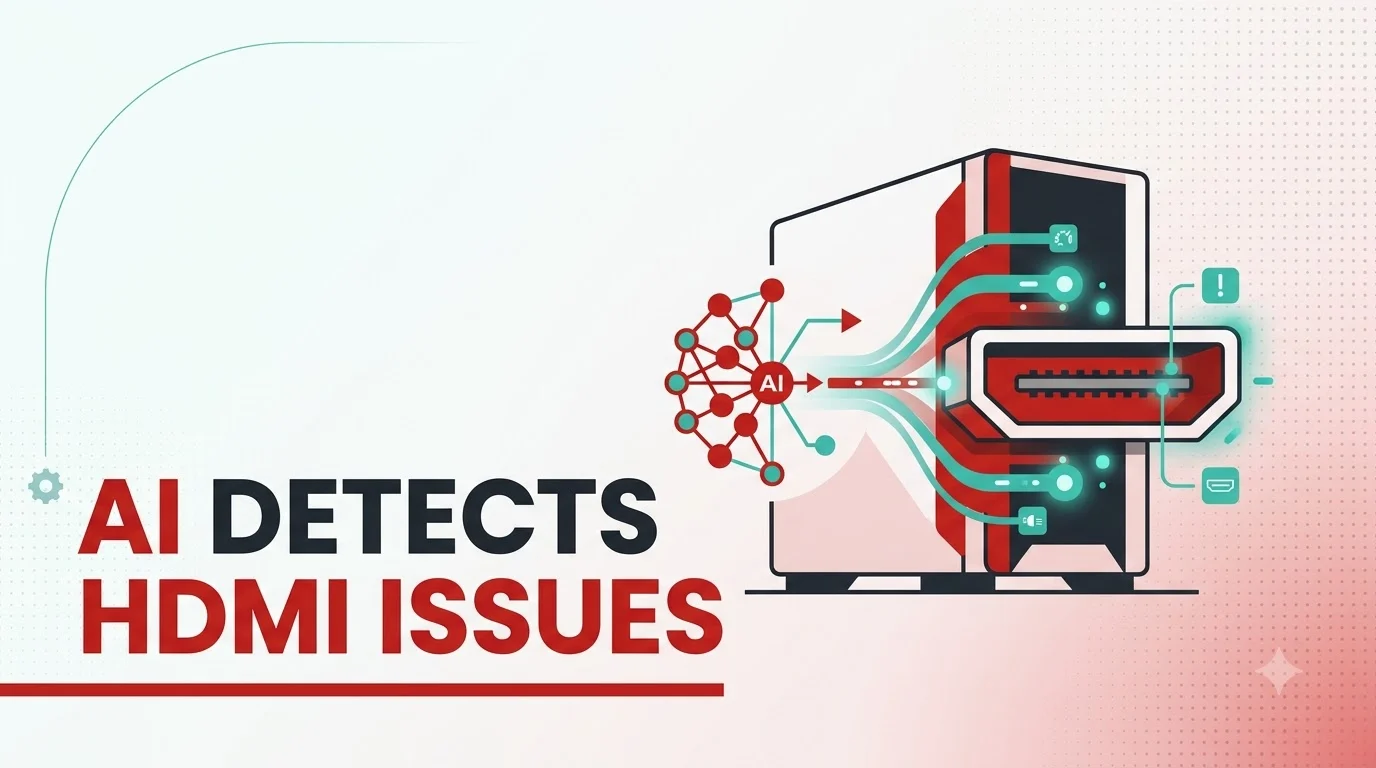
If you’ve ever plugged in an HDMI cable and been met with a black screen, a flickering picture, or a laptop that refuses to wake up properly after sleep, you already know how frustrating HDMI troubleshooting can be. The annoying part is that the same blank screen can be caused by a dozen completely different problems , a loose pin, a driver hiccup, a power management setting, or a cable that simply isn’t good enough for the job. That’s exactly the kind of guesswork AI agents are starting to remove. Rather than you unplugging and replugging cables at random, an AI agent running on your computer can quietly check what’s actually happening behind the scenes and tell you what’s really wrong.
Why HDMI Problems Are Harder to Diagnose Than They Look
HDMI isn’t just a cable that pushes video from your computer to your screen. Every time you connect a display, your computer and monitor go through a short “conversation” before anything even appears on screen. Your computer needs to detect that a cable was plugged in, read information from the monitor about what resolutions and refresh rates it supports, and , for protected content like streaming video , verify a security handshake with the display. If any single step in that conversation fails, the result you see is almost always the same: a black screen, a flickering image, or your computer defaulting to the wrong resolution. That’s the core problem with HDMI troubleshooting , the symptom rarely tells you the actual cause.
How an AI Agent Actually Investigates the Problem
Instead of guessing, a local AI agent can dig into the same information your operating system already collects, just far faster and more thoroughly than a person would.
1. Checking What Your Computer Thinks Is Connected
Both Windows and Linux keep track of exactly what kind of display is plugged in and what information it reported back. An AI agent can pull this information directly and compare it against what you actually connected. For example, if you plugged in an HDMI cable but the system is reporting a completely different connection type, that’s a strong sign the port, adapter, or cable itself isn’t working correctly , not a software issue at all.
2. Reading the Monitor’s “ID Card”
Every monitor stores a small file with its own details , brand, supported resolutions, refresh rates, and supported color formats. Your computer reads this automatically the moment you connect a display. If an AI agent tries to read this information and gets nothing back, or gets a corrupted response, it’s a reliable sign of a bad connection, a damaged pin, or a faulty cable , long before you’d notice anything else wrong.
3. Watching for Crashes and Timeouts
Sometimes the picture doesn’t just fail to appear , your screen flickers, freezes, or your whole system briefly recovers and shows a driver error message. Windows, in particular, has a built-in system that watches for the graphics card taking too long to respond and automatically resets it. AI agents can monitor these events in real time and trace them back to the exact driver or hardware component responsible, instead of leaving you with a vague “display driver stopped responding” message.
4. Looking at the Actual Port
This is where things get genuinely useful for everyday users. Some AI-powered diagnostic tools can now use your webcam or phone camera to visually inspect the HDMI port or cable itself. They’re trained to spot bent or pushed-in pins, loose connections, or visible damage , the kind of physical problem that no software check could ever catch on its own.
A Real-World Example: Black Screen After Sleep
One of the most common , and most confusing , HDMI issues happens on laptops with two graphics chips: one built into the processor and a separate, more powerful graphics card. You connect an external monitor, put the laptop to sleep, and when it wakes up, the screen stays black or the system reboots on its own. To a regular user, this looks completely random. But an AI agent examining the system logs can usually see exactly what happened: while the laptop was asleep, the graphics card dropped into a deep power-saving state to save battery. When the laptop woke up, the monitor immediately demanded a full handshake, but the graphics card wasn’t able to “wake up” fast enough to respond in time, causing the connection to fail and the system to reset. Once an AI agent identifies this pattern, it can often fix it directly , by adjusting the laptop’s power management settings so the graphics card doesn’t drop into that deep sleep state in the first place. What used to require digging through obscure settings menus can now be diagnosed and corrected in seconds.
Common HDMI Problems AI Agents Can Identify
| Symptom | Likely Cause an AI Agent Can Detect |
|---|---|
| No signal / black screen | Failed connection handshake, damaged cable, or faulty port |
| Wrong or locked resolution | Monitor information not read correctly by the computer |
| Screen flickers or randomly disconnects | Graphics driver timing out and resetting itself |
| Black screen only after sleep/wake | Graphics card power-saving state not resetting in time |
| Pink, green, or scrambled picture | Failed security handshake with protected content |
| Intermittent, random cutouts | Electrical noise or interference disrupting the connection |
Can These AI Agents Actually Fix the Problem, Not Just Find It?
In many cases, yes. Once an AI agent has identified a clear cause , like a power management setting or an outdated driver , it can go ahead and apply the fix itself, adjusting settings through the operating system rather than making you find and change them manually. For physical problems, like a damaged cable or bent pin, the agent can’t repair the hardware, but it can tell you clearly and specifically what needs to be replaced, saving you from buying the wrong replacement part or blaming the wrong device.
Is It Safe to Let an AI Agent Access This Much of Your System?
This is a fair question, since diagnosing HDMI issues properly does require fairly deep access to your system’s logs and settings. Responsible AI diagnostic tools are built to keep a clear, tamper-proof record of every action they take, so you can always see exactly what was checked or changed and undo it if needed. If you’re trying one of these tools, it’s worth choosing one that’s transparent about what it accesses and gives you the ability to review or reverse any changes it makes.
The Bottom Line
HDMI problems have always been frustrating precisely because the same black screen can mean ten different things. What AI agents bring to the table isn’t magic , it’s simply the ability to check dozens of small technical details in seconds, details that would normally take a technician (or a patient user) a long time to track down manually. Whether it’s confirming your monitor’s information was read correctly, catching a driver crash the moment it happens, or visually spotting a bent pin through a camera, these tools are turning “just try unplugging it” into an actual diagnosis , and often, an actual fix.