

You can find several Android and IOS devices that offer a dark mode that easily dims the on-screen palette. It looks more appealing and also extends your battery life so that you would be able to use it for a longer period.
If you prefer using dark mode on your smartphone, then you would be glad by knowing that Windows 10 has its dark mode feature which you can enable it easily without any issues at all. Here we will check how to turn on Windows 10 Dark Mode. It is simple to turn on dark mode and your screen colors will change from white to black or grey.
Here you would come to know about the vital steps to follow for turning on Dark Mode on Windows 10
- First, you need to click the start button and then click the settings icon, which is appeared like a gear.
- Now, you should click “Personalization”.
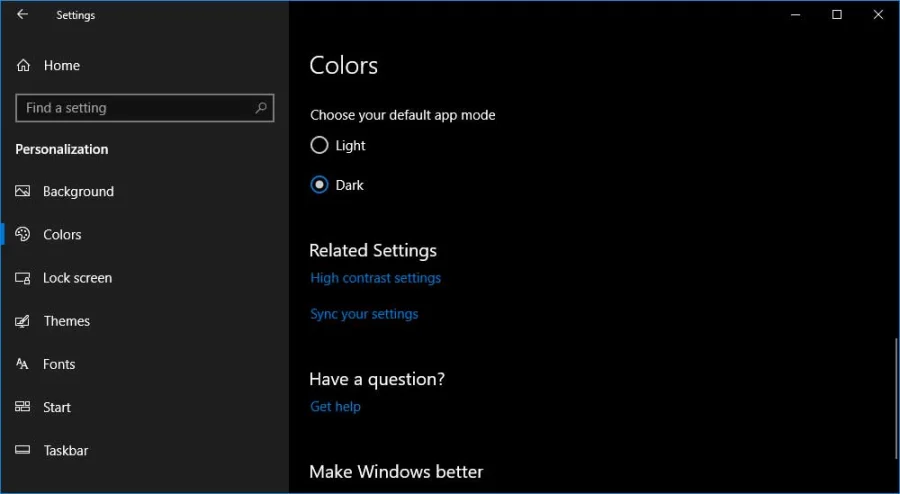
- Click “Colours” in the pane on the left. There would be two dark modes to choose from which you can enable. You can choose any one of them as per your overall needs.
- You should click “Dark” under “Choose your default Windows mode”. After clicking dark, dark mode will appear for many basic parts of Windows including the taskbar at the desktop bottom and the Start menu.
- To get more widespread effects, you should click “Dark” under “Choose your default app mode”. It will activate dark mode in several apps automatically which have it.