 Vipin PG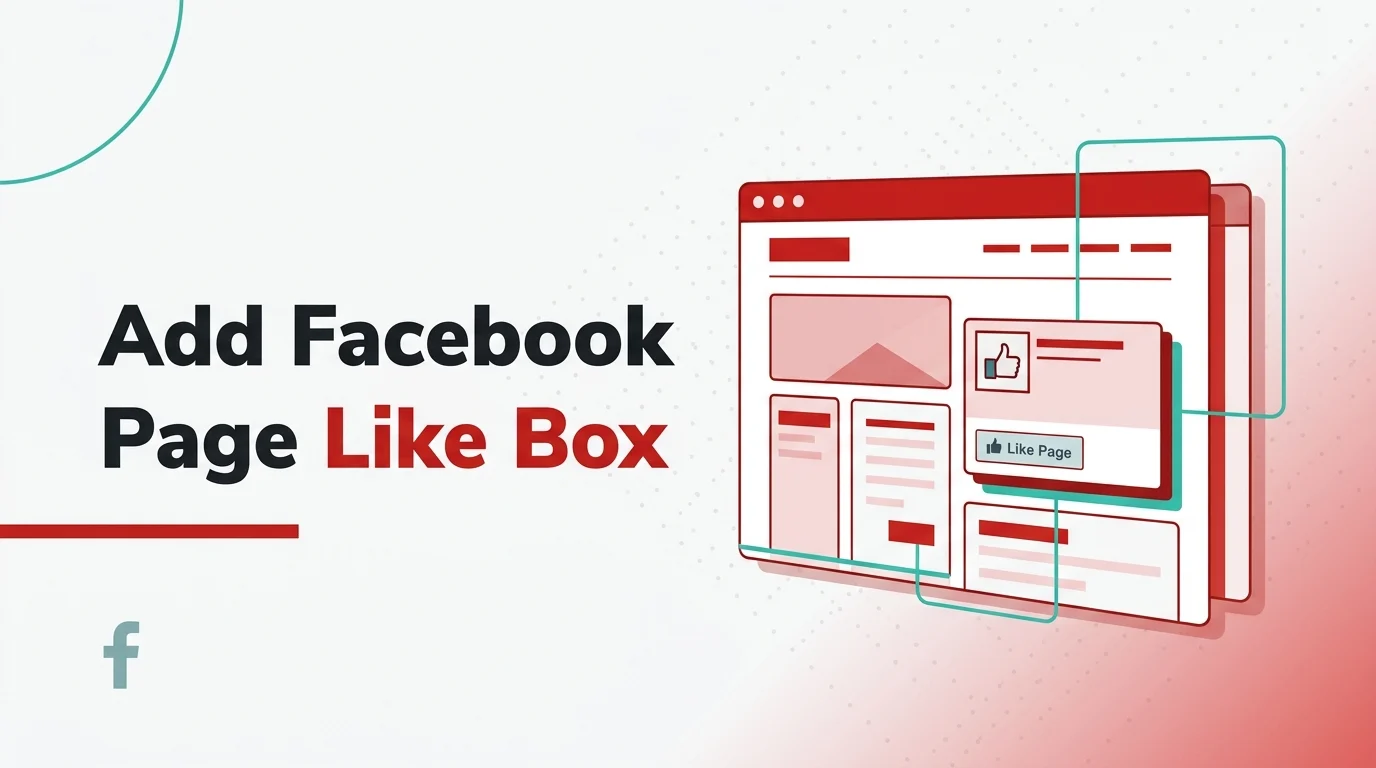
If you’re hunting for the old Facebook “Like Box” code, here’s the honest truth: that method belongs to Facebook’s legacy era and it isn’t the way to go anymore. The modern replacement is the Facebook Page Plugin, which you can find detailed in Meta’s official Page Plugin guide. It still gives you that familiar page box for your website, but it also handles timeline feeds, events, and messages much better than the clunky JavaScript snippets of the past.
If you arrived here after checking out our guide on how to add Facebook features to a site, stick with the updated method below. It’s easier to set up, gives you more control, and actually follows Meta’s current standards.
Use the Facebook Page Plugin Instead of the Old Like Box
Facebook officially retired the old Like Box years ago and pushed everyone toward the Page Plugin. This is a big deal because plenty of old tutorials still suggest using outdated code like connect.facebook.net/en_US/all.js or XFBML tags like stream and show_faces. You’ll still find those examples floating around online, but they aren’t what you should be using for a live site today.
There is another reason to fix those old embeds right now. Meta has already announced that the Facebook Like button and Comment button plugins will be discontinued on February 10, 2026. This is part of a much larger social plugins change. If your site still has old Facebook code buried in the sidebar, now is the time to refresh it rather than trying to patch something that’s about to break.
The Easiest Way: Use an Iframe
If you just want to get a Facebook box onto your page quickly, the iframe version is your best bet. You don’t have to mess with SDK setups or extra JavaScript files. You just copy the code, paste it where you want the box to show up, and swap out the example URL for your own Facebook Page link.
Paste This Code Where You Want the Box to Appear
<iframe
  src="https://www.facebook.com/plugins/page.php?href=https%3A%2F%2Fwww.facebook.com%2Fexamplepage&tabs=timeline&width=340&height=500&small_header=false&adapt_container_width=true&hide_cover=false&show_facepile=true"
  width="340"
  height="500"
  style="border:none;overflow:hidden"
  scrolling="no"
  frameborder="0"
  allowfullscreen="true"
  allow="autoplay; clipboard-write; encrypted-media; picture-in-picture; web-share">
</iframe>
Simply change https://www.facebook.com/examplepage to your specific page URL. For most people, that is the only tweak needed. Everything else in that snippet handles the visual styling.
Understanding the Settings
The tabs setting determines what your visitors see first. Most people stick with timeline, but the plugin also supports events and messaging features, as noted in the plugin tabs documentation. In my experience, it’s best to stay on the timeline view unless you are running a lot of events or want people to message your business directly from the site.
The width and height control the physical footprint of the box. Meta’s own docs mention the plugin works between 180 and 500 pixels wide. If you go narrower than 280 pixels, the default Share button might show up instead to keep the layout from falling apart. That’s why 340px is usually the “sweet spot” for sidebars.
If you want a slimmer look, set the small_header to true. You can also use hide_cover to get rid of the cover photo or show_facepile to hide the little profile pictures of people who like the page. These are basically the modern versions of the “faces” and “header” toggles from the old Like Box days.
Making it Work for Mobile (Responsive Design)
To make the plugin play nice with responsive layouts, it helps to wrap it in a container that controls the width. This prevents the box from overflowing on small phone screens.
<div style="max-width:500px;margin:0 auto;">
  <iframe
    src="https://www.facebook.com/plugins/page.php?href=https%3A%2F%2Fwww.facebook.com%2Fexamplepage&tabs=timeline&width=500&height=500&small_header=false&adapt_container_width=true&hide_cover=false&show_facepile=true"
    width="100%"
    height="500"
    style="border:none;overflow:hidden"
    scrolling="no"
    frameborder="0"
    allowfullscreen="true"
    allow="autoplay; clipboard-write; encrypted-media; picture-in-picture; web-share">
  </iframe>
</div>
Here’s something a lot of people miss: even if you set a large width in the code, the actual size of the box depends on the container it sits in. If the box looks cramped or cut off, the issue is usually your website theme’s column width, not the Facebook code itself.
When to Use the JavaScript SDK
The iframe is usually plenty for most sites. However, Meta still offers the SDK-based method in their social plugins guide. I really only suggest this if you’re already loading the Meta JavaScript SDK for other features. If not, there’s no reason to add the extra weight to your page load just for one box.
SDK-Based Example
<div id="fb-root"></div>
<script async defer crossorigin="anonymous" src="https://connect.facebook.net/en_US/sdk.js#xfbml=1&version=v25.0"></script>

<div class="fb-page"
  data-href="https://www.facebook.com/examplepage"
  data-tabs="timeline"
  data-width="340"
  data-height="500"
  data-small-header="false"
  data-adapt-container-width="true"
  data-hide-cover="false"
  data-show-facepile="true">
  <blockquote cite="https://www.facebook.com/examplepage" class="fb-xfbml-parse-ignore">
    <a href="https://www.facebook.com/examplepage">Facebook Page</a>
  </blockquote>
</div>
This works well if you want to stay strictly aligned with Meta’s markup format. But for a standard blog or small business site, I’d still tell you to go with the iframe first—it’s just cleaner.
Quick Setup Tips
If you want that classic sidebar look, use tabs=timeline, width=340, and show_facepile=true. For a more “minimalist” vibe, turn show_facepile to false and hide_cover to true. Just make sure your width stays above 280 pixels so the layout doesn’t get wonky.
One more thing: if you’re actually trying to show off a single specific post instead of your whole page, the Page Plugin isn’t the right tool. You should use the embedded posts option for that. And if you just want people to share your articles, check out the Share Button docs rather than forcing a page box to do that job.
Common Mistakes to Watch Out For
I see the same few errors over and over. The first is using an old snippet with dead script URLs. The second is forgetting to URL-encode the Facebook link inside the iframe’s href parameter. The third is trying to squeeze the plugin into a tiny sidebar and then wondering why it looks broken.
Also, keep in mind that the Page Plugin is for public Facebook Pages. It won’t work for personal profiles, private groups, or pages that aren’t published yet. If your page has age or country restrictions, the box might not show up for everyone.
The Final Word
If you need to add a Facebook “like box” in 2026, go with the Page Plugin iframe. It’s the closest thing we have to the old-school version, it’s still officially supported, and it’s much less of a headache than the old JS scripts. Stick to a width between 180px and 500px, keep the timeline as your main tab, and only mess with the SDK if you really have to.
Basically? Stop using the old code from ten years ago. Use the Page Plugin, keep it simple, and your site will look much better for it.