Vipin PG
Whether you’re trying to track down where an image originally came from, find a high-resolution version of a photo, or search for images you’re legally allowed to use — none of that actually requires AI tools. The web has had powerful, manual image search techniques for years, and most people haven’t explored them fully. Here’s exactly how to do it.
Step 1: Use Reverse Image Search to Find the Original Source
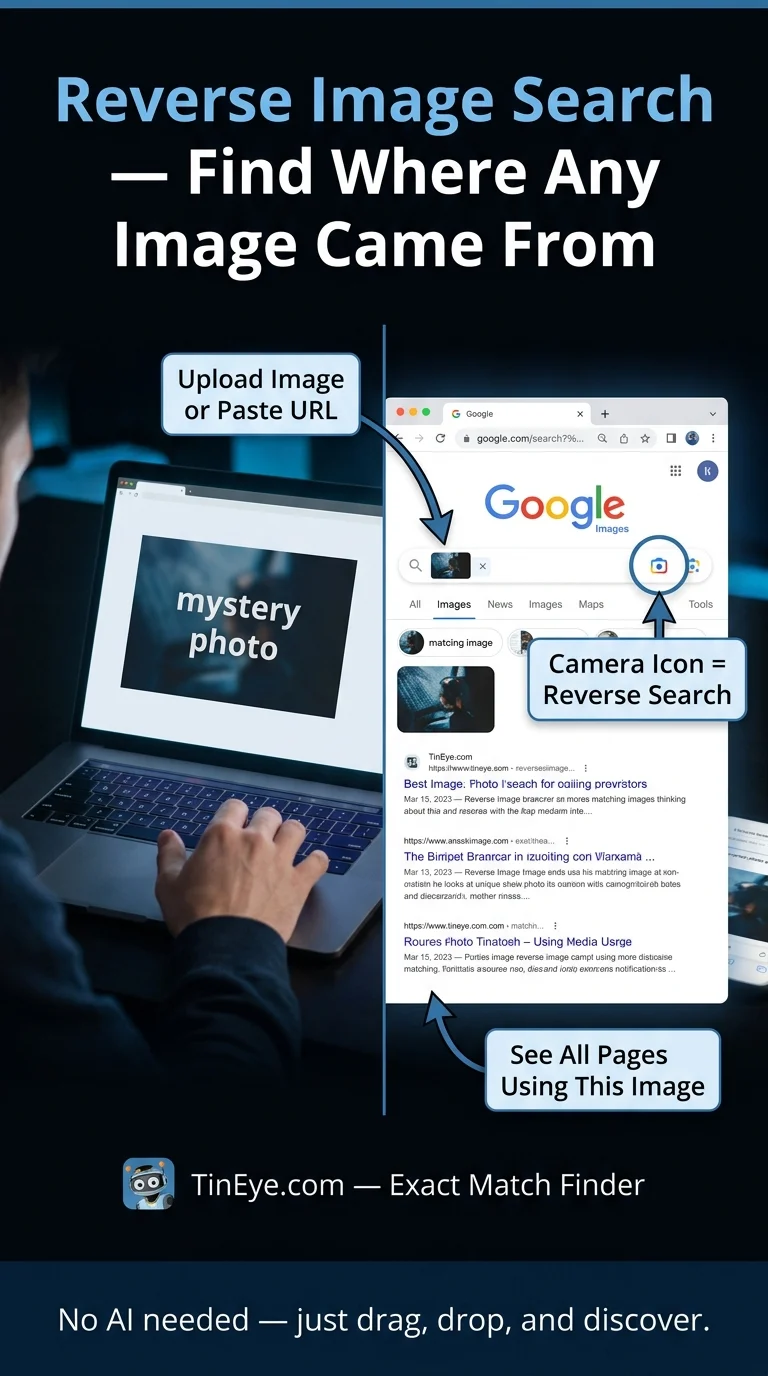
The most powerful non-AI technique is reverse image search. Instead of typing words, you upload or paste an image URL and the search engine finds where that image exists across the web.
- Go to images.google.com and click the camera icon in the search bar.
- Upload your image or paste its URL.
- Google will show you visually similar images and pages where that exact image appears.
- Alternatively, use TinEye.com — it specializes in finding exact image matches and showing their history online.
This is especially useful when you want to verify if an image is real, find its original photographer, or locate a higher-quality version.
Step 2: Use Advanced Search Filters in Google Images
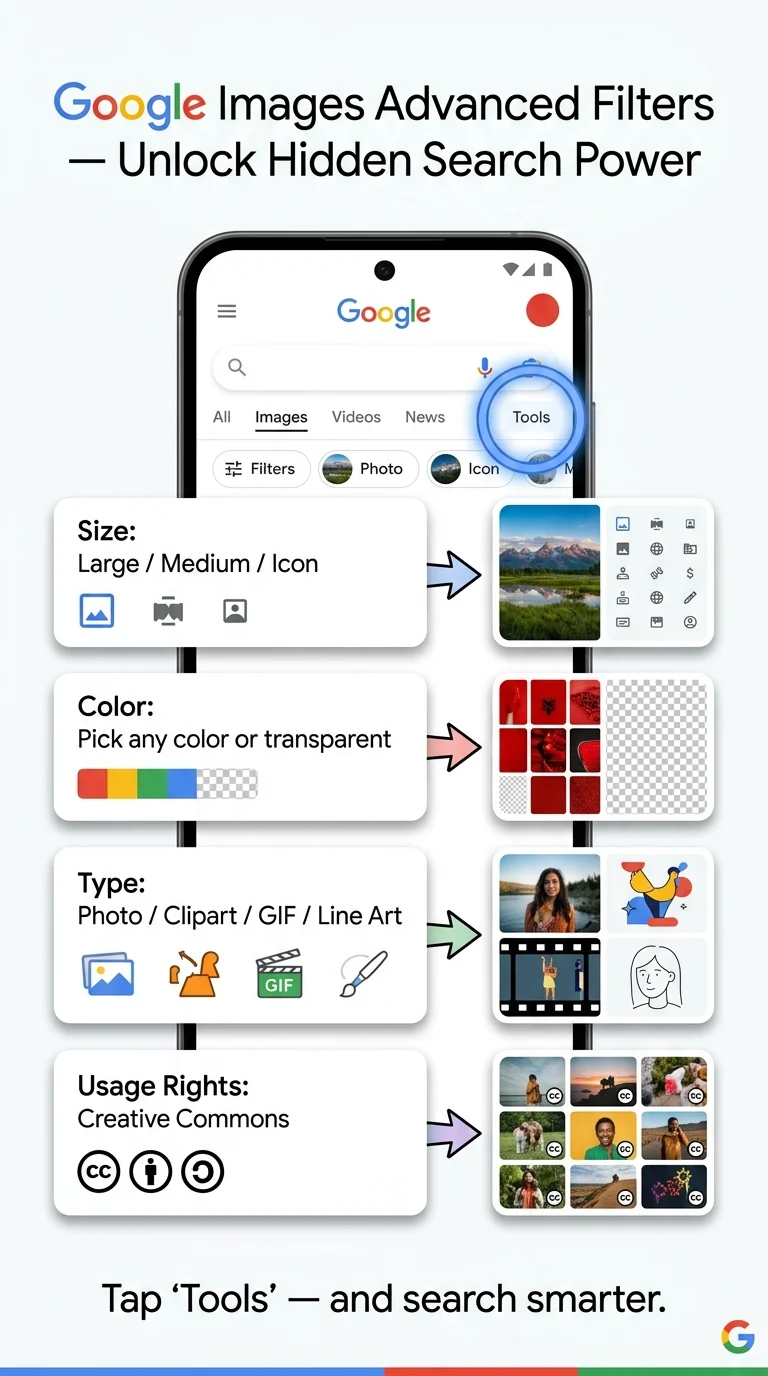
Google Images has a hidden set of filters most people never use. These let you narrow results far beyond what a basic keyword search gives you.
- Search for your keyword on images.google.com.
- Click “Tools” under the search bar to reveal filter options.
- Filter by Size (Large, Medium, Icon), Color (specific color, black and white, transparent), Type (photo, clipart, line drawing, GIF), and Usage Rights (Creative Commons).
- Use the time filter to find recently published images on a topic.
These filters save you time and help you find exactly the type and quality of image you need — without sifting through hundreds of irrelevant results.
Step 3: Search Using Specific File Type Operators in Google
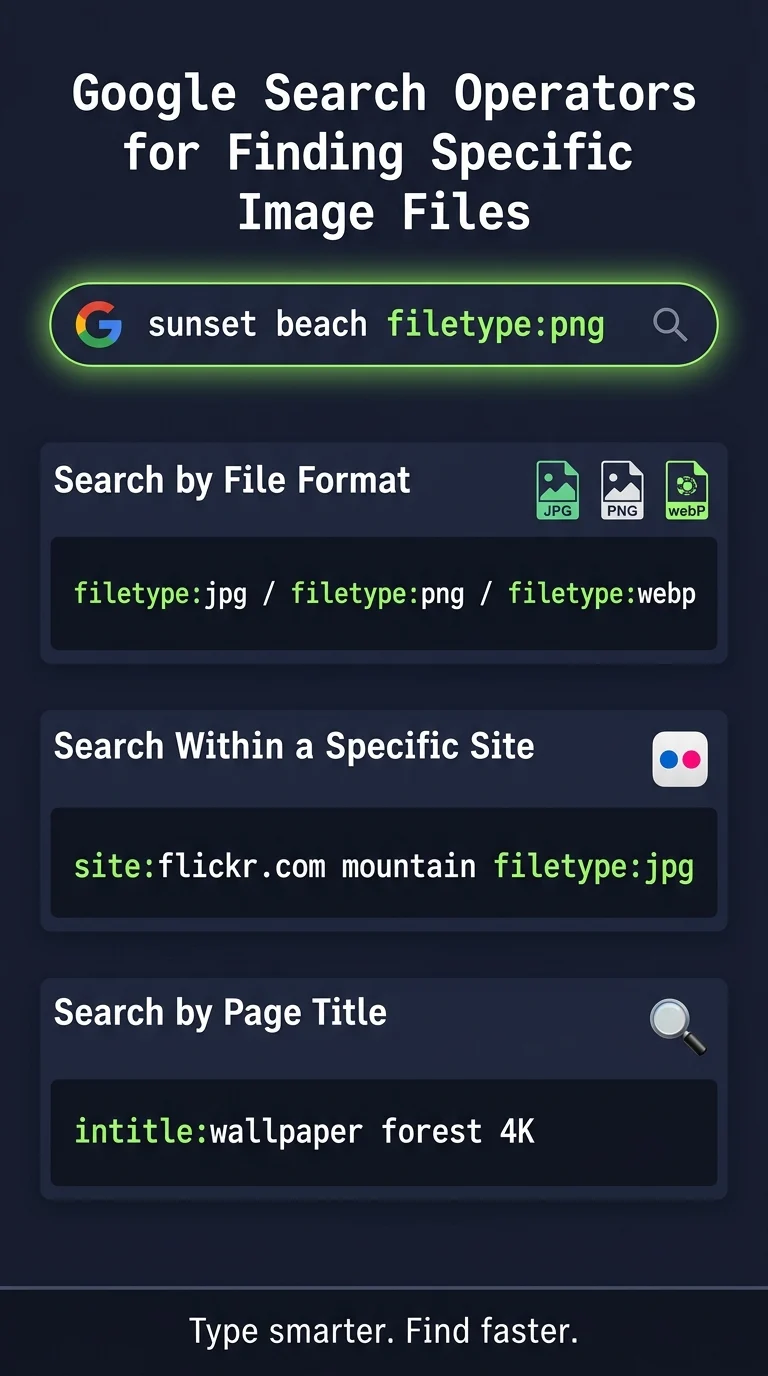
Google’s search operators let you look for images by their exact file format directly in the web search bar — a technique most users don’t know about.
- In Google’s regular search bar, type your keyword followed by filetype:jpg or filetype:png to find images of that format.
- Example:
sunset beach filetype:png— this surfaces PNG images of beaches indexed by Google. - Combine with site: to search a specific website. Example:
site:flickr.com mountain photography filetype:jpg - Use intitle: or inurl: operators to find images stored on pages with specific titles or URL patterns.
This method is powerful for researchers, designers, and journalists who need specific file types from trustworthy sources.
Step 4: Use Pinterest’s Visual Search Inside Images
Pinterest has a built-in visual search tool that doesn’t use AI generation — it simply detects objects within an image and lets you search for similar items in that specific area.
- Open any image on Pinterest.
- Click the search icon that appears on the image (looks like a small dotted square).
- Drag to select any part of the image — a specific object, pattern, or area.
- Pinterest will immediately show you visually similar images matching that exact portion.
This is ideal when you see part of an image you like — a furniture style, clothing item, or design pattern — and want to find more like it.

Step 5: Search Free Image Libraries Directly
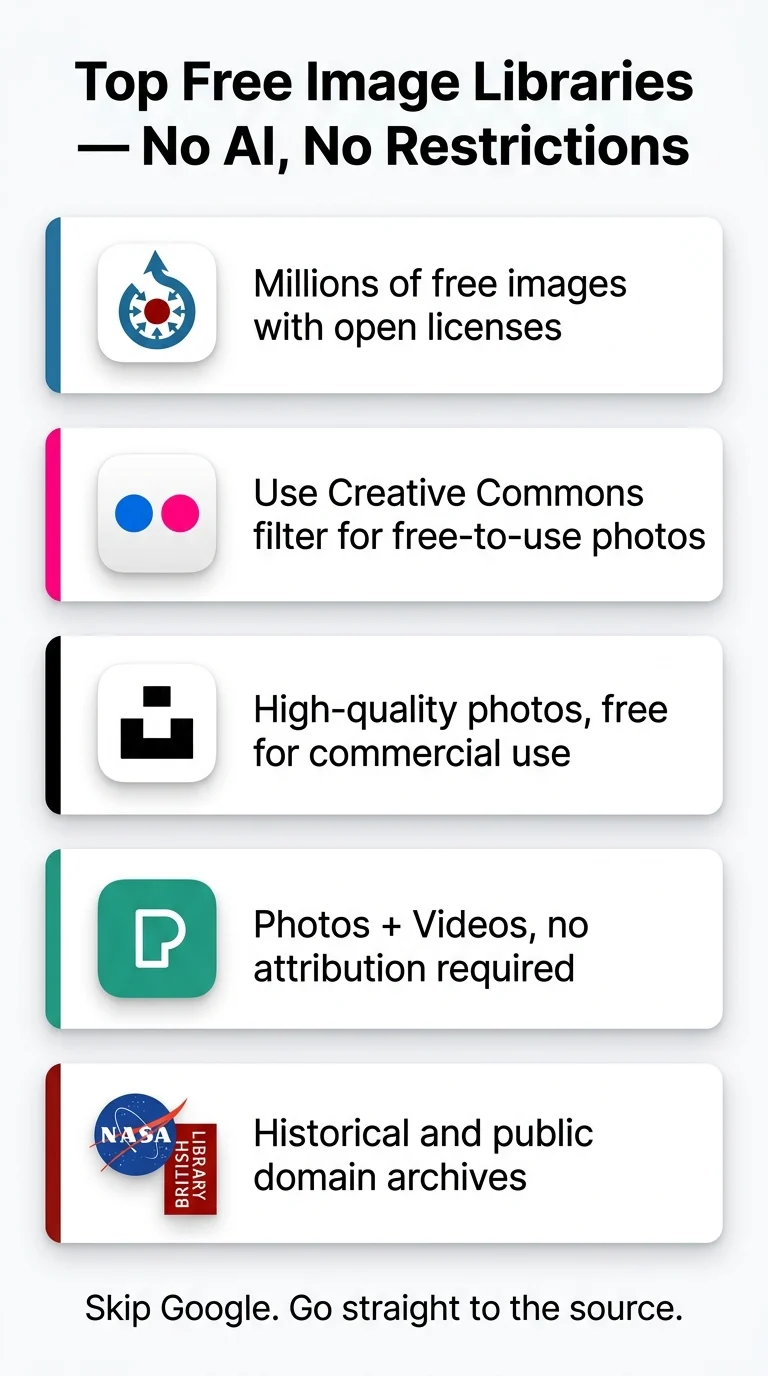
Instead of searching the open web, going directly to curated image libraries gives you better quality results, clear licensing, and organized categories — all without any AI involvement.
- Wikimedia Commons (commons.wikimedia.org) — millions of freely usable images with clear licensing details.
- Flickr (flickr.com) — use the Creative Commons filter in the search to find images free to use or share.
- Unsplash (unsplash.com) — high-quality photography, free for personal and commercial use.
- Pexels (pexels.com) — similar to Unsplash, with both photo and video options.
- The British Library / NASA / NYPL Digital Collections — specialized archives with rare historical images, many in the public domain.
Each of these platforms has its own internal search with filters. Spending five minutes on one of these is more productive than scrolling through generic Google results.
Step 6: Use Bing Visual Search for a Different Angle
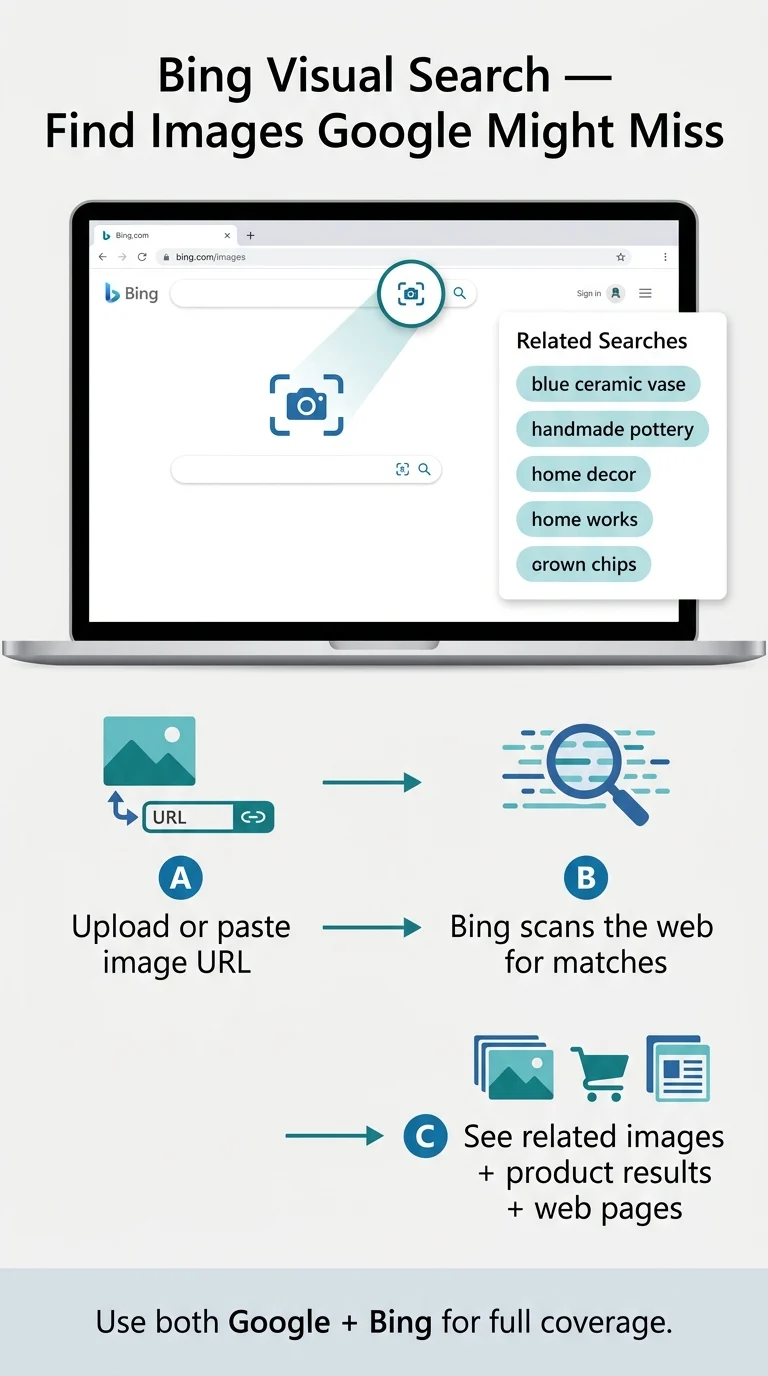
Bing’s image search engine has strong visual search capabilities that are different from Google — and it often surfaces results that Google misses, especially for products and landmarks.
- Go to bing.com/images and click the camera icon.
- Upload an image or paste a URL — Bing will show related images, product matches, and web pages using that image.
- Bing also shows a “Related searches” panel on the right that helps you refine with keywords after the initial visual search.
- For shopping-related image searches, Bing pulls product matches with prices — useful for identifying where an item is sold.
Using both Google and Bing together for reverse image search gives you the most complete picture of where an image lives online.
You Don’t Need AI to Search Images Effectively
Reverse image search, Google’s hidden filters, file type operators, Pinterest’s in-image selection tool, dedicated free image libraries, and Bing Visual Search — each of these techniques works independently and powerfully on its own. Together, they cover virtually every image-finding scenario you’ll run into. The tools have always been there; it’s just about knowing where to look and how to use them.