
Unlocking a smartphone can sometimes be challenging, especially when you find yourself locked out due to forgotten passwords, PINs, or even a malfunctioning device. Fortunately, reliable tools and software solutions are available to help you regain access to your phone swiftly and securely.
In this article, we will explore one such powerful tool – iToolab UnlockGo Android. Whether you’ve forgotten your phone’s password, encountered a locked device after a factory reset, or are dealing with any other lock-related issue, iToolab UnlockGo is your trusted companion for a hassle-free Android phone unlocking experience.
We will discover the amazing features of iToolab UnlockGo and see how to easily take control of your Android device. With UnlockGo, unlocking your phone will never be easier, and you’ll have your device up and running in just a few simple steps.
 First things first, you need to download and install UnlockGo on your computer. It supports both Windows and Mac, so no need to worry about compatibility issues. Once the installation is complete, launch the program to get started.
You can download it from here: link.
First things first, you need to download and install UnlockGo on your computer. It supports both Windows and Mac, so no need to worry about compatibility issues. Once the installation is complete, launch the program to get started.
You can download it from here: link.
 After successfully connecting your device, UnlockGo will promptly identify your phone and present a range of unlocking alternatives. Select the method that aligns with your particular requirements, be it passcode removal, FRP bypass, or Apple ID removal.
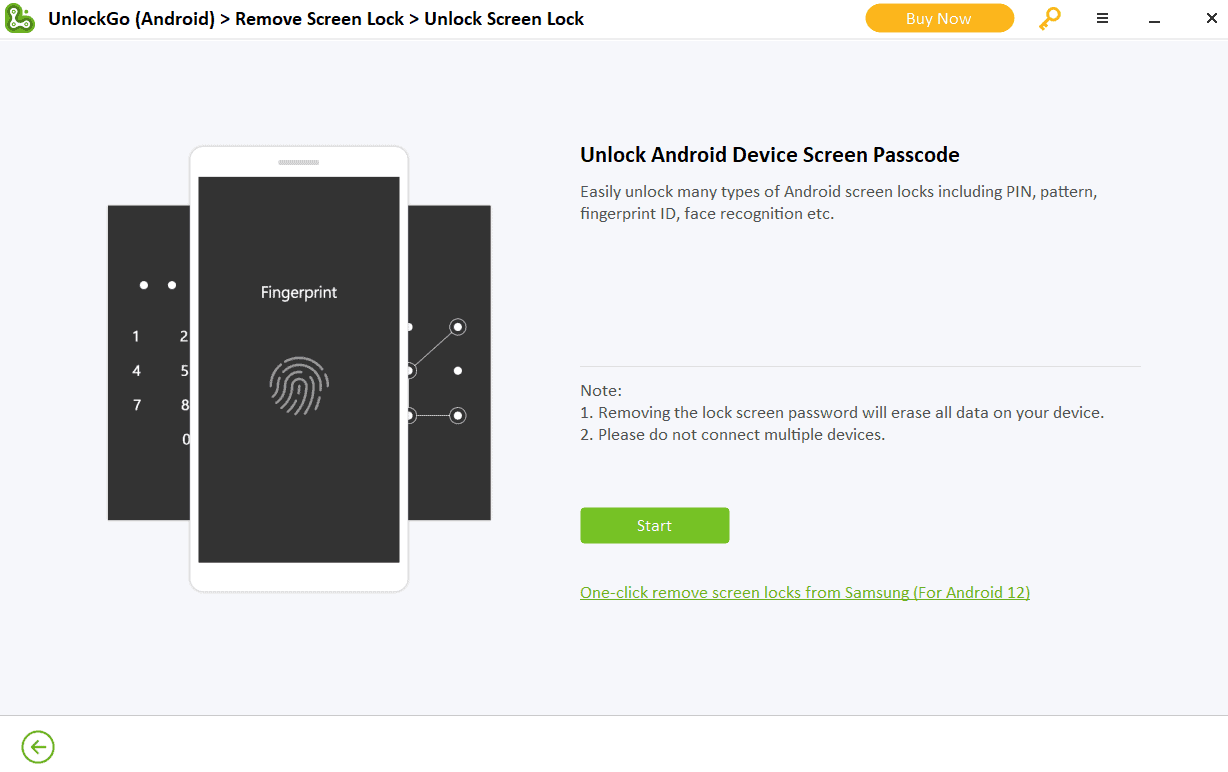 After selecting the unlocking method, click on the “Start” button to initiate the unlocking process. UnlockGo will then start working its magic, removing the lock screen or Apple ID from your device.
Go to the iToolab website and download the latest version on UnlockGo. Then install it on your PC/laptop.
After selecting the unlocking method, click on the “Start” button to initiate the unlocking process. UnlockGo will then start working its magic, removing the lock screen or Apple ID from your device.
Go to the iToolab website and download the latest version on UnlockGo. Then install it on your PC/laptop.
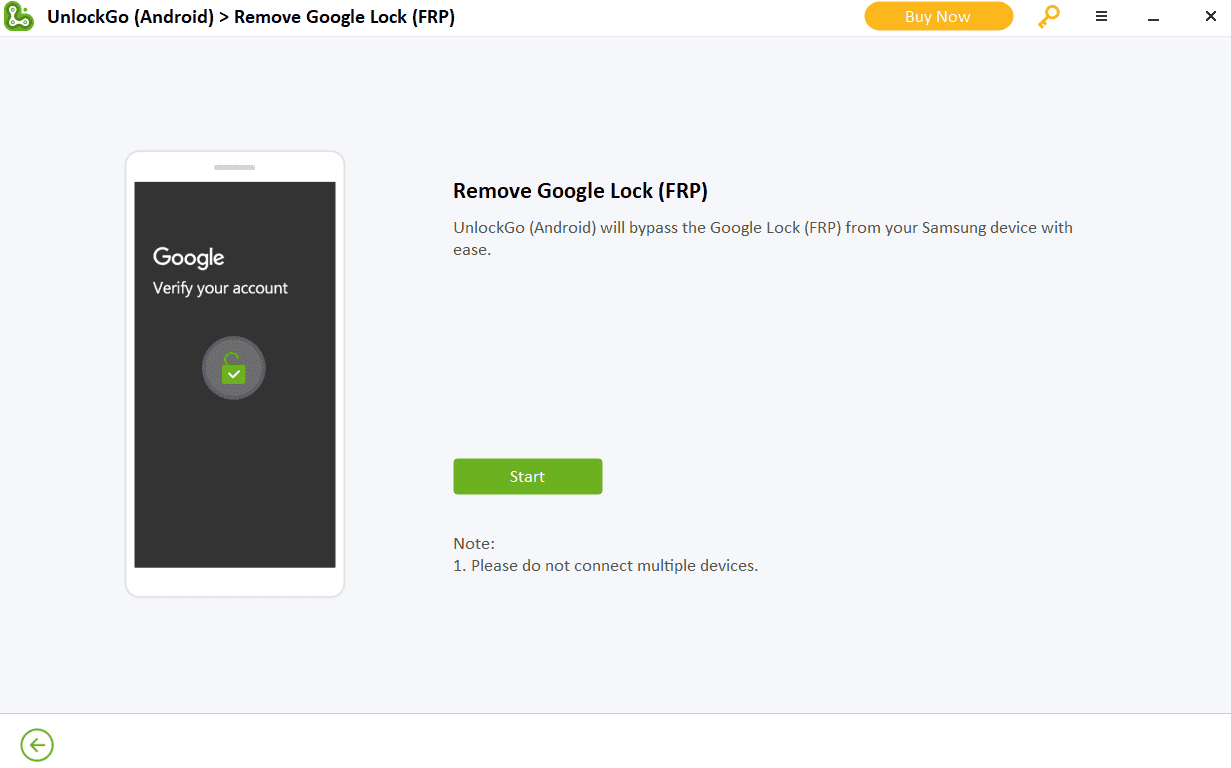 Open UnlockGo and connect your Samsung device to your computer using a USB cable. Then, click on the ‘Remove Google Lock’ option from the main menu.
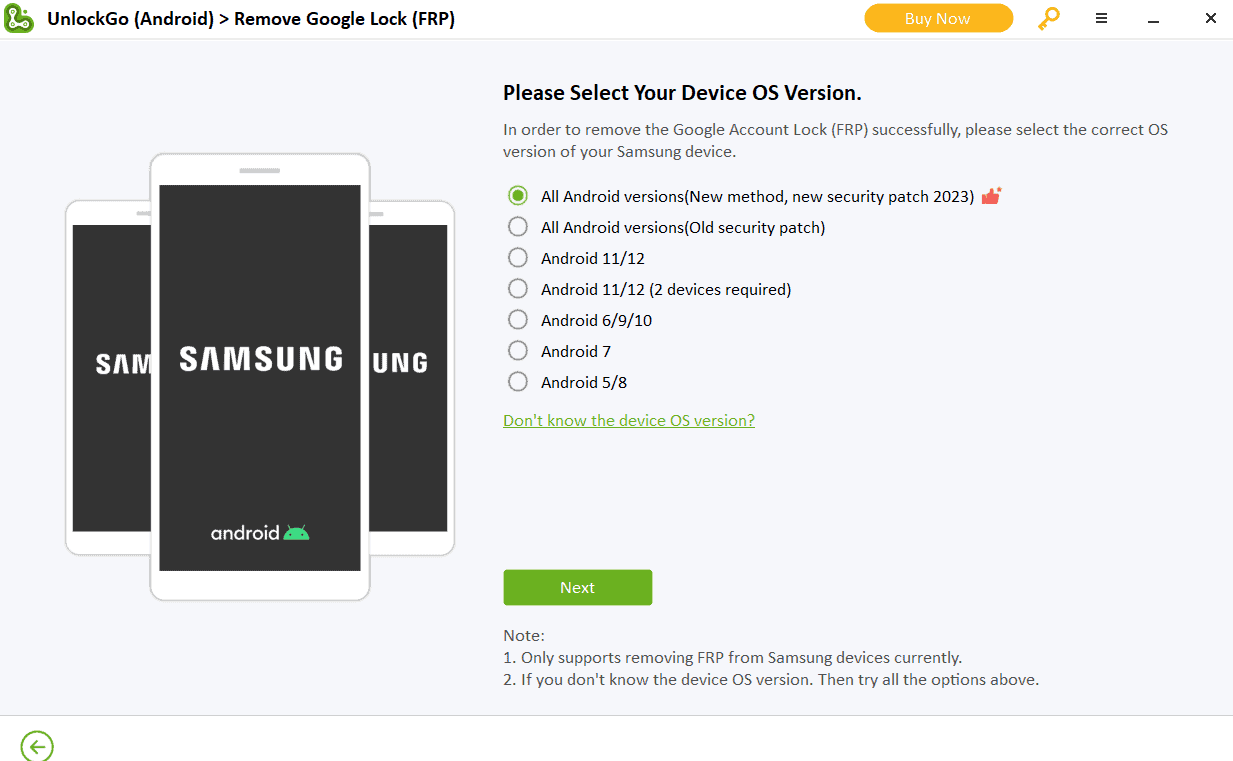 Follow the on-screen instructions provided by iToolab UnlockGo to initiate the FRP bypass process. The software will guide you through the necessary steps to bypass Samsung FRP and regain access to your Samsung device.
What is iToolab UnlockGo?
iToolab UnlockGo serves as a useful solution for unlocking your Android phone in various scenarios: whether you’ve forgotten your passcode, encountered a disabled device, or purchased a second-hand phone locked to a different carrier. Think of it as your personal key to unlock your phone’s lock screen. With UnlockGo, effortlessly regain access to your device and its data without any hassle.Key Features of iToolab UnlockGo
UnlockGo offers a compelling array of features that position it as the premier choice for unlocking your smartphone. Here are some notable features to take note of:- Effortless Passcode Removal: UnlockGo excels at effortlessly eliminating various types of passcodes, encompassing PINs, patterns, facial recognition (Face IDs), and fingerprint recognition (touch IDs).
- Factory Reset Protection (FRP) Bypass: In the event that you encounter the Google FRP lock on your Android device, UnlockGo stands ready to assist you in bypass frp, allowing you to regain full control over your device.
- Apple ID Removal: For Apple enthusiasts, UnlockGo can seamlessly strip your Apple ID from any device, affording you the flexibility to sign in with an alternative ID or establish a fresh one.
- Uncompromising Data Privacy: Distinguishing itself from other unlocking methods, UnlockGo prioritizes the safety and confidentiality of your personal information throughout the unlocking process. Your data remains secure and private.
Compatibility Of iToolab UnlockGo
iToolab UnlockGo can work with many different types of phones from various brands, like Samsung, XiaoMi, Vivo, Oppo, etc. However, it’s important to know that it might not work with every single phone model. So, before you try iToolab UnlockGo, it’s a good idea to visit their official website or talk to their customer support to make sure it works with your specific phone.What Is FRP?
FRP, or Factory Reset Protection, is a safety feature created by Google for Android gadgets. Its main job is to stop people from getting into your phone without permission after you’ve reset it back to how it was when you first got it. Basically, if you turn on FRP and reset your device, it will lock your phone until you put in the same Google account details you used before. This makes sure that if your phone ends up with someone who shouldn’t have it or if it gets stolen, that person won’t be able to get into your private stuff unless they know your Google account info linked to the device. While FRP might be a hassle if you forget your Google account details, it really boosts your smartphone’s security and keeps your important information safe from possible risks.Samsung FRP
Samsung’s Factory Reset Protection (FRP) is a security measure integrated into Samsung Android devices. Its primary purpose is to safeguard your device and personal information in the event of theft or unauthorized access. Once FRP is activated, it necessitates the use of the Google account that had been previously synchronized with the device following a factory reset.Step-by-step Guide
Unlocking Your Android Phone with iToolab UnlockGo
Step 1: Downloading and Installing iToolab UnlockGo
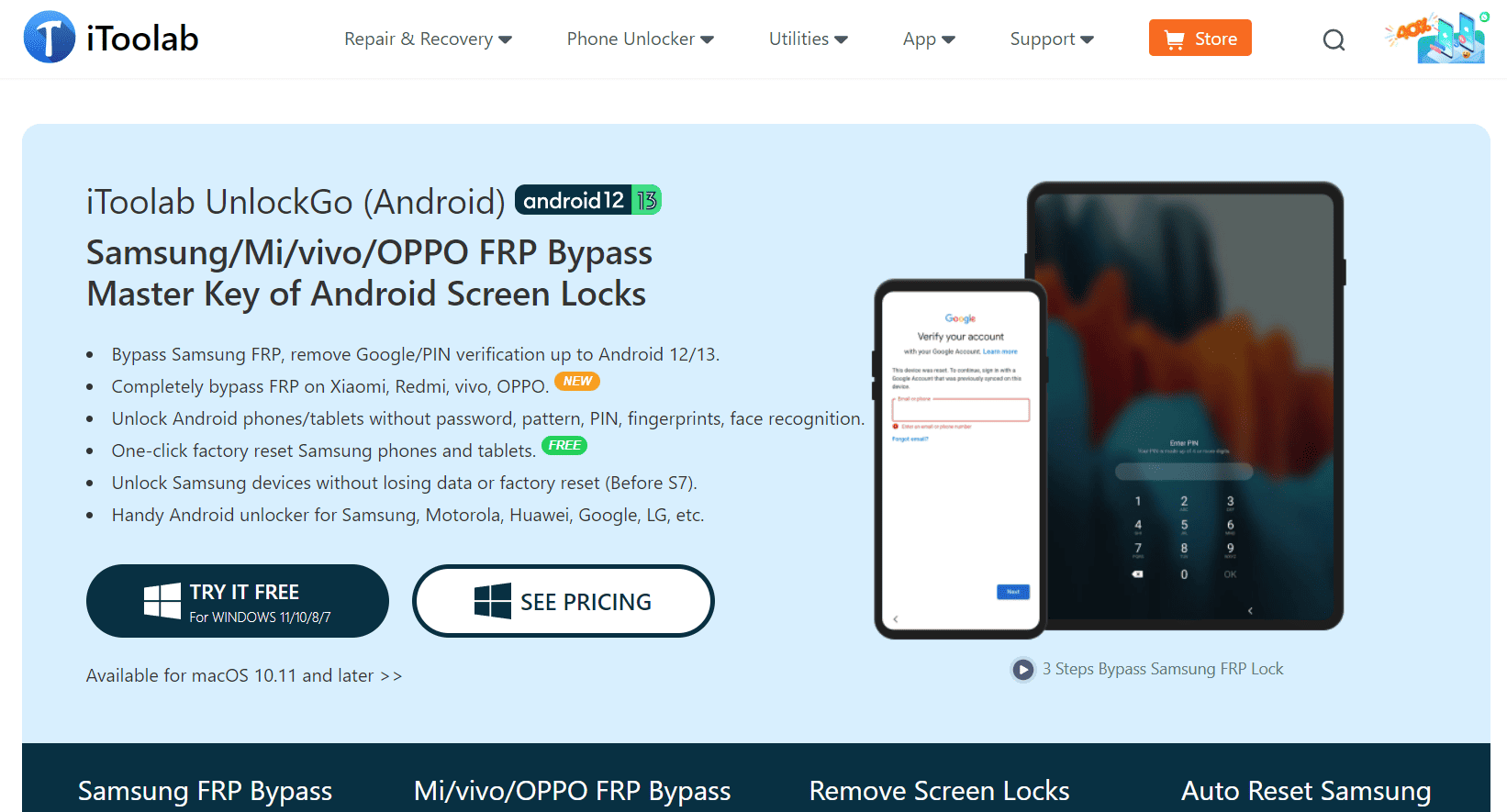
First things first, you need to download and install UnlockGo on your computer. It supports both Windows and Mac, so no need to worry about compatibility issues. Once the installation is complete, launch the program to get started.
You can download it from here: link.
Step 2: Connecting Your Phone to iToolab UnlockGo
To link your phone with iToolab UnlockGo, follow these steps:- Connect your phone to your computer using a USB cable.
- Make sure to activate USB debugging on your Android device or select “Trust This Computer” on your iPhone to establish a seamless connection.
Step 3: Choosing the Unlock Method
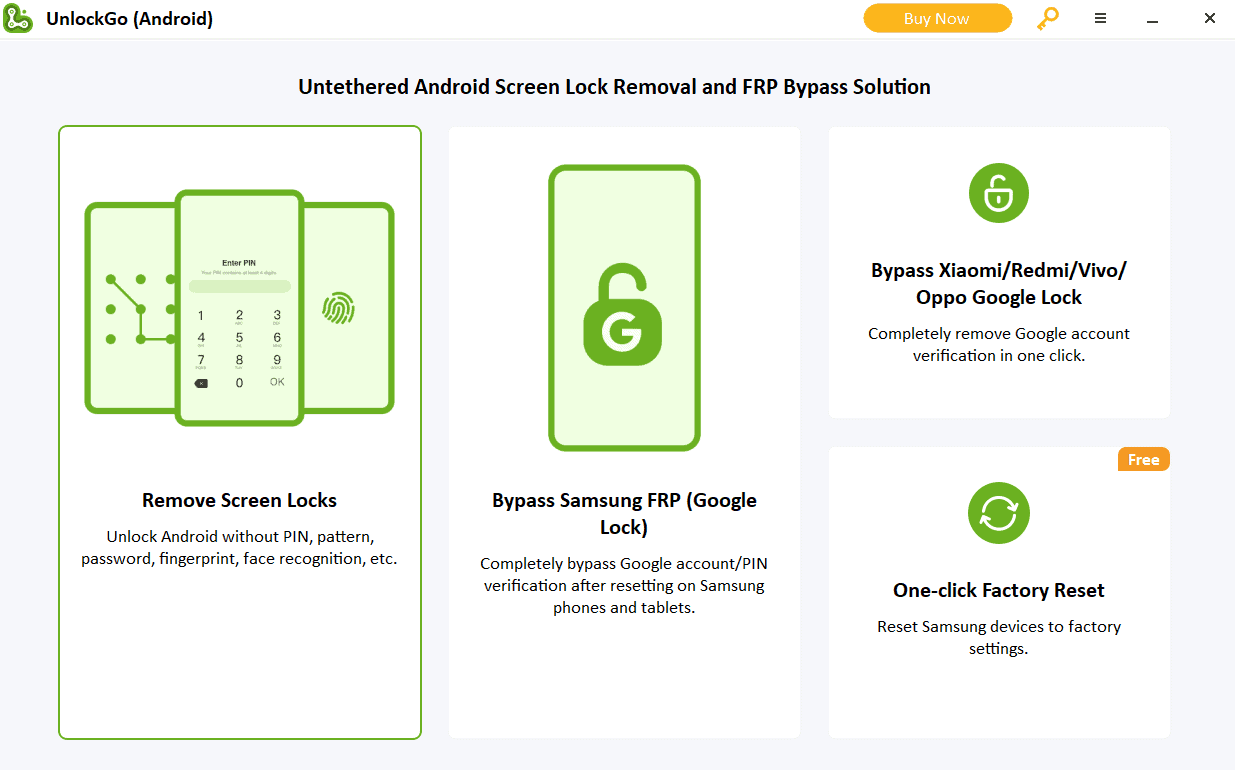
After successfully connecting your device, UnlockGo will promptly identify your phone and present a range of unlocking alternatives. Select the method that aligns with your particular requirements, be it passcode removal, FRP bypass, or Apple ID removal.
Step 4: Initiating the Unlocking Process
After selecting the unlocking method, click on the “Start” button to initiate the unlocking process. UnlockGo will then start working its magic, removing the lock screen or Apple ID from your device.
Step 5: Verifying Successful Unlocking
Upon the successful completion of the unlocking process by UnlockGo, you will receive a notification confirming its success. At this point, you may safely disconnect your phone from the computer and relish unrestricted access to your device.How to Bypass Samsung FRP on iToolab UnlockGo?
Step 1: Preparing your device and computer
Before you use iToolab UnlockGo, make sure your Samsung device has enough battery, you’re connected to the internet, and you’ve installed the latest version of iToolab UnlockGo on your computer or laptop.Step 2: Downloading and installing iToolab UnlockGo
Go to the iToolab website and download the latest version on UnlockGo. Then install it on your PC/laptop.
Step 3: Connecting your device to the computer
Open UnlockGo and connect your Samsung device to your computer using a USB cable. Then, click on the ‘Remove Google Lock’ option from the main menu.
Step 4: Bypassing Samsung FRP with iToolab UnlockGo
Follow the on-screen instructions provided by iToolab UnlockGo to initiate the FRP bypass process. The software will guide you through the necessary steps to bypass Samsung FRP and regain access to your Samsung device.