DVDs are still used for legal evidence archiving, wedding footage delivery, student multimedia courseware, and other scenarios. To burn a playable DVD on Mac or Windows, Cisdem DVD Burner becomes a DVD authoring app that many people are checking out. Is it safe or free to use? What features does it offer? Find out in this test-based Cisdem DVD Burner review.
What is Cisdem DVD Burner?
Cisdem DVD Burner is an efficient
DVD burning app to create high-quality video DVD discs. If you haven't buy the blank disc yet, you can choose the output as DVD folder and ISO image . It includes diverse menu templates and basic editing tools to add appealing DVD menu, subtitles, background music, etc. Also, it offers multi-language support, preview features, and multiple burning settings, ideal for beginners and experts to make outstanding DVD works.
Advantages:
- Minimalist interface and only 3 steps required to complete the burning process
- Includes features you need to burn great-looking DVDs
- High burning success rate based on tests
Disadvantages:
- Not free software
- Doesn’t support Blu-ray burning at the moment
Is Cisdem DVD Burner Safe?
100% safe. DVD Burner is provided by Cisdem Inc., a company founded in 2014 that focuses on developing high-quality software. I installed it on a Mac and Windows computer, and VirusTotal showed no viruses or critical vulnerabilities. I also encountered no issues while running it. You can download the latest version from the
Cisdem official website, or go to the authoritative download sites - Uptodown and Softonic to download the previous versions.
Cisdem DVD Burner Pricing
Cisdem DVD Burner free version includes all features to make a video DVD, but only for the first 5 minutes or half of the video. If you want to upgrade to the full version, you need to pay. The program offers three license types, each with three purchase options. All licenses come with lifetime free upgrades. The following is its pricing table. Compared to competitors, it offers better value for money.
| License count/type |
Yearly plan |
Permanent buy |
Business license |
| 1 |
$39.99 |
$59.99 |
$79.99 |
| 2 |
$55.99 |
$83.99 |
$111.99 |
| 5 |
$99.99 |
$149.99 |
$199.99 |
Cisdem DVD Burner Installation
Whether it's for Mac or PC, you can install or uninstall the application in the most basic way. Below are the latest versions and installation package sizes.
| Compatibility |
Version |
Size |
| macOS 10.13 or later (64bit) |
6.11.0 |
86.5MB |
| Windows 11, 10, 8, 7 (64bit) |
2.8.1 |
111MB |
Cisdem DVD Burner Upgrade
To maintain the stability of the software, it is upgraded every year. Especially in the run-up to Christmas, when the demand for DVD Burner increases dramatically, Cisdem tests the software and optimizes it. Once the software upgrade is complete, you will see a pop-up window at startup that lists the release notes and prompts you to upgrade. If you accidentally clicked the "Skip this version" button, go directly to the official website to get the new version.
Cisdem DVD Burner Features
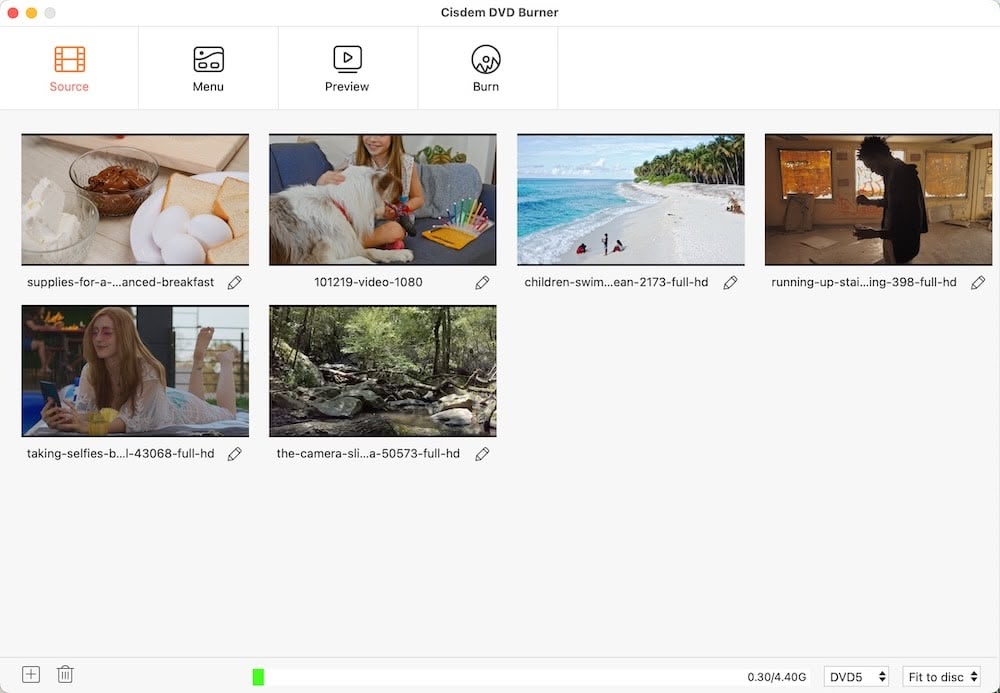
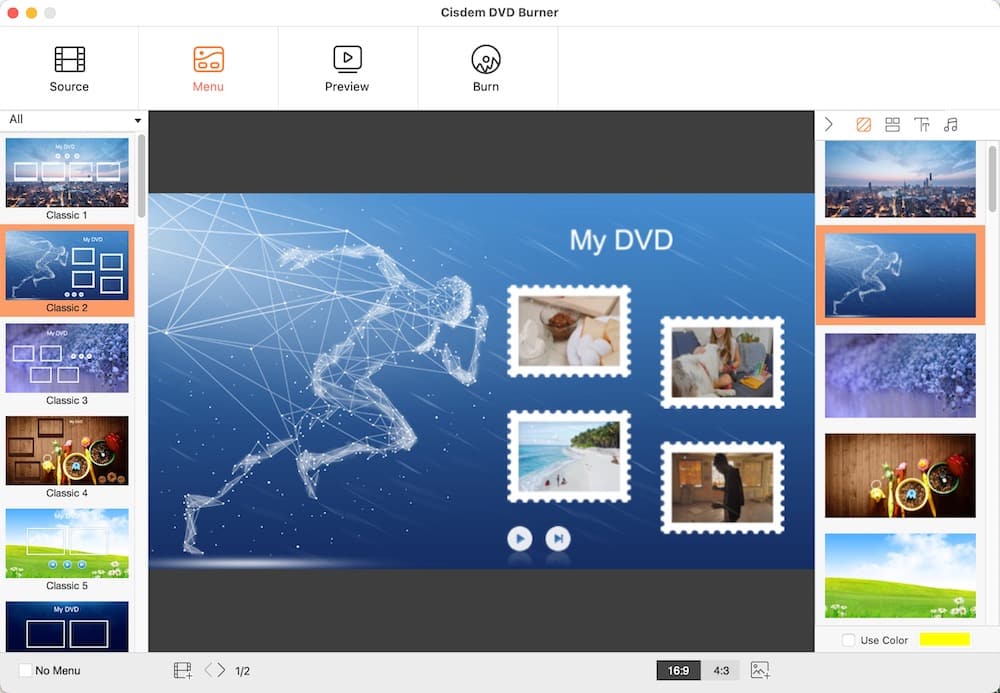
Cisdem DVD Burner is divided into four workspaces: Source, Menu, Preview, and Burn, each of which corresponds to a self-explanatory task. The whole process does not require any professional skills.
Souce interface - add videos to burn and edit them
Import video files
There are three ways to add videos:
- Drag and drop directly from local to the software (recommended)
- Click the “Add Video” button and select from the folder
- After adding the video, a “+” icon will appear in the lower left corner — click it to continue adding more videos.
It works with any video format such as MP4, M4V, MKV, WMV, AVI, H264, etc.. So you don't need to worry about incompatible formats. You can also import the ISO file. Cisdem DVD Burner Tech Spec page lists many supported formats. You can go to that page for more information.
Edit the video
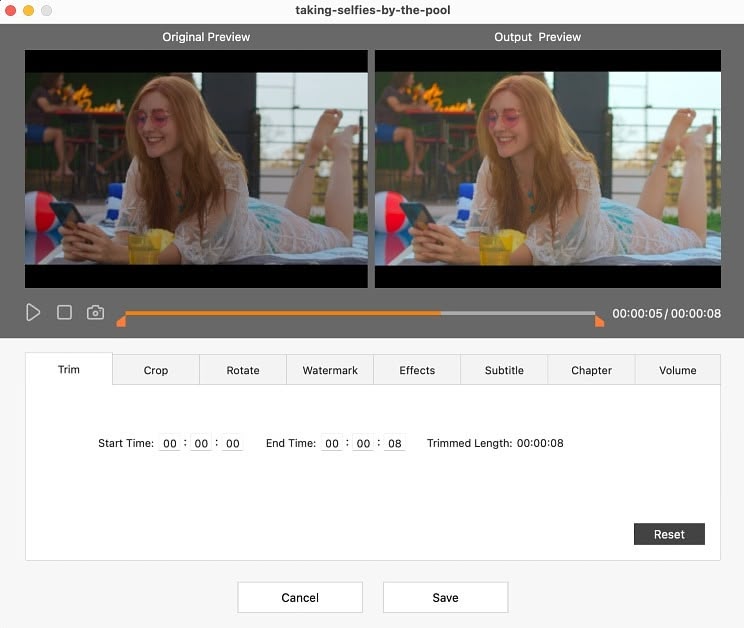
There is a pencil icon under each video, click it to bring up the video editor.
- Trim: If you only want to keep the core content of the video, you can trim the video by setting the start and end time.
- Crop: Can keep the original ratio, set the commonly used 16:9 or 4:3, or freely crop irrelevant areas of the video.
- Rotate: There are 4 directions, left/right rotation and left/right flip.
- Watermark: Can add a text watermark, or upload an image watermark, and then adjust the transparency.
- Effects: Let you adjust brightness, tint, contrast, temperature, saturation, and enable deinterlacing.
- Subtitle: Enable the video's built-in subtitles or upload an .srt external subtitles.
- Chapter: Split video into different chapters
- Volume: Adjust the volume level and set the fade-in/fade-out time.
Pick DVD burning mode
You can select the burning mode in the lower right corner of the interface.
| Mode |
Quality |
Description |
| Fit to Disc |
Below average |
Smartly compress videos, suitable for long video burning |
| High Quality |
High |
Close to original quality, for short HD videos |
| Standard |
Average |
Balances image quality and DVD capacity |
Menu interface - make your DVD more professional and beautiful
Use the DVD menu template
Choose from ready-made appealing templates, such as classic, seasonal or holiday-related templates, to decorate the DVD.
Manually customize the DVD menu
Upload a local image or use a color as the menu background, select the desired title/menu buttons (can resize by dragging the edges), add text boxes (select the font, size, color) and edit them, and also add music.
If you don’t want a menu, check the “No Menu” option.
Preview interface - be confident in your results
The DVD menu is displayed on the left side of the interface, and the simulated remote control is on the right. Click "1" to play the first video in the DVD, and click "Menu" to return to the menu.
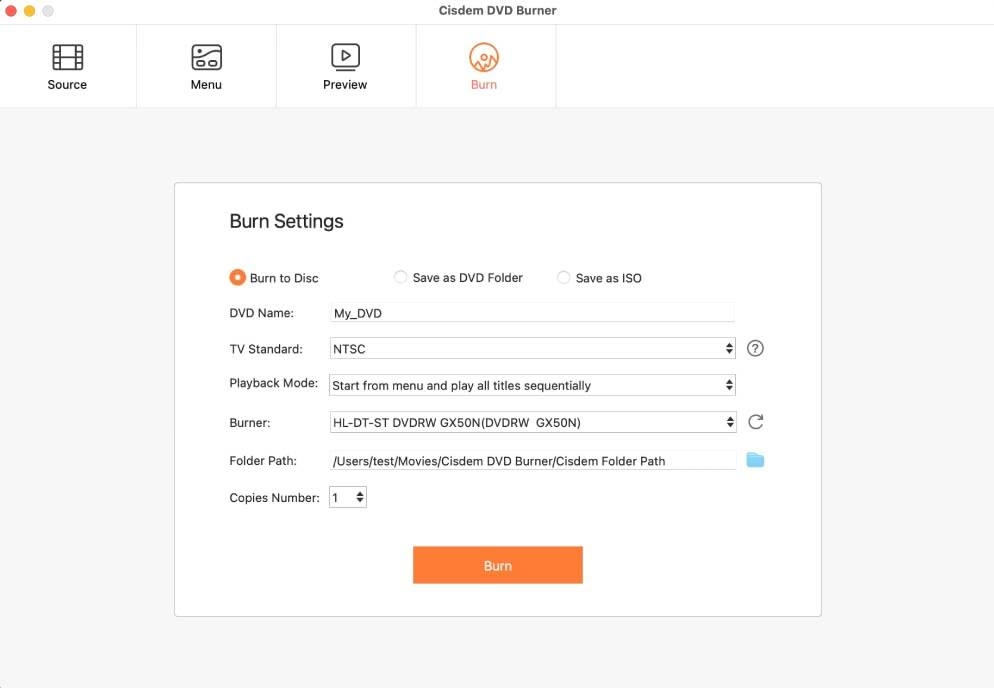
Burning interface - simple setup, one-click burning
- Specify an output: Burn to Disc, Save as DVD Folder, or Save as ISO. Disc types can be DVD-R/+R, DVD+RW/-RW, DVD+R DL/-R DL, and DVD-RAM
- Choose TV standard: For example, NTSC for United States, Canada, Japan, and parts of South America. PAL for Europe, Australia, parts of Asia, and Africa.
- Choose playback mode: Start from menu and play all titles sequentially, play title and return to menu, start from title and loop all ones. Mac version provides more looping playback modes.
- Set copies numbers: If you want to burn the same project to 5 discs, set the number 5.
Cisdem DVD Burner vs Other Alternatives
I tested the Cisdem DVD burner and its competitors using the same 2.7GB videos and Verbatim DVD-R discs on a Windows 11. The following comparison results are reliable and easy to understand.
|
Cisdem DVD Burner |
DVDFab DVD Creator |
WinX DVD Author |
| Interface |
Intuitive, modern |
Cluttered |
Outdated |
| Input format |
Almost any video format, ISO |
Most video formats |
Popular formats, VOB, DVD folder |
| Menu Templates |
Dozens of attractive templates |
Several |
Limited & classic |
| Video Editing |
Most basic editing tools |
No |
Trim, add subtitles |
| Burning mode |
Yes |
Yes |
No |
| Success rate |
High |
Average |
Below average |
| Supported OS |
Mac, Windows |
Mac, Windows |
Windows only |
| Price |
$39.99/year |
$46.99/year |
Free |
Customer Support
Cisdem's customer service is the friendliest and most responsible I've ever come across. If you have any functional or troubleshooting issues with DVD Burner, you can email Cisdem at support@cisdem.com. You will receive a satisfactory response. If the problem cannot be solved, you can get a refund within 30 days of purchase.
Conclusion
Now, if you ask me, is Cisdem DVD Burner worth the money? My answer is yes. This review offers detailed insights, but nothing beats firsthand experience, test the program before buying. Different
operating systems may lead to different results. If you don't know how to use it, in the software, click "Help" on the menu bar (Mac), or click the triple bar "≡" in the upper right of the interface (Windows), and then open the "User Guide".