
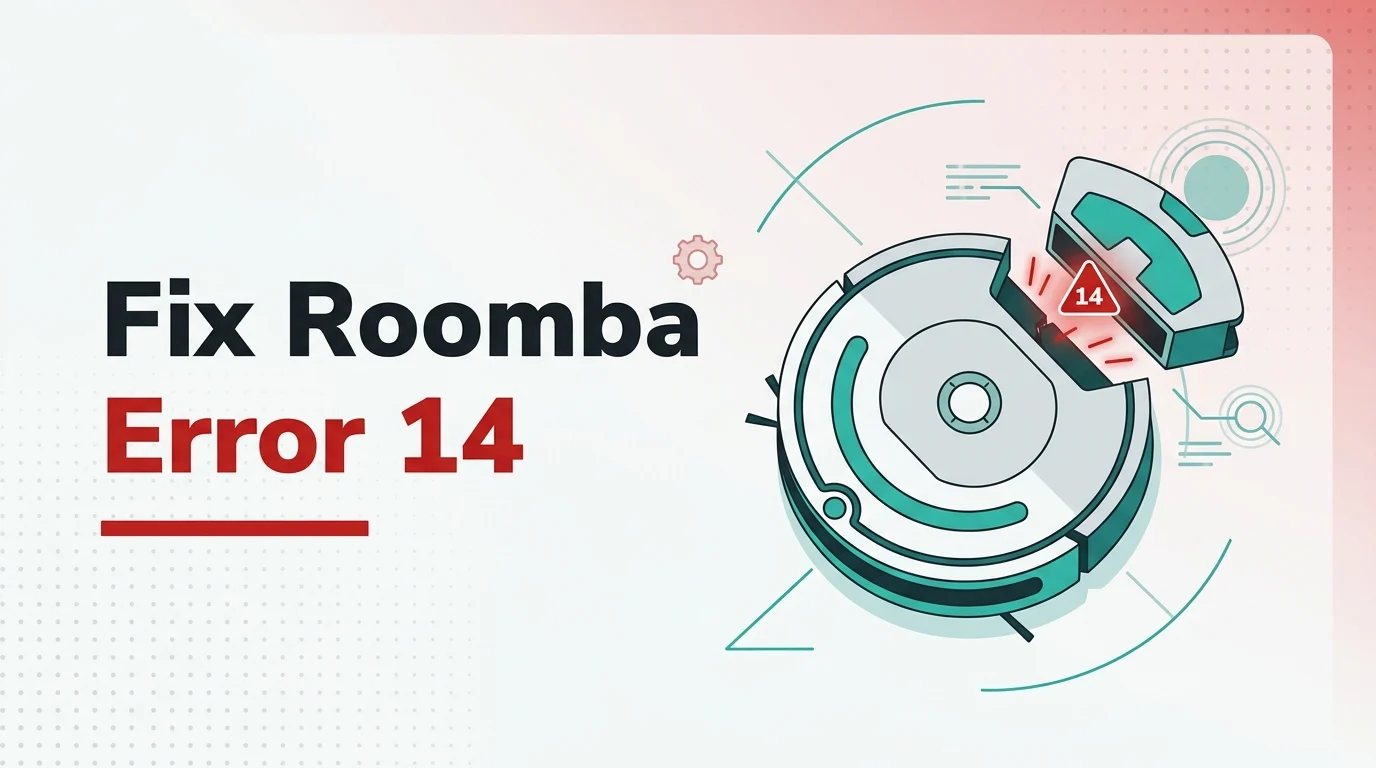
Error 14 usually shows up when the robot can no longer tell that the dustbin is properly installed. The frustrating part is that the bin often looks perfectly fine from the outside, so people keep removing and reinstalling it without fixing the real cause.
On most Roomba models, this comes down to one of four things: the bin is not seated correctly, the contact points are dirty, the sensor path is blocked by debris, or the bin itself has started failing. The fix is usually short once you isolate which one you are dealing with.
What You Will Build / Achieve
By the end of this guide, you will have a Roomba that can detect its dustbin correctly again, pass a short manual cleaning test without throwing Error 14, and give you a clear answer on whether the problem was seating, contacts, debris buildup, moisture, or a failed bin assembly. This guide is based on current iRobot support guidance for older Roomba lines plus current s Series and newer 100/1000, 200/2000, and Plus 400/500 model-family support pages.
Prerequisites
- Your Roomba and its original dustbin installed nearby, with the robot powered on and not actively running a cleaning job.
- A dry microfiber cloth or lint-free cloth for wiping contacts and sensor surfaces.
- A lightly dampened melamine foam or soft cloth for contact cleaning if dry wiping is not enough, following iRobot contact cleaning guidance.
- A dry cotton swab or soft detailing brush for clearing dust from the bin cavity and sensor areas.
- Ten uninterrupted minutes to test the robot with a short manual run after each fix attempt.
- Access to your model’s support details or the TechRounder Help Center if you want a broader troubleshooting reference alongside this fix.
This guide covers bin-detection faults only. It does not cover brush jams, docking failures, or self-empty dock airflow clogs unless they directly affect bin detection.
Confirm the bin is seated correctly
Step 1: Remove and reseat the dustbin
Take the dustbin completely out, inspect the rails and edges for debris, then slide it back in slowly until it sits flush.
On models that use a handled bin, make sure the handle is folded fully down after installation. A partially raised handle can leave the bin slightly out of position.
The expected result is a firm, even fit with no wobble, gap, or spring-back when you press lightly on the outer face of the bin.
Step 2: Check for a proper latch or click
Insert the bin again and pay attention to the final movement. Current iRobot support pages for affected model families specifically call out confirming that the bin is fully installed and clicked into place.
The expected result is that the robot no longer announces Error 14 immediately after the bin is reinserted.
Step 3: Compare the bin fit against physical damage
Look closely for a cracked bin shell, a bent edge, a loose handle, or any part of the dustbin that lets it rock inside the cavity. If the bin shifts even slightly during handling, the robot can lose contact mid-run.
The expected result is a dustbin that stays square and stable when you remove and reinstall it a second time.
Clean the detection points
Step 1: Wipe the bin contacts on both sides
Remove the bin and wipe the metal contacts on the dustbin and the matching contacts inside the robot. For older 600/700/800/900 models, iRobot’s guidance specifically calls for cleaning the bin contacts, and for recurring maintenance it recommends regular contact cleaning across model families via its care frequency guide.
The expected result is that the contact surfaces look clean and slightly shiny instead of dull, dusty, or gray.
Step 2: Clear debris from the bin cavity
Use a dry cloth, cotton swab, or soft brush to clear packed dust from the cavity where the bin slides in. Focus on corners, seams, and the area around the robot-side contacts.
This matters because fine dust can stop the contacts from meeting cleanly even when the bin looks installed correctly from outside.
The expected result is a clean bin well with no visible lint or debris stuck against the contact or sensor areas.
Step 3: Clean the sensor path near the bin opening
On newer Roomba models, debris around the bin path or full-bin sensing area can confuse the robot about which bin is installed or whether the bin is present. Clean the nearby plastic windows and the inner path with a dry cloth. For general contact and sensor upkeep, iRobot’s official cleaning steps remain the best baseline.
The expected result is that the robot stops reporting a missing or wrong bin immediately after reinsertion.
Step 4: Dry the bin completely before reinstalling it
Warning: Do not reinstall a damp bin or wash the filter. Residual moisture around the bin, filter slot, or contacts can create repeat detection faults and make the result look intermittent.
If you recently washed the bin, leave it out until it is fully dry inside and out. Reinstall the filter only after everything is dry.
The expected result is a dry bin assembly with no condensation, damp lint, or wet residue in the filter area.
Reboot the robot and run a controlled test
Step 1: Perform a manual reboot
Take the robot off the dock, then press and hold the CLEAN button for about 10 to 20 seconds, depending on model behavior, until the light ring or status light changes and the reboot begins. Community reports on newer models repeatedly show that a reboot helps clear a stale detection state after the bin area has been cleaned.
The expected result is that the robot restarts cleanly and returns to its normal ready state after a minute or two.
Step 2: Start a short manual cleaning cycle
Place the robot on a clean floor area and start a short manual run instead of waiting for a scheduled job. This gives you a clean pass/fail result without involving map logic, schedules, or dock behavior.
The expected result is at least several uninterrupted minutes of cleaning with no Error 14 message.
Step 3: Repeat the test after one bin removal
Stop the job, remove the bin once, reinstall it, and run the same short test again. This helps you separate a one-time seating issue from a contact problem that returns every time the bin is touched.
The expected result is the same clean run twice in a row. If the first run works but the second fails, treat the bin or contact assembly as suspect.
Decide whether the bin itself has failed
Step 1: Test with another known-good bin if you have one
If you own the same Roomba model or can borrow a matching original bin, swap it in and run the same short test. This is the fastest way to confirm whether the fault lives in the bin assembly rather than the robot body.
The expected result is simple: if another bin works reliably, your original bin is the problem.
Step 2: Escalate to bin replacement when cleaning only helps briefly
If the error disappears for a few minutes or one run and then comes back, do not keep looping through the same cleaning steps forever. Real-world owner reports show that some persistent Error 14 cases were only resolved after replacing the dustbin assembly with an original part.
The expected result after replacement is stable detection across repeated insertions and full runs.
Step 3: Contact iRobot support with the exact behavior pattern
When you contact support, tell them whether the error is immediate, mid-run, or only after emptying the bin. That pattern matters. If you need the official family-specific troubleshooting flow first, start with iRobot Error 14 support and then move to replacement or warranty handling if the bin is the confirmed fault.
The expected result is a quicker support path because you have already ruled out seating, dirt, moisture, and reboot-state issues.
Verification
Step 1: Confirm the robot no longer throws the error at startup
Reinsert the bin, place the robot on the floor, and wake it normally. Do not start cleaning yet.
A successful result is no voice prompt or app alert for Error 14 while the robot is idle.
Step 2: Confirm a full short run completes cleanly
Run the robot for five to ten minutes on a normal surface and let it collect some debris.
A successful result is that the robot keeps cleaning without pausing to report a missing or incorrectly installed bin.
Step 3: Confirm the fault does not return after emptying the bin
Remove the bin, empty it, reinstall it, and repeat the short test one more time.
A successful result is two consecutive successful runs with one empty-and-reinstall cycle in between. That rules out the most common intermittent contact failures.
Troubleshooting
Error 14 appears the moment you put the bin back in
The most likely cause is poor contact at the bin connectors or a bin that is not fully seated. Clean both sets of contacts again, inspect the rails and edges for debris, and reinstall the bin slowly until it sits flush and locks into place.
The robot starts cleaning, then says the bin is missing a minute later
The most likely cause is an intermittent contact or a worn bin assembly that shifts once the robot starts moving. Check for bin wobble, cracks, or looseness, then test with another original bin if one is available. If a second bin works, replace the original bin.
Error 14 started after washing the dustbin
The most likely cause is moisture left in the bin, contact area, or filter slot. Remove the bin again, take out the filter, and let everything dry completely before testing. Do not wash the filter itself.
The app shows the wrong bin type or keeps acting like the sensor is blocked
The most likely cause is debris interfering with the optical sensing path in or near the bin cavity on newer models. Clean the inside of the bin well, the nearby plastic sensor areas, and the dust path thoroughly, then reboot the robot and test again.
Cleaning fixes the problem for one run, then it comes back
The most likely cause is hardware wear in the bin or a deeper contact issue rather than dirt alone. At that point, stop repeating the same contact-cleaning cycle and move to a known-good replacement bin or support escalation.
What to check next
Once Error 14 is gone, keep the bin contacts and nearby sensor areas on a regular cleaning schedule so the fault does not creep back in. If you want a broader same-site troubleshooting trail after this fix, the Solution help section is the best next stop for TechRounder’s direct repair-style workflows.