Vipin PG
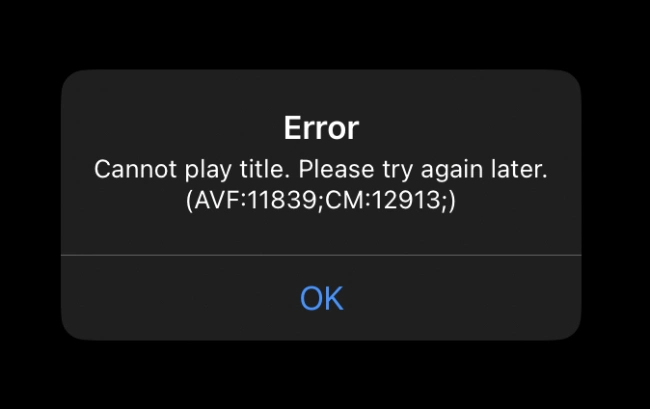
When Netflix loads fine on your iPhone or iPad but crashes with Cannot play title. Please try again later. (AVF:11839;CM:12913;) right as you hit play, you’re usually looking at something local to your device. It’s frustrating because it feels like a streaming hiccup, but Netflix actually treats this differently than a straightforward connection problem.
Most of the time, this pops up because of stale playback cache, an app that needs updating, something off with iOS, or a network route that’s not cooperating. The trick is working through fixes in the right sequence rather than throwing everything at the wall.
What’s actually happening here
According to Netflix’s own docs, AVF:11839;CM:12913 means something stored on your device is blocking playback. That’s important because it tells you to look at the phone or tablet first, not your Netflix account. When the app logs in without issue but chokes when you try to watch something, you’re probably dealing with corrupted local files, a glitchy app state, or an iOS playback hiccup—not a billing or profile mess.
Here’s the thing, though. Netflix’s broader NW-2-5 fix guide still applies because spotty Wi-Fi, VPN interference, wonky DNS settings, or a router that just needs a quick reset can all trigger playback failures that look nearly identical from inside the app.
The fix sequence that actually works
Data last verified: April 2026
| Step | What to do | Why it matters | When to stop and move on |
|---|---|---|---|
| 1 | Fully restart the iPhone or iPad | Clears temporary playback state and reloads media services | Move on if the same title fails again after reboot |
| 2 | Update iOS or iPadOS | Old system builds can break video frameworks and app compatibility | Move on if you are already current or the error remains after updating |
| 3 | Update the Netflix app from the App Store | Refreshes app binaries without wiping account data | Move on if no update is available or playback still fails |
| 4 | Switch networks and disable VPN or custom DNS | Rules out Wi-Fi path, resolver, or ISP-side streaming issues | Move on if the error happens on both Wi-Fi and mobile data |
| 5 | Delete and reinstall Netflix | Removes corrupted local app data that an update may leave behind | Move on if a fresh install behaves the same way |
| 6 | Reset network settings | Clears saved Wi-Fi, VPN, APN, and network stack misconfiguration | Use only after basic fixes fail because it resets saved networks |
| 7 | Test another title and contact Netflix or Apple | Separates account or title-specific issues from device-wide failure | Escalate if multiple titles still fail on a fully updated device |
Begin with Netflix’s three official fixes
1. Do a complete device restart
You want a full restart here, not just closing and reopening the app. On newer iPhones, hold down a volume button along with the side button, slide to power off, wait a few seconds, then turn it back on. Apple’s restart iPhone steps line up with what Netflix recommends. If your device is frozen solid, go for a force restart instead.
2. Get iOS or iPadOS up to date
Netflix specifically sends AVF:11839 users to Apple’s software update process. Head to Settings > General > Software Update and grab any pending update. Apple’s wireless update guide also mentions that low storage can stop updates from installing, so check your available space if nothing happens.
3. Update the Netflix app itself
Open the App Store, search for Netflix, and install any available update. This is low-risk and worth doing even if the app seemed fine when you opened it. An outdated version can hang onto old playback components well after your phone’s been updated.
When the standard fixes don’t cut it
Figure out if it’s actually a network problem
If Netflix errors out on one Wi-Fi network but works perfectly on mobile data or a different Wi-Fi connection, stop treating this as purely an app issue. Netflix’s general playback guidance points to blocked public Wi-Fi, slow home internet, and router problems as frequent culprits. If that rings a bell, TechRounder’s help center fixes are worth bookmarking because a bunch of Netflix errors end up needing the same network checks.
Turn off VPN, private DNS, or filtering apps temporarily
This one gets missed a lot. VPN tunnels, ad blockers, DNS filters, and certain security apps can mess with video sessions even when regular browsing works fine. Disable them for a quick test, reopen Netflix, and see what happens before you start doing anything more drastic.
Restart your router if the error only shows up on home Wi-Fi
Power down the router and modem, wait around 30 seconds, bring the modem back online first, then the router, and reconnect your iPhone or iPad. Sounds simple, but it clears out stale routing and DNS state more often than you’d think. The same pattern shows up in TechRounder’s UI-800-3 walkthrough because Netflix playback errors frequently share the same underlying causes even when the error codes differ.
Delete and reinstall Netflix the right way
If the error sticks around after a restart, OS update, app update, and network swap, remove the app completely and reinstall it from the App Store. Apple’s delete app instructions are pretty simple: touch and hold the app, tap Remove App, then Delete App. After reinstalling, sign in fresh and test playback before turning any VPN or DNS customizations back on.
This matters because updating the app doesn’t always wipe out damaged local data. Reinstalling is the cleaner reset on iPhone and iPad, and it’s usually where persistent AVF:11839 cases either vanish or reveal themselves as actual network or system problems.
Only reset network settings after you’ve ruled out the app
If Netflix still won’t play on the same device after reinstalling, reset your network settings. Apple’s network reset steps wipe saved Wi-Fi networks, VPN configs, and APN details, so I wouldn’t jump to this first. It’s helpful when your device connects to Wi-Fi but streaming apps act like the network path is broken.
After the reset, reconnect to Wi-Fi manually, hold off on enabling VPN or filtered DNS right away, and test Netflix before changing anything else. That gives you a clean starting point.
What this error isn’t
AVF:11839;CM:12913 isn’t the same as a Netflix Household restriction, a stream-limit problem, or a pure sign-in failure. If you’re seeing messages about device limits or account location instead, you’re in the wrong troubleshooting path. For that situation, TechRounder’s Netflix household guide is the better fit.
It’s also not a title-specific outage. If one movie won’t play but everything else works, report the title issue inside Netflix rather than resetting your phone for no reason.
If nothing’s worked by this point
At this stage, try a different title, test another network, and check whether YouTube, Disney+, or FaceTime video are also acting up. If multiple video apps are having trouble, the problem’s probably deeper in iOS or your network stack. If only Netflix is affected on a fully updated device after reinstalling, reach out to Netflix support with the exact error code and the steps you’ve already tried.