Vipin PG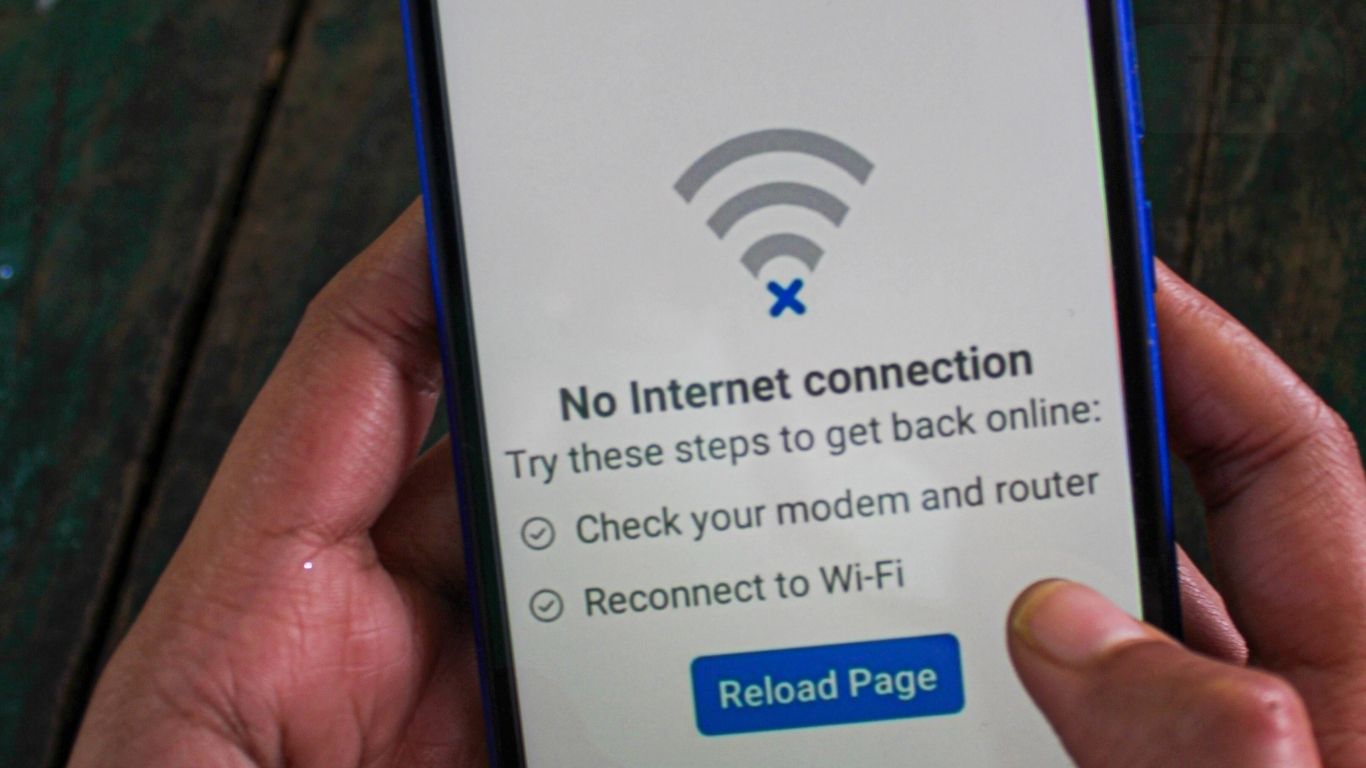
When browsing the web, few things are more annoying than seeing the message This site can’t be reached. It’s a common issue that stops you from visiting a website you need, often without explaining why it happened. This guide breaks down everything about this error , what it means, why it happens, and how to fix it , for both website visitors and site owners.
What the Error Actually Means
This site can’t be reached is a general message shown by browsers, mainly Google Chrome, when they fail to connect to a website’s server. It’s a catch-all alert that appears whenever the browser can’t load a page because something went wrong with the connection. When you visit a website, your browser sends a request to the site’s server. If the connection fails , due to DNS problems, server timeouts, or network issues , the browser eventually gives up and shows this message. The problem is that it doesn’t specify why the connection failed, which makes troubleshooting tricky.
How It Looks in Different Browsers
Although Chrome uses the phrase This site can’t be reached, other browsers show similar messages for the same type of issue:
- Mozilla Firefox: Hmm. We’re having trouble finding that site.
- Safari: Safari cannot open the page.
- Microsoft Edge: Hmmm… can’t reach this page.
The wording changes, but all of them mean the browser couldn’t connect to the website’s server.
Error Codes That Often Appear With It
This error is often accompanied by specific codes that hint at what’s wrong.
DNS_PROBE_FINISHED_NXDOMAIN
This code means the browser couldn’t find the DNS information for the site. Possible causes:
- The domain name doesn’t exist or was typed incorrectly.
- The domain registration has expired.
- The site’s DNS A record is missing.
- DNSSEC is not configured properly.
- Your computer’s DNS server is malfunctioning.
- A proxy or VPN connection is interfering.
ERR_CONNECTION_REFUSED
This appears when the website’s server actively refuses the connection. That means the server received your request but denied it. Common causes:
- A firewall on the server is blocking access.
- The web server isn’t running.
- Port access is restricted.
- The IP address is blocked.
- Network settings are misconfigured.
ERR_CONNECTION_TIMED_OUT
This shows up when the browser tries to connect but gets no response from the server within a certain time limit. Typical reasons:
- Slow or unstable internet connection.
- Issues with your router or device.
- Expired or corrupted browser cache and cookies.
- Network restrictions or website blocking.
- Incorrect IP address configuration.
- Problematic browser extensions.
- Outdated DNS cache.
- Server firewall rules or WordPress plugin issues.
ERR_CONNECTION_RESET
This happens when the connection is suddenly interrupted while data is being exchanged. Main causes:
- Weak or unstable internet connection.
- Corrupt browser cache.
- VPN or proxy interference.
- Overly strict antivirus or firewall settings.
- Hardware or network equipment issues.
Main Reasons Why the Error Happens
Understanding the source of the problem makes it easier to fix. These are the most common causes:
DNS Resolution Issues
DNS problems are one of the leading causes. When DNS fails to translate a domain name into an IP address, the website can’t load. Typical DNS issues include:
- Unregistered or expired domains.
- Incorrect or missing DNS records.
- DNSSEC configuration errors.
- DNS server downtime.
- ISP DNS problems.
Internet Connection Problems
Connectivity issues can also trigger this error. Examples:
- No internet connection.
- Intermittent drops or poor WiFi signal.
- Slow or congested network.
- Faulty router or modem.
- ISP outages.
Browser Problems
Sometimes, the browser itself is the culprit. Possible reasons:
- Corrupted cache or cookies.
- Outdated browser version.
- Wrong browser settings.
- Faulty extensions.
- Conflicting security software.
- Damaged browser profile.
Firewall or Security Software Blocking
Security tools can mistakenly block safe connections. Possible cases:
- Too-strict firewall rules.
- Antivirus blocking a site incorrectly.
- VPN or proxy issues.
- Corporate or network restrictions.
Server-Side Problems
If the issue isn’t on your end, it may be on the website’s server. Possible causes:
- Server maintenance or downtime.
- Overloaded server.
- Misconfigured settings.
- SSL certificate problems.
- Server-side firewall blocks.
- PHP timeouts or database errors.
Before You Start Troubleshooting
It helps to first check whether the problem is just on your side or if the site is down for everyone.
1. Check if the Website Is Down
Use tools like:
- DownForEveryoneOrJustMe.com
- IsItDownRightNow.com
- Site24x7 Website Checker
- Uptime Robot
If these tools show the site is down globally, it’s a server issue , you’ll have to wait for the site owner to fix it.
2. Check the URL
Sometimes, it’s just a typo. Double-check the address for:
- Misspelled names.
- Wrong domain endings (.com vs .org).
- Missing or extra hyphens.
- Using http instead of https.
3. Try Another Device or Network
See if the problem persists:
- Use another browser on the same device.
- Test on a different device on the same network.
- Try mobile data or another network entirely.
This helps identify whether the issue is with your device, network, or the website itself.
Fixes for Website Visitors
If the issue seems to be on your end, try these steps one by one:
1. Check Your Internet
- Make sure WiFi or Ethernet is connected.
- Try loading another site.
- Restart your router (unplug for 30 seconds, then reconnect).
2. Restart Router and Device
Reboot both your device and router to reset connections:
- Unplug router/modem.
- Wait 30–60 seconds.
- Plug them back in.
- Restart your computer or phone.
3. Clear Browser Cache and Cookies
Old or corrupt cache can cause issues. Chrome: Settings → Privacy & Security → Clear browsing data → select Cached images and files + Cookies → Clear data. Firefox: Settings → Privacy & Security → Cookies and Site Data → Clear Data. Safari: Preferences → Privacy → Manage Website Data → Remove All.
4. Flush DNS Cache
Outdated DNS data can block connections. Windows: ipconfig /flushdns in Command Prompt (Admin). macOS: sudo dscacheutil -flushcache; sudo killall -HUP mDNSResponder in Terminal. Chrome: Go to chrome://net-internals/#dns → Clear host cache, then chrome://net-internals/#sockets → Flush socket pools.
5. Renew Your IP Address
Windows: In Command Prompt (Admin): ipconfig /release Mac: System Preferences → Network → Advanced → TCP/IP → Renew DHCP Lease.
ipconfig /renew
netsh int ip reset
netsh winsock reset
6. Change DNS Servers
Switch to public DNS:
- Google DNS: 8.8.8.8 / 8.8.4.4
- Cloudflare DNS: 1.1.1.1 / 1.0.0.1
- OpenDNS: 208.67.222.222 / 208.67.220.220
Adjust these under your network adapter settings.
7. Turn Off VPN or Proxy
Disconnect from VPNs or disable proxies temporarily to test if they’re causing the block.
8. Disable Firewall or Antivirus (Temporarily)
Turn them off briefly to test connectivity , then re-enable immediately.
9. Disable Browser Extensions
Go to chrome://extensions/, turn all off, and re-enable one by one to find the problem extension.
10. Use Incognito or Private Mode
This disables extensions and cached data. If the site loads fine here, the problem lies in your regular browser setup.
11. Reset Browser Settings
Restore Chrome or any browser to its default configuration to fix misconfigurations.
12. Update Your Browser
Always keep your browser up to date to avoid bugs and compatibility issues.
Fixes for Website Owners
If your visitors are reporting this error, check the following:
1. Domain and DNS Setup
- Make sure the domain hasn’t expired.
- Verify A records point to the right IP.
- Check nameserver configuration.
- Look for DNSSEC issues.
- Allow time for DNS propagation (24–48 hours after changes).
2. Server Status
- Confirm the server is online.
- Check CPU, RAM, and bandwidth usage.
- Review server logs for errors.
3. SSL Certificate
- Ensure it’s valid and not expired.
- Check the certificate chain and domain match.
- Test using SSL Labs or similar tools.
4. Server Configuration
- Review configuration files for syntax or port errors.
- Verify ports 80 (HTTP) and 443 (HTTPS) are open.
- Check firewall rules, PHP timeouts, and permissions.
5. PHP Timeout
If scripts are timing out, raise limits: max_execution_time = 300 (in php.ini or .htaccess).
6. Database Issues
For WordPress: Check database credentials in wp-config.php. Run the repair tool via define(‘WP_ALLOW_REPAIR’, true);.
7. Plugins or Themes
Disable all plugins (via FTP rename) to see if one is breaking the site. Test with a default theme.
8. DDoS or Heavy Traffic
- Check logs for suspicious traffic.
- Use Cloudflare or another DDoS service.
- Enable caching or upgrade hosting if needed.
Prevention Tips
For Users
- Keep your browser and router firmware updated.
- Clear cache regularly.
- Use reliable DNS services.
- Keep antivirus tools up to date.
- Avoid untrusted public networks.
For Website Owners
- Use uptime monitoring.
- Enable domain auto-renewal.
- Maintain valid SSL certificates.
- Schedule regular server maintenance.
- Use CDN and caching.
- Keep backups and monitor server health.
Understanding How DNS Works
DNS acts like the internet’s phonebook. It translates readable domains (like example.com) into numerical IP addresses used by computers. The process:
- Browser checks its own DNS cache.
- If not found, it queries the operating system’s cache.
- Then it asks the configured DNS server (usually your ISP’s).
- That server contacts root and authoritative servers.
- The IP address is returned and stored temporarily (cached).
If that cached data becomes outdated or corrupted, DNS errors occur.
When to Get Expert Help
Reach out for professional assistance if:
- You’ve tried all steps and the problem persists.
- The error affects multiple devices or networks.
- Your ISP seems to be involved.
- Server settings are too complex to handle alone.
Conclusion
The This site can’t be reached error can be frustrating but is usually fixable. For users, it’s often a matter of DNS or network settings. For site owners, it may signal a domain, server, or configuration issue. Most of the time, following these troubleshooting steps systematically will solve it. Staying patient and working through each possible cause is the key. With regular maintenance, monitoring, and good setup habits, you can prevent this error from showing up again.