
Switching to a new Spectrum plan or experiencing service disruptions can be frustrating, especially when you're relying on your internet connection for work, entertainment, or staying connected with loved ones. As one of the largest cable and internet providers in the United States, serving over 32 ...
Switching to a new Spectrum plan or experiencing service disruptions can be frustrating, especially when you're relying on your internet connection for work, entertainment, or staying connected with loved ones. As one of the largest cable and internet providers in the United States, serving over 32 million customers across 41 states as of January 2026, Spectrum has streamlined many of its service offerings, but issues can still arise. This comprehensive guide will help you troubleshoot common problems and get your service back on track quickly.
Understanding Spectrum's Current Service Structure in 2026
Before diving into troubleshooting, it's helpful to understand Spectrum's current plan structure. In 2026, Spectrum offers three primary internet tiers: Internet (300 Mbps), Internet Ultra (500 Mbps), and Internet Gig (1000 Mbps), with pricing typically ranging from $49.99 to $89.99 per month for the first 12 months. The company has also expanded its mobile service offerings and bundled packages that combine internet, TV, and phone services.
When you upgrade or change your plan, several technical adjustments occur behind the scenes that can occasionally lead to service disruptions. Understanding what might go wrong—and how to fix it—can save you hours of downtime and frustration.
Common Issues After Switching to a New Spectrum Plan
1. No Internet Connection After Plan Change
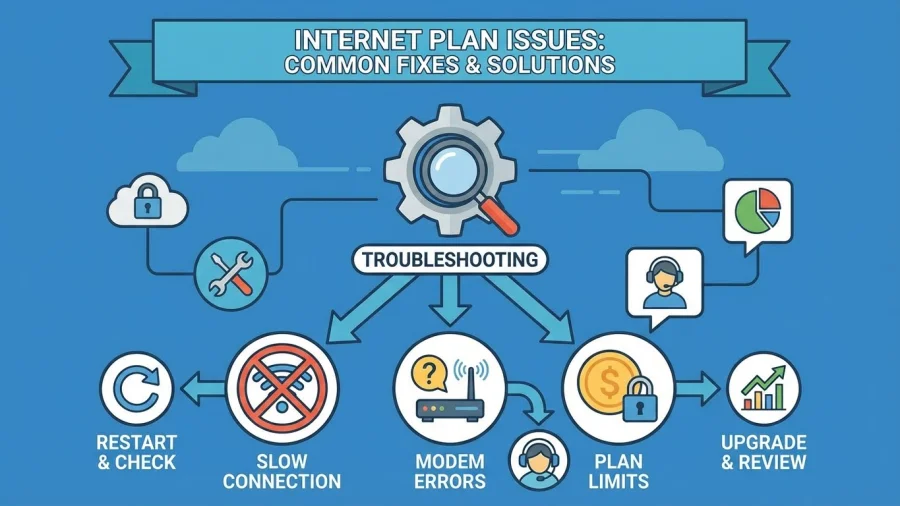
This is the most common issue customers face when switching plans. If your internet isn't working after a plan upgrade or change, follow these steps:
- Power cycle your equipment: Unplug your modem and router from the power source, wait 60 seconds, then plug the modem back in first. Wait for all lights to stabilize (typically 2-3 minutes), then plug in your router.
- Check for provisioning delays: When you change plans, Spectrum must provision your modem with new speed settings. This process usually takes 15-30 minutes but can occasionally take up to 2 hours.
- Verify equipment compatibility: If you upgraded to a higher-speed plan, your older modem might not support the new speeds. Spectrum's 500 Mbps and 1 Gig plans require DOCSIS 3.1 modems.
- Confirm the change is active: Log into your Spectrum account at spectrum.com to verify your new plan is showing as active.
2. Slower Speeds Than Expected
You've upgraded to a faster plan, but your speeds haven't improved. Here's what to check:
- Use a wired connection for testing: Connect your computer directly to the modem with an Ethernet cable and run a speed test at Speedtest.net. WiFi speeds can be significantly lower than wired speeds due to interference and distance.
- Test at different times: Network congestion during peak hours (typically 7-11 PM) can affect speeds, though Spectrum's network upgrades in 2025-2026 have improved this considerably.
- Check your equipment: Older routers, especially those purchased before 2022, may not support the full speeds of newer plans. For Gig service, you'll need a router that supports WiFi 6 (802.11ax) for optimal wireless performance.
- Review connected devices: Too many devices streaming or downloading simultaneously can saturate even high-speed connections.
3. Intermittent Disconnections
If your connection keeps dropping after changing plans, consider these potential causes:
- Signal issues: Check the coaxial cable connections at both the wall outlet and modem. Loose connections are a common culprit.
- Modem overheating: Ensure your modem has adequate ventilation and isn't enclosed in a cabinet or covered with other items.
- Outdated firmware: Spectrum-provided modems update automatically, but if you're using your own equipment, check the manufacturer's website for firmware updates.
- Network congestion: In rare cases, local network infrastructure may be overwhelmed, particularly in rapidly growing neighborhoods.
Step-by-Step Troubleshooting Process
Step 1: Identify the Problem Scope
Determine whether the issue affects all devices or just one. If only one device has problems, the issue is likely with that device rather than your Spectrum service. Check WiFi settings, network adapters, and device-specific configurations.
Step 2: Check for Service Outages
Before spending time troubleshooting, verify there isn't a known outage in your area. You can check this by:
- Texting "STATUS" to 21760 from your registered mobile number
- Using the My Spectrum app on your smartphone
- Visiting Spectrum's website from a mobile device using cellular data
- Calling Spectrum's automated system at 1-833-267-6094
Step 3: Examine Your Equipment
Look at the lights on your modem. For most Spectrum modems in 2026, you should see:
| Light | Normal Status | Problem Indicator |
|---|---|---|
| Power | Solid green or white | Off, flashing, or amber |
| Online/Internet | Solid green or white | Flashing or off |
| WiFi (if applicable) | Solid green or white | Off when WiFi should be enabled |
| Ethernet | Solid or flashing when active | Off when device is connected |
Step 4: Perform Advanced Resets
If basic power cycling doesn't work, try a factory reset on your router (not the modem). Note that this will erase custom settings like WiFi names and passwords. Most routers have a small recessed reset button that must be held for 10-15 seconds.
When to Contact Spectrum Support
While many issues can be resolved independently, certain situations require professional assistance:
- No internet after 2+ hours following a plan change
- Persistent speed issues despite equipment upgrades and wired testing
- Modem lights indicating a signal problem (typically flashing online/internet light)
- Service that was working fine before the plan change but now consistently fails
- Billing discrepancies related to your new plan
How to Contact Spectrum Effectively
When reaching out to Spectrum support, prepare the following information to expedite the process:
- Your account number and service address
- The specific plan you switched to and when
- Results from speed tests (including time of day)
- Modem model number and whether it's Spectrum-provided or your own
- Steps you've already taken to troubleshoot
You can contact Spectrum through multiple channels: phone support at 1-833-267-6094 (available 24/7), live chat through their website or app, or scheduling a technician visit through your online account. In 2026, Spectrum has also introduced AI-assisted troubleshooting through their app, which can often diagnose and resolve issues remotely.
Preventing Future Service Disruptions
To minimize the likelihood of issues when changing plans or during regular use:
- Keep equipment updated: If you're using your own modem and router, ensure they meet Spectrum's specifications for your speed tier.
- Monitor your account: Regularly check your Spectrum account for notifications about planned maintenance or required equipment updates.
- Document your setup: Take photos of your equipment connections and write down your WiFi settings before making any changes.
- Consider professional installation: While Spectrum offers self-installation kits, professional installation (often free for new plans in 2026) can ensure everything is configured correctly from the start.
- Understand your plan details: Review the terms of your new plan, including any promotional periods, to avoid surprises.
Understanding Your Rights as a Spectrum Customer
The Federal Communications Commission (FCC) provides protections for broadband customers. If you're experiencing persistent service issues after changing plans, you have the right to receive the speeds you're paying for, accurate billing, and responsive customer service. If Spectrum cannot resolve chronic problems, you may be entitled to service credits or the ability to cancel without early termination fees.
Conclusion
While service disruptions after changing Spectrum plans can be inconvenient, most issues can be resolved with systematic troubleshooting. Start with the basics—power cycling equipment and checking for outages—before moving to more advanced solutions. Remember that plan changes require backend provisioning that can take time, and equipment compatibility is crucial for higher-speed tiers. If self-troubleshooting doesn't resolve your issue within a few hours, don't hesitate to contact Spectrum support with detailed information about your situation. With Spectrum's expanded customer service options in 2026 and your understanding of common issues, you'll be better equipped to maintain reliable internet service regardless of which plan you choose.