Vipin PG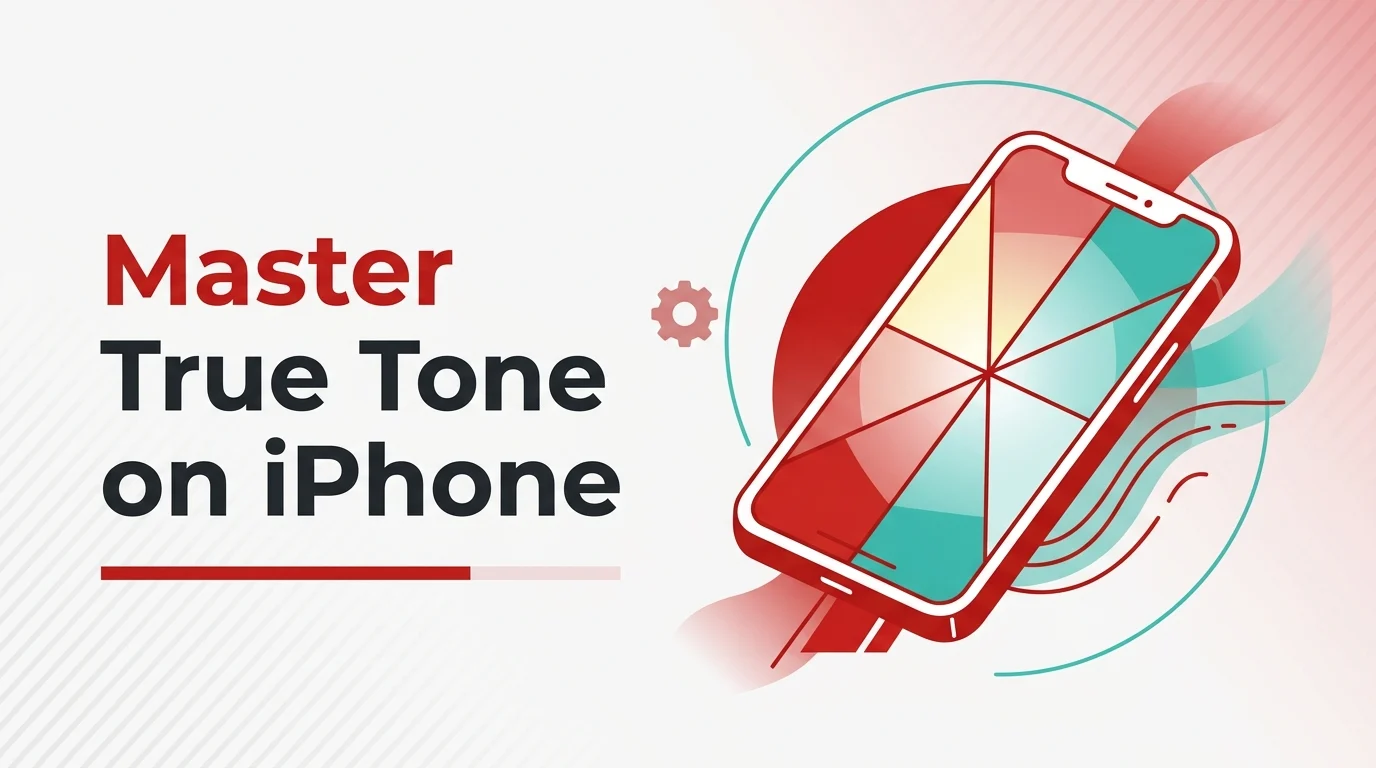
Some iPhone screens look a little too blue indoors, then oddly warm when you step into a yellow-lit room. That mismatch is exactly what True Tone tries to fix. When it’s working the way Apple designed it, the display stops feeling like a bright panel floating in front of your face and starts looking more like something that belongs in the light around you.
The reason people get confused is simple. True Tone changes the screen in a way you can notice, especially if you’re used to a cooler white point. A lot of users turn it off after five minutes because the display suddenly looks warmer, then turn it back on later because the old look feels harsh. The trick isn’t deciding whether True Tone is “good” or “bad.” The trick is knowing when it helps and when it gets in the way.
What True Tone actually does
Apple describes True Tone as a display feature that uses advanced sensors to adjust the colour and intensity of the display to match ambient light, so images appear more natural. On iPhone, Apple currently lists support starting with iPhone 8 and later, plus iPhone SE (2nd generation) and later. You can toggle it from Settings > Display & Brightness or by long-pressing the brightness control in Control Center and tapping True Tone. For a quick path into that area, TechRounder’s iPhone settings guide is a useful companion. You can verify Apple’s current wording in the Apple support note and the iPhone user guide.
That wording matters because True Tone isn’t just a blue-light filter and it’s not the same thing as Night Shift. Night Shift pushes the display toward the warmer end of the spectrum on a schedule or manually, mainly for evening comfort. True Tone is more dynamic. It responds to the room you’re in. If your room lighting is warm, the screen may look warmer. If your lighting is cooler, the display can look more neutral. Apple’s Night Shift documentation and long-running coverage from Macworld and AppleInsider make that difference pretty clear.
The best way to use True Tone
For most people, the best setup is simple: leave True Tone on for everyday use, and turn it off only when you need a more fixed reference for color-sensitive work. That’s the part most guides skip, so here’s the practical version.
Data last verified: April 2026
| Situation | Best setting | Why it works | Watch out for |
|---|---|---|---|
| General daily use | True Tone On | Makes the screen adapt to room lighting and usually feel more natural over long sessions | The display may look warmer than you expect at first |
| Reading, browsing, messaging indoors | True Tone On | Reduces the “cold white panel” effect in warm indoor lighting | Some users mistake the warmer white for a tint problem |
| Photo editing, design checks, product color review | True Tone Off | Keeps the display from shifting with ambient light while you judge color | Use consistent lighting too, or your eyes will still adapt to the room |
| Watching movies and casual video | Usually On | More comfortable in mixed indoor lighting | Turn it off if you prefer a cooler, more fixed look |
| Night-time phone use | True Tone On + Night Shift if needed | True Tone handles ambient white balance while Night Shift adds a warmer evening profile | Colors become less reliable for editing |
| Comparing wallpapers or checking UI colors | Test both | Some wallpapers look richer with True Tone on, others look cleaner with it off | Your room lighting changes the result |
When True Tone is worth leaving on
If your iPhone is mostly a phone, web browser, chat device, map, reader, or video screen, True Tone earns its place. It’s one of those features that feels subtle until you turn it off for a day and start noticing how aggressively white the screen can look under warm indoor lights. Apple’s own description leans into “natural” appearance rather than dramatic color shifting, and that matches real-world use pretty well.
This is also why many people who spend long hours reading on iPhone end up liking it once they stop comparing the screen to a colder factory-store display. In community discussions, a common pattern is initial dislike followed by keeping it on permanently because the off state starts to feel sterile or harsher on the eyes in indoor lighting.
When you should turn it off
Photo and video editing
If you’re adjusting skin tones, product photos, social creatives, or thumbnails, turn True Tone off while you work. The reason is straightforward: the display white point can shift with your room lighting, which makes visual judgment less consistent. Older but still accurate discussions in photography and Apple communities keep returning to the same advice: comfort feature on, color-critical work off. That aligns with how display calibration is normally treated on larger monitors too.
Comparing colors across devices
If you’re holding an iPhone next to a laptop, monitor, or another phone and trying to judge which one is “correct,” True Tone adds a moving variable. Disable it for the comparison. Otherwise you can end up chasing a difference that’s caused by ambient adaptation rather than panel quality.
Troubleshooting tint complaints
If your screen suddenly looks too yellow or too blue, switch off True Tone before assuming the panel is faulty. Then check Night Shift, accessibility color filters, and brightness. That simple test narrows things down quickly. If you like comparing screen appearance changes visually, TechRounder’s Back Tap screenshot guide is handy for capturing what you’re seeing during setup changes.
True Tone vs Night Shift
People mix these up all the time because both can make the screen look warmer. They’re solving different problems.
| Feature | What changes | Main purpose | Best time to use it |
|---|---|---|---|
| True Tone | White balance and display intensity based on ambient light | Make the screen look more natural in the room you’re in | All day, especially indoors |
| Night Shift | Pushes colors toward the warmer end of the spectrum | Make late-night viewing easier on the eyes | Evening or low-light use |
Apple says Night Shift shifts the display to the warmer end of the spectrum, while True Tone adapts to ambient light. You can think of it this way: True Tone tries to make white look right for the room; Night Shift intentionally makes the whole display warmer. Apple’s Night Shift guide explains the second part well, while AppleInsider’s feature comparison piece is useful for the practical distinction.
Does True Tone affect battery life?
Not in a way that should drive your decision. Apple’s battery guidance points users toward lower brightness and Auto-Brightness if they want longer runtime. Apple’s published battery test conditions often note that True Tone was turned off during testing, but that’s a lab-control detail, not a sign that disabling True Tone is one of the big battery wins. Brightness still matters more.
So if you’re switching True Tone off just to save power, you’re probably chasing the wrong setting. Lowering brightness, using Auto-Brightness, and reducing unnecessary screen-on time will matter far more. Apple’s battery performance page and its battery test details support that reading.
Why True Tone may disappear or stop working properly
One detail that gets buried in repair conversations: True Tone depends on proper sensor and display behavior. Apple explicitly says that after a non-genuine or problematic display replacement, True Tone may not work correctly, ambient light sensor performance may degrade, and display color calibration can be off. If the option is missing after a screen repair, that’s not just a random software glitch.
This is also why two iPhones of the same model can appear different after repair history enters the picture. If you’re troubleshooting a display that suddenly feels wrong after service, start there before endlessly tweaking settings. Apple documents this in its genuine display guidance.
How to decide in 30 seconds
Use this quick rule. If you care most about comfort, leave True Tone on. If you care most about consistent color judgment, turn it off while doing that work. If you use your iPhone heavily at night, leave True Tone on and add Night Shift only when you want a warmer screen. And if you think your wallpaper or Lock Screen looks different across rooms, that’s normal. TechRounder’s depth effect wallpaper list is a good reminder that iPhone visuals can shift a lot depending on brightness, color temperature, and scene design.
What to do next
Flip True Tone on, use the phone for a full day indoors and outdoors, then turn it off only when you edit photos or need a fixed visual reference. That one habit gives you the comfort benefit without giving up control when accuracy actually matters.