
 Vipin PG
If you are looking to set a lock screen message on your Android mobile phone, follow the below steps to get it done. It is simple and useful in case if we need to add a short reminder on your lock screen without any additional application. Just follow the below steps to set a custom message so that it can be seen before unlocking the mobile.
Step 1: Go to the settings on your Android Mobile
Step 2: Click on the security option from the settings
(Also see: How to set default SIM selection for dual SIM Android Phone)
Step 3: Click on the Lock screen message
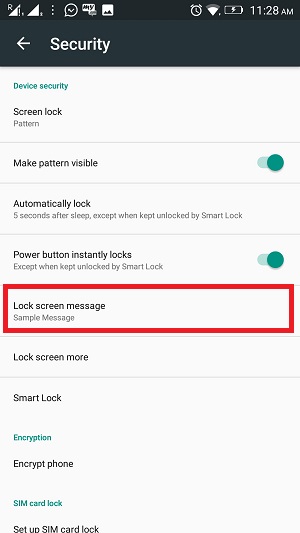
Step 4: In the pop-up window, type your message which you would like to see on the lock screen and then click on Save.

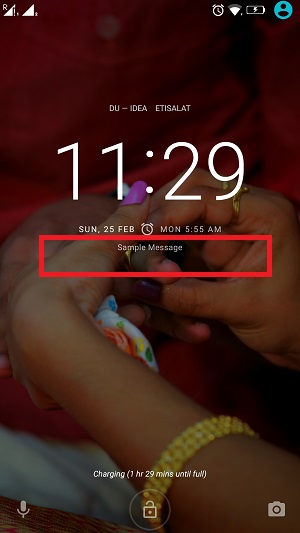
Step 5: Done, close everything, and lock your phone. In order to view your message just try to unlock your phone and on the lock screen you can see the message.
(Also see: Is it possible to remove a member from a WhatsApp group without notifying them ?)



Very good information!
Not possible in vivo phones
Hi Aarish,
Thank you for letting us know about that.