If you’re an artist who loves sketching with pencil and paper, you might be wondering: Can I turn my drawings into digital AI-generated artwork? The answer is yes—and it’s easier than you think.
With the help of Vheer’s Image to Prompt Converter, you can now transform your pencil sketches into written prompts that AI art generators understand. This opens up a whole new world of creative potential—allowing you to turn quick doodles, character drafts, or concept ideas into detailed, high-quality AI art.
In this article, we’ll walk you through how to turn your pencil sketch into a prompt and use it to generate stunning new artwork with just a few clicks.
Why Use Pencil Sketches to Generate AI Art?
Your hand-drawn sketches carry a lot of artistic intention—maybe a specific pose, a dramatic expression, or a unique composition. But describing that with words can be challenging, especially if you’re not used to writing prompts for AI.
Here’s why generating prompts from images is such a game-changer:
- It’s personal: Your sketch reflects your imagination. AI just helps bring it to life.
- It’s visual-first: You don’t have to figure out how to “describe” a scene. Just draw it.
- It’s fast and easy: Upload your sketch, and Vheer does the heavy lifting.
- It sparks inspiration: AI may interpret your drawing in ways that give you new ideas.
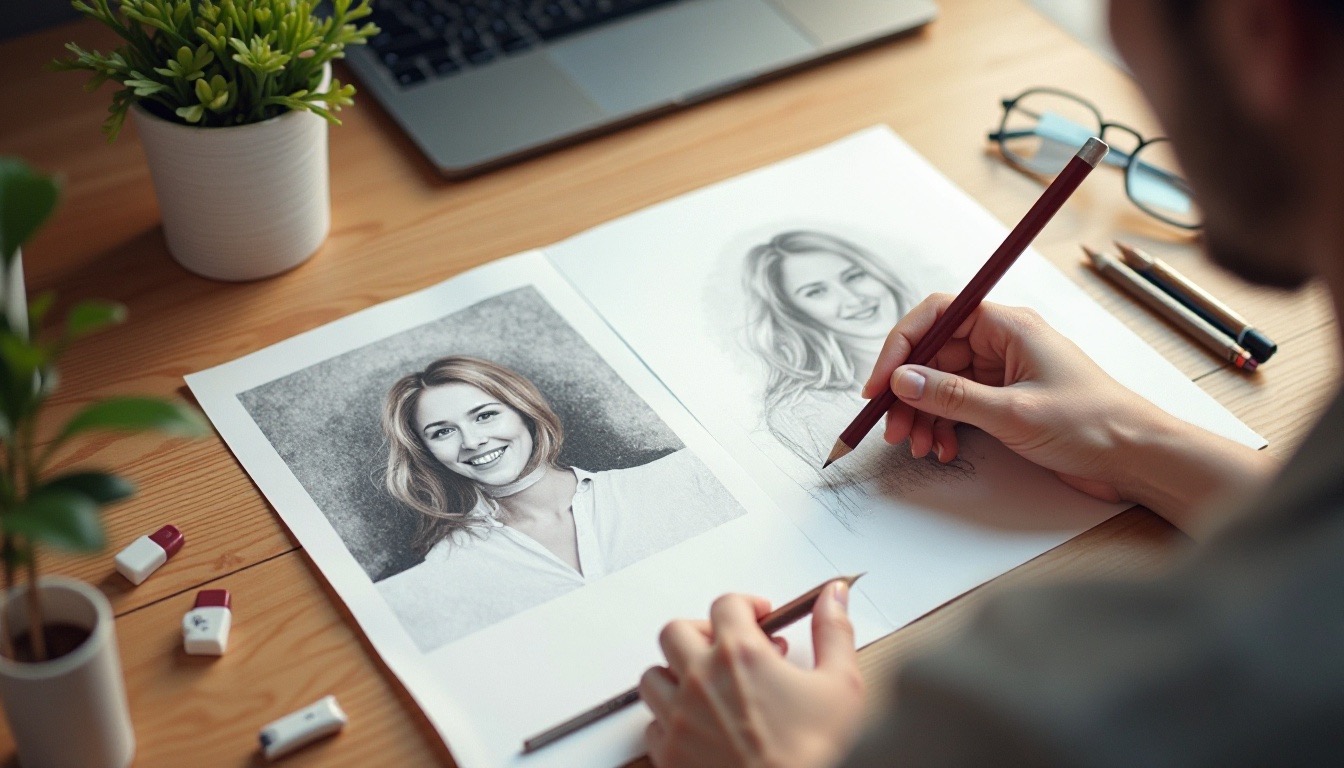
From Sketch to AI Prompt and New Art
Once your sketch is ready, you’re just a few steps away from generating your prompt and transforming your idea into a digital masterpiece.
1. Digitize Your Drawing Sketch
Since your sketch is already drawn on paper, the next step is to convert it into a clean digital image that the AI can read accurately.
Here’s how to do it:
Option 1: Use a Scanner (Best Option)
- Place your sketch flat on the scanner bed.
- Scan in grayscale or black & white for pencil art.
- Save it as a high-resolution JPG or PNG (at least 300 DPI for best clarity).
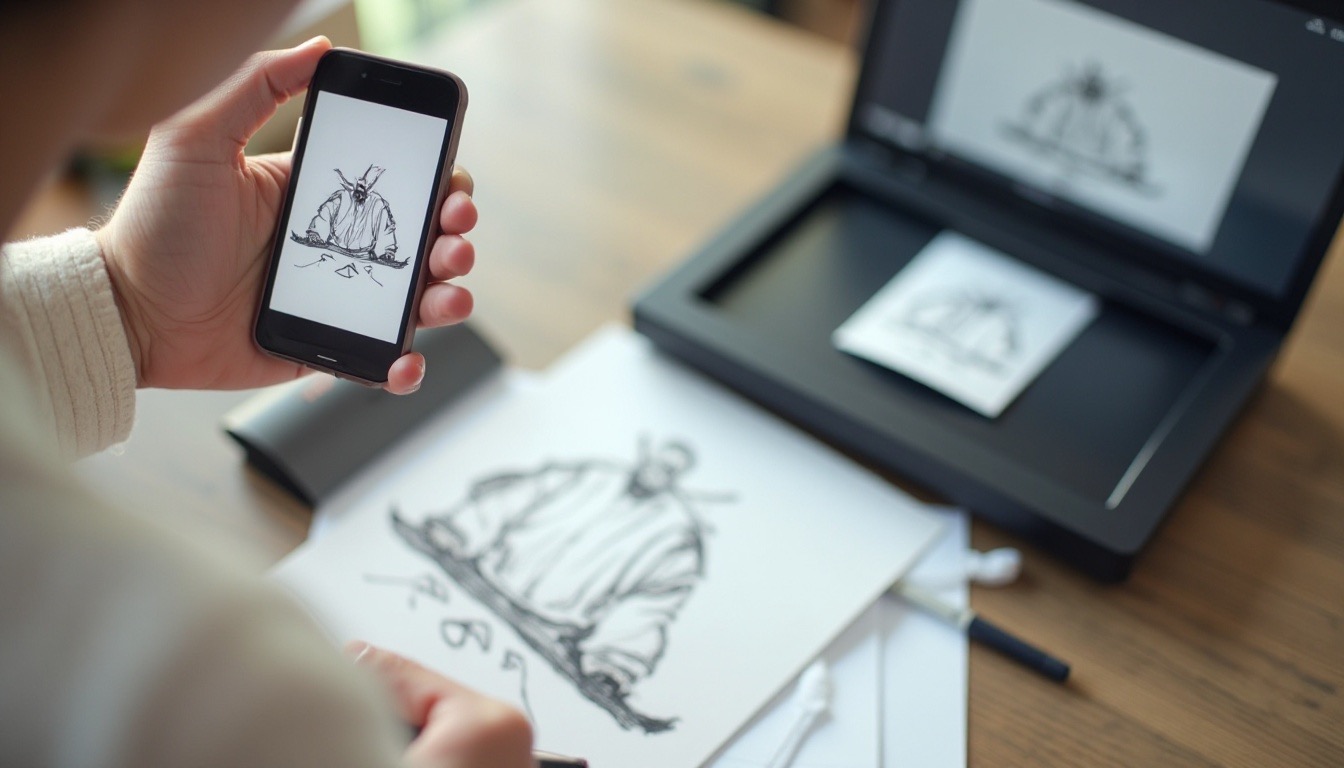
Option 2: Take a Clear Photo (If You Don’t Have a Scanner)
- Place your sketch on a flat surface in good lighting.
- Use your smartphone or camera to take a top-down photo (avoid angles or shadows).
- Make sure the sketch is in focus and the image isn’t too dark or overexposed.
2. Generate a Prompt from Your Digital Sketch
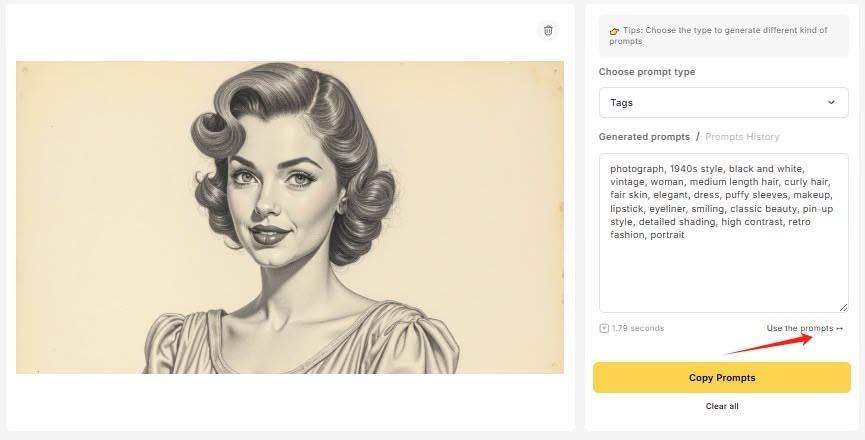
Once your sketch is digitalized, it’s time to turn it into a written prompt using Vheer’s Image to Prompt Converter. It is a free tool that turns any uploaded photo into a ready-to-use AI art prompt. You can choose from four styles: Simple, Detailed, Creative, and Tags. It saves you the trouble of writing prompts yourself and gives you instant results you can use with any AI image generator.
Follow these steps:
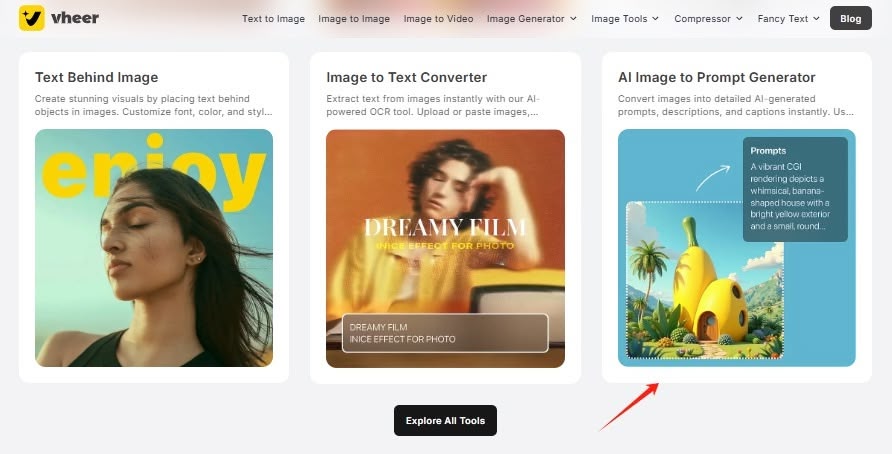
1. Visit the Tool
Go to Vheer.com and find the Image to Prompt Converter under the Image Tools section in the main menu.
2. Upload Your Sketch Image
You can upload a file in JPG, PNG, or WebP format directly from your device. Alternatively, if your sketch is hosted online, just paste the image URL into the provided box to load it instantly.
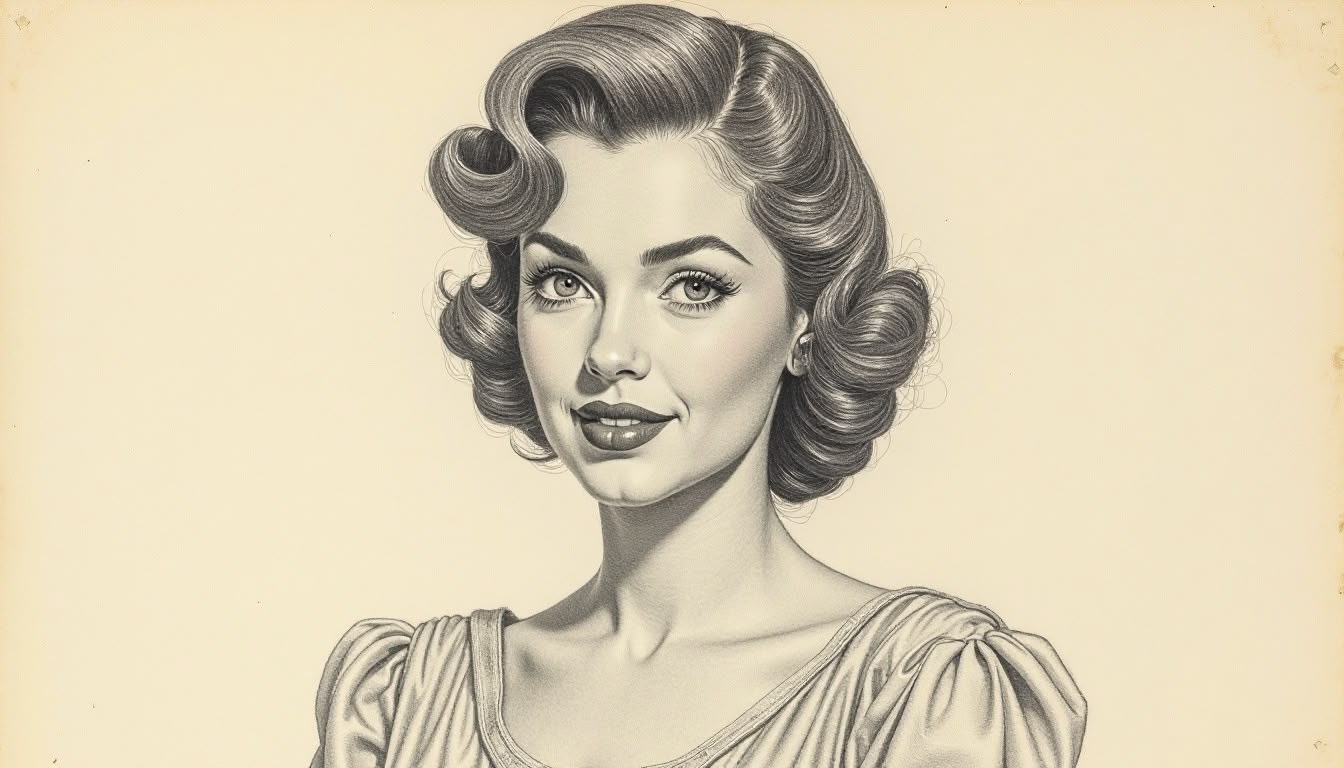
3. Choose a Prompt Type
Pick from four different prompt styles based on your goal:
- Simple – clean and concise
- Detailed – descriptive and specific
- Creative – imaginative and unique
- Tags – keyword format for quick edits or platform use
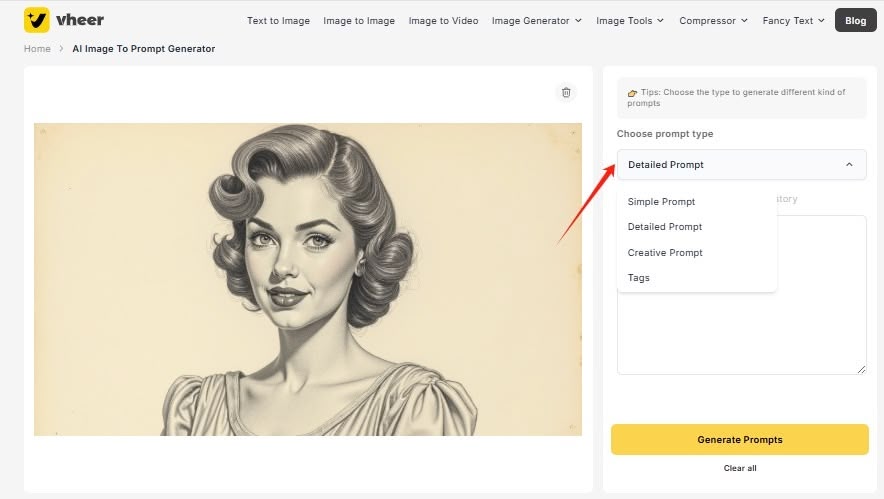
4. Generate Prompts
Click “Generate Prompts” and let Vheer analyze your image. In a few seconds, the AI will output a prompt in the selected style.
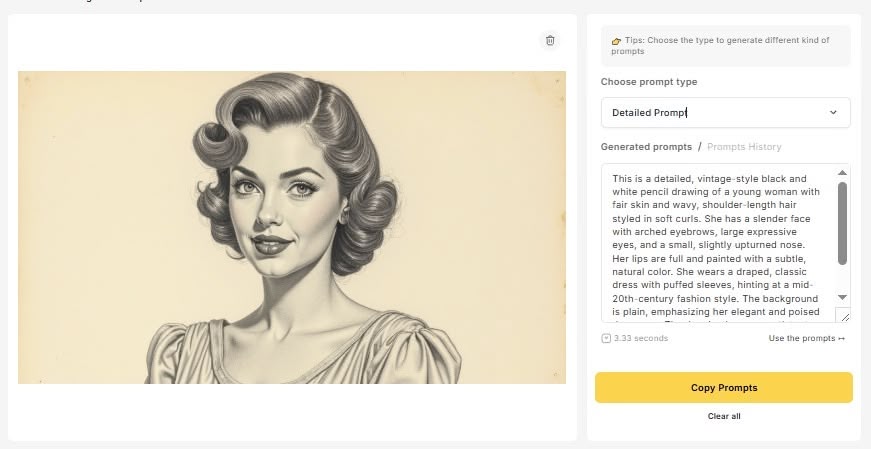
5. Preview AI-generated Prompt
Once the prompt appears in the text box. You can preview it.
For example, if you upload a sketch of a girl with wings, you might get:
- Simple: A detailed, black-and-white pencil drawing of a woman with short, wavy hair, wearing a draped dress, showcasing vintage 1940s style.
- Detailed: This is a detailed, vintage-style black and white pencil drawing of a young woman with fair skin and wavy, shoulder-length hair styled in soft curls. She has a slender face with arched eyebrows, large expressive eyes, and a small, slightly upturned nose. Her lips are full and painted with a subtle, natural color. She wears a draped, classic dress with puffed sleeves, hinting at a mid-20th-century fashion style. The background is plain, emphasizing her elegant and poised demeanor. The drawing has a smooth texture with fine, precise lines that highlight her features and clothing.
- Creative: A meticulously drawn vintage-style portrait of a fair-skinned woman with curly, shoulder-length hair styled in soft waves. She wears a classic, elegant dress with puffed sleeves. Her makeup is subtle, accentuating her natural beauty, and she has a serene, confident smile. The background is plain, emphasizing the detailed, monochromatic pencil artistry. The style evokes mid-20th-century fashion and beauty standards.
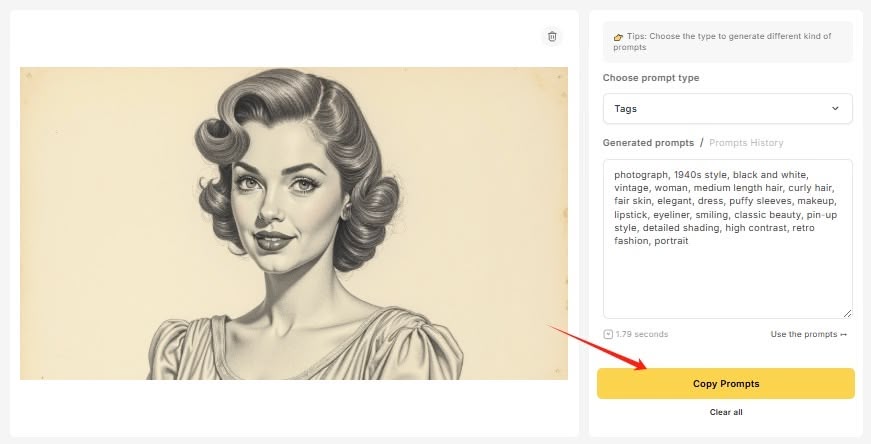
- Tags: photograph, 1940s style, black and white, vintage, woman, medium length hair, curly hair, fair skin, elegant, dress, puffy sleeves, makeup, lipstick, eyeliner, smiling, classic beauty, pin-up style, detailed shading, high contrast, retro fashion, portrait
Click “Copy Prompts” to use it in any AI art tool you like.
3. Use the Prompt to Generate New Sketch Art
Now that you have your AI-generated prompt, it’s time to turn it into a new piece of artwork. You can use the prompt in any AI image generator, but here we’ll show you how to use Vheer’s Text-to-Image Generator as an example.
1. Paste the prompt
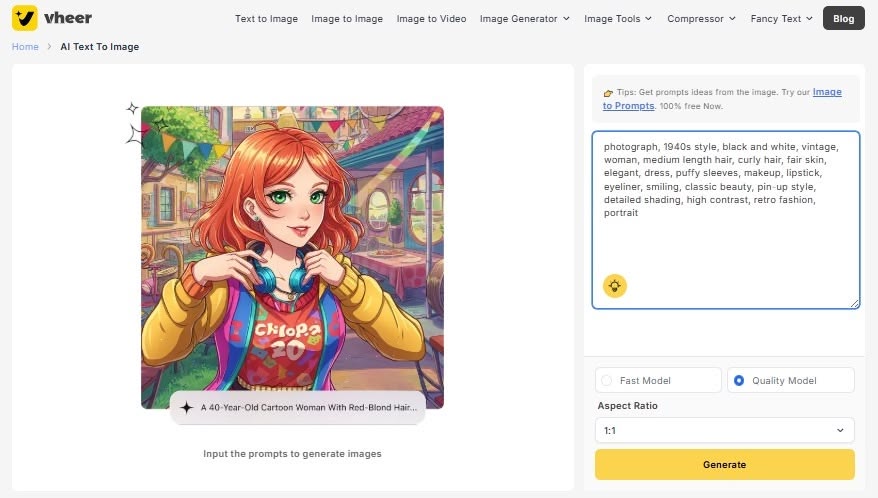
Copy the prompt and click “Use the prompt” to go to the interface of Vheer’s text to image generator where you can turn any random ideas into stunning images in seconds. Then, copy the prompt into the prompt box.
2. Customize Image Generation
Customize the image generation. For example, choose 1:1 as the aspect ratio for the outcome. And choose Quality mode to guarantee the best generation effect.
3. Let AI Generate New Sketch Art
Once the setting is done, click “Generate” and Vheer will automatically generate a new image from your provided prompt. This process takes only a few seconds.
4. Preview & Download
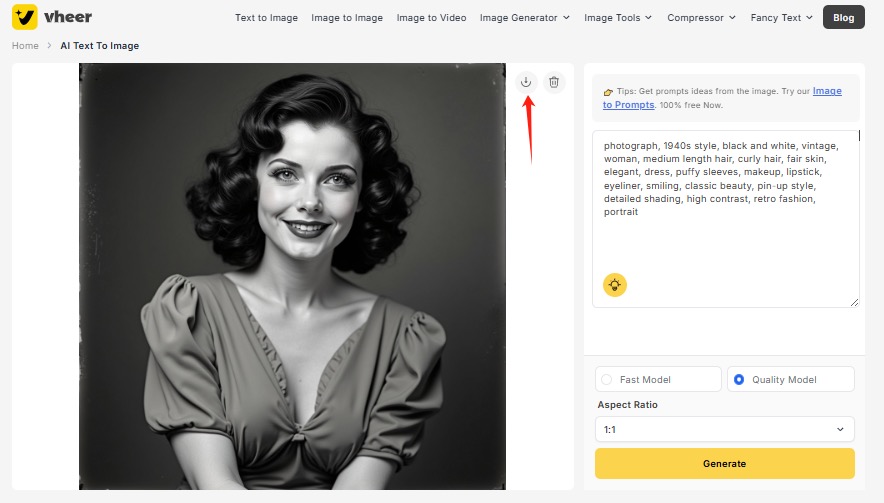
After generation, you’ll see a preview of your new AI sketch-style art. If you like it, click the download arrow to save it directly to your device.
Real Example: From Sketch to AI Art
Let’s walk through a quick example.
Original Sketch: A pencil drawing of a knight with a broken sword kneeling under a tree.
Generated Prompts (via Vheer):
Simple: A knight kneeling under a tree with a broken sword.
Detailed: A pencil sketch of a medieval knight, armor worn and cracked, kneeling with a broken sword beneath a twisted old tree.
Creative: A war-torn knight, sketched in graphite, kneels beneath the ancient tree of remembrance, his sword shattered, his eyes closed in prayer.
Image generated:
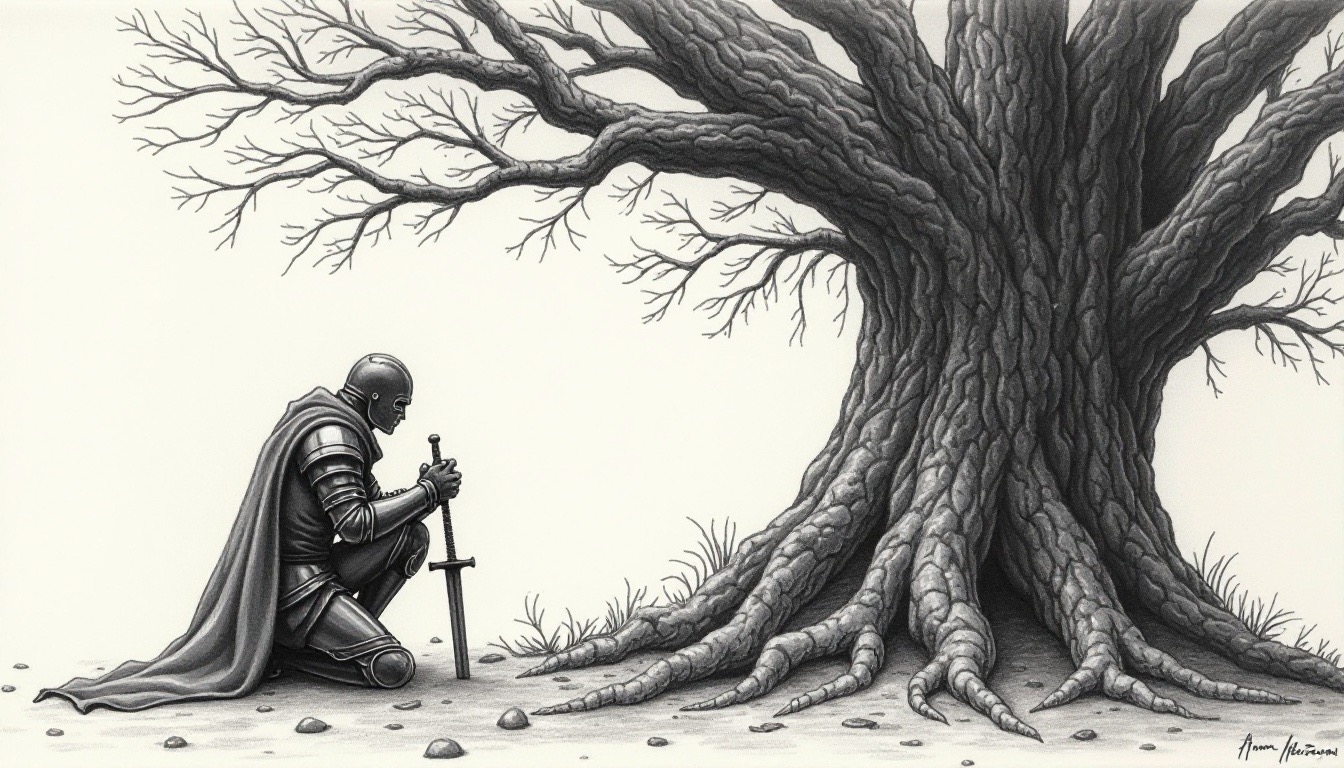
From a simple sketch to a full fantasy scene—that’s the power of sketch-based prompts.
Creative Use Cases
This workflow isn’t just for fun (though it’s definitely fun). Here are a few real-world uses:
- Character design: Sketch a concept, generate variations, and refine.
- Children’s art transformation: Turn your kid’s drawings into illustrated stories.
- Fashion or product design: Sketch ideas, then visualize them in style.
- Comics and storyboards: Use pencil drafts as a starting point for dynamic scenes.
- Reviving old sketchbooks: Give your old art new life in the digital world.
Conclusion
Turning your pencil sketch into a prompt is more than just a fun trick—it’s a bridge between traditional drawing and digital creation. With just a few strokes of a pencil and tools like the Vheer’s image to prompt tool, you can unlock entirely new dimensions of your ideas.