Chromebooks with touchscreen support have grown in popularity for their user-friendly design and hybrid usability, functioning as both laptops and tablets. However, while the touchscreen feature adds convenience, there are times when turning it off becomes necessary—either due to personal preference or hardware issues.
In this article, we’ll walk you through step-by-step methods to disable the touchscreen on your Chromebook, along with helpful tips and explanations to ensure you understand everything clearly. Whether you’re trying to avoid accidental touches or dealing with a broken screen, this guide will make the process easy to handle.
Why You Might Want to Disable the Touchscreen on a Chromebook
Touchscreen functionality is useful for many things, but there are several scenarios where disabling it can actually be more beneficial:
- Touchscreen Malfunction: A cracked or faulty screen may generate random touches, disrupting normal use.
- Battery Life Optimization: Turning off unused hardware components like the touchscreen may help in conserving battery power.
- Avoiding Accidental Inputs: Especially useful for teachers, presenters, or when kids are using the device.
- Distraction-Free Typing: When typing large documents or emails, unintentional touches can interrupt the workflow.
- User Preference: Some users simply prefer to use the trackpad or an external mouse instead of the touchscreen.
Method 1: Disabling Touchscreen via Chrome Flags (Using Keyboard Shortcuts)
This is the most reliable and widely compatible method. It involves enabling a hidden feature in Chrome OS known as Debugging Keyboard Shortcuts, which then allows toggling hardware components like the touchscreen and touchpad.
🔧 Steps to Disable the Touchscreen:
Step 1: Enable Debugging Shortcuts
- Open the Chrome browser on your Chromebook.
- In the address bar, type or paste:
chrome://flags/#ash-debug-shortcuts - Press Enter. You’ll be taken to the experimental features (Flags) section.
- You’ll see the option “Debugging keyboard shortcuts” highlighted.
- From the dropdown next to it, select “Enabled”.
- Click the “Restart” button that appears at the bottom to apply changes.
Step 2: Use the Shortcut to Turn Off the Touchscreen
Once your Chromebook restarts:
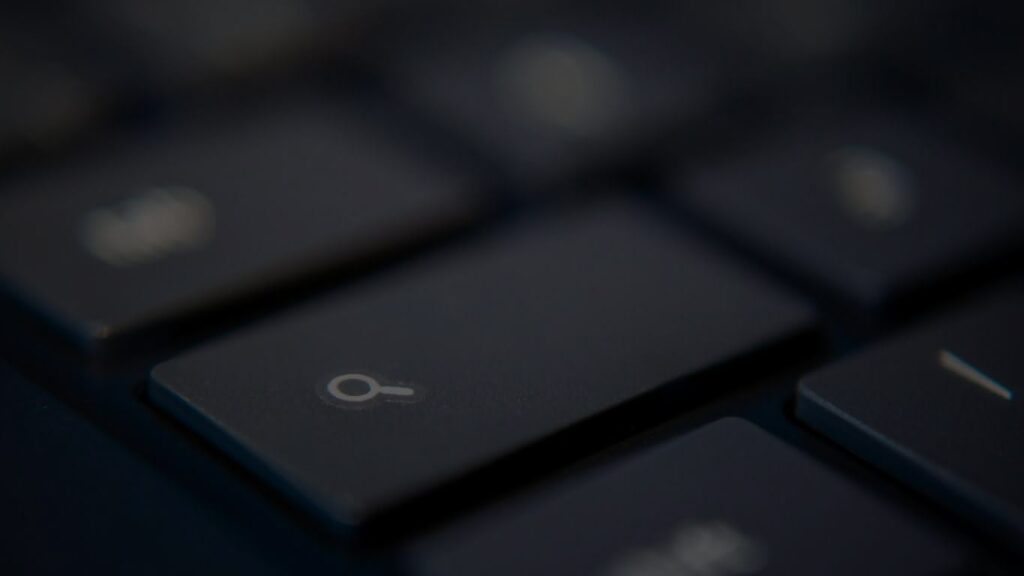
- Press Search + Shift + T on your keyboard.
- On some keyboards, the Search key may appear as a magnifying glass or a white dot.
- Your touchscreen should now be disabled.
- To enable it again, press the same key combination.
✅ Tip: This toggle method works both ways—you can switch the touchscreen on or off anytime using the same shortcut.
Method 2: Disabling Touchscreen from Accessibility Settings (If Available)
While not available on all Chromebook models, some devices—especially certain Acer models—may offer touchscreen control through built-in settings.
🛠️ Steps:
- Click on the Time in the bottom-right corner of the screen.
- Open Settings.
- Scroll down and click Advanced to expand more options.
- Go to Accessibility.
- Look for any toggle related to Touchscreen or Touch input.
- If found, turn it off.
🔎 Note: This method is limited to specific devices. If you don’t see the option, use Method 1 instead.
Bonus Tip: Disabling the Touchpad Using Shortcuts
You can also disable the touchpad using the same Debugging Shortcuts feature:
- After enabling the Debugging keyboard shortcuts from chrome://flags, press: Search + Shift + P
This will toggle your touchpad off or on. It’s useful if you’re using an external mouse or want to avoid cursor movements while typing.
Things to Keep in Mind
⚠️ Chrome Flags Are Experimental
The features found in chrome://flags are experimental. While generally safe, they are not officially supported by Google. They can change, move, or be removed in future updates of Chrome OS.
Always use caution and only adjust the settings you understand. Avoid exploring unrelated flags unless necessary.
Troubleshooting: Common Problems and How to Fix Them
🔁 Touchscreen Shortcut Doesn’t Work?
- Make sure Debugging keyboard shortcuts is enabled.
- Restart your Chromebook after enabling the flag.
- Press the key combo firmly and simultaneously.
- Some older models may not support this function.
⚙️ Can’t Turn Touchscreen Back On?
- Try pressing Search + Shift + T again.
- If it still doesn’t work, restart your device.
- As a last resort, return to
chrome://flags/#ash-debug-shortcuts, set it back to Disabled, and restart.
🛠️ Hardware-Related Issues
- If your touchscreen doesn’t work at all (even after toggling), it might be a hardware issue.
- Consider contacting a service center if the screen is unresponsive or shows signs of damage.
FAQs
✅ Can I permanently turn off the touchscreen?
Not officially, but the shortcut will keep it off until you press the combination again or reboot.
✅ Will turning off the touchscreen affect performance?
No. Disabling it doesn’t impact your Chromebook’s speed or functionality.
✅ What happens if I forget the shortcut?
The shortcut is Search + Shift + T. You can always refer to this guide or re-enable the flag and restart the process.
Conclusion
Touchscreen Chromebooks offer great flexibility, but knowing how to disable the touchscreen gives you better control, especially in situations where it becomes more of a hindrance than a help. With the simple steps outlined above, you can toggle your touchscreen on or off within seconds—no technical expertise needed.